> ## Documentation Index
> Fetch the complete documentation index at: https://moengage-unity-sdk-initialization-split.mintlify.site/llms.txt
> Use this file to discover all available pages before exploring further.
# Xoxoday Loyalife
> Connect Xoxoday Loyalife to MoEngage to sync loyalty events and member attributes nightly for tier, points, and activity-based cross-channel campaigns.
[Xoxoday Loyalife](https://help-loyalife.xoxoday.com) is an enterprise loyalty management platform designed to help brands design, execute, and scale loyalty programs. The platform manages points accrual, tier structures, redemptions, and member engagement across diverse industries.
# MoEngage \<> Xoxoday Loyalife
The Xoxoday Loyalife integration bridges your loyalty program data with MoEngage. This connection allows your marketing teams to trigger targeted Push, Email, and SMS campaigns based on specific loyalty milestones, such as points earned, tier upgrades, or impending point expirations.
Loyalife synchronizes loyalty events and member profile attributes to MoEngage through an automated nightly process. Once the data is available in MoEngage, you can segment members by their tier, points balance, or activity metrics to drive cross-channel engagement.
The Xoxoday Loyalife integration is built and maintained by Xoxoday. For configuration requests or issues specific to integration behavior, contact the Loyalife support team at [support@xoxoday.com](mailto:support@xoxoday.com).
## Use cases
When you connect Xoxoday Loyalife to MoEngage, you can synchronize audience data to support the following use cases:
* **Reward moments:** Trigger immediate notifications after a member earns points by tracking the `loyalty_points_earned` event to encourage immediate redemption.
* **Tier milestone campaigns:** Automate congratulatory messages and summarize new benefits when a user triggers a `loyalty_tier_upgraded` event.
* **Expiry nudges:** Use the points expiration forecast attribute `points_expiring_30d` to send timely reminders before points lapse.
* **Win-back flows:** Segment dormant members using the `days_since_last_activity` user attribute to re-engage users who have not transacted recently.
* **Segment-based targeting:** Target users dynamically as they enter or exit specific Loyalife segments using custom tag sync.
## Key Features and Functionality
The Xoxoday Loyalife integration delivers the following core capabilities within MoEngage:
* **Daily synchronization:** Every night at 12 AM, Loyalife executes an automated sync that transmits transactional events and updated profile data to MoEngage.
* **User profile updates:** Update member profiles with current points balances, enrollment details, and expiry projections to keep your segments accurate.
## Supported Data Types
The table below outlines the daily synchronization schemas from Xoxoday Loyalife:
| Data Type | What Gets Synced | Frequency |
| --------------------- | ---------------------------------------------------------------------------------------------------- | ------------------------------- |
| **Loyalty Events** | Event name, member identifier, points, earning type, and transaction details. | Nightly sync (daily activities) |
| **Member Attributes** | Points balance, tier level, account status, enrollment date, activity metrics, and expiry forecasts. | Nightly full refresh |
# Integration
**Prerequisites**
Before you set up this integration, ensure you have the following:
* An active Xoxoday Loyalife account with administrative access.
* Pre-existing user records in MoEngage with a Customer ID that matches their Loyalife Relation Reference.
* **Your MoEngage API credentials**: Workspace ID (App ID), Data API Key, and regional Dashboard URL.
## Step 1: Configure the Connection in Loyalife
To configure the data flow from the Loyalife admin portal, perform the following steps:
1. Sign in to your **Loyalife** admin portal.
2. In the left navigation menu, click **Program Settings** > **Integration**.
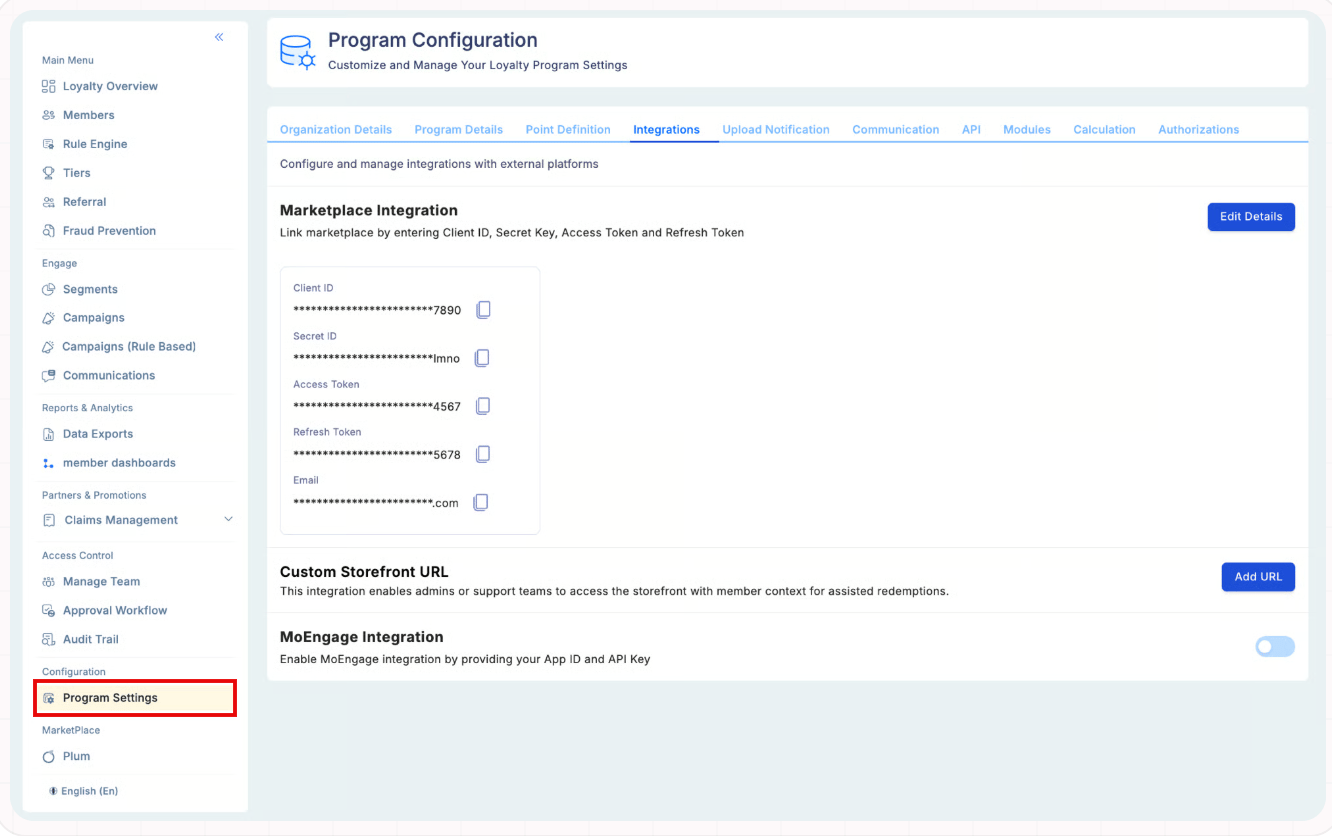 3. In the integration catalog, locate the **MoEngage Integration** section, and then turn the toggle on to open the configuration settings.
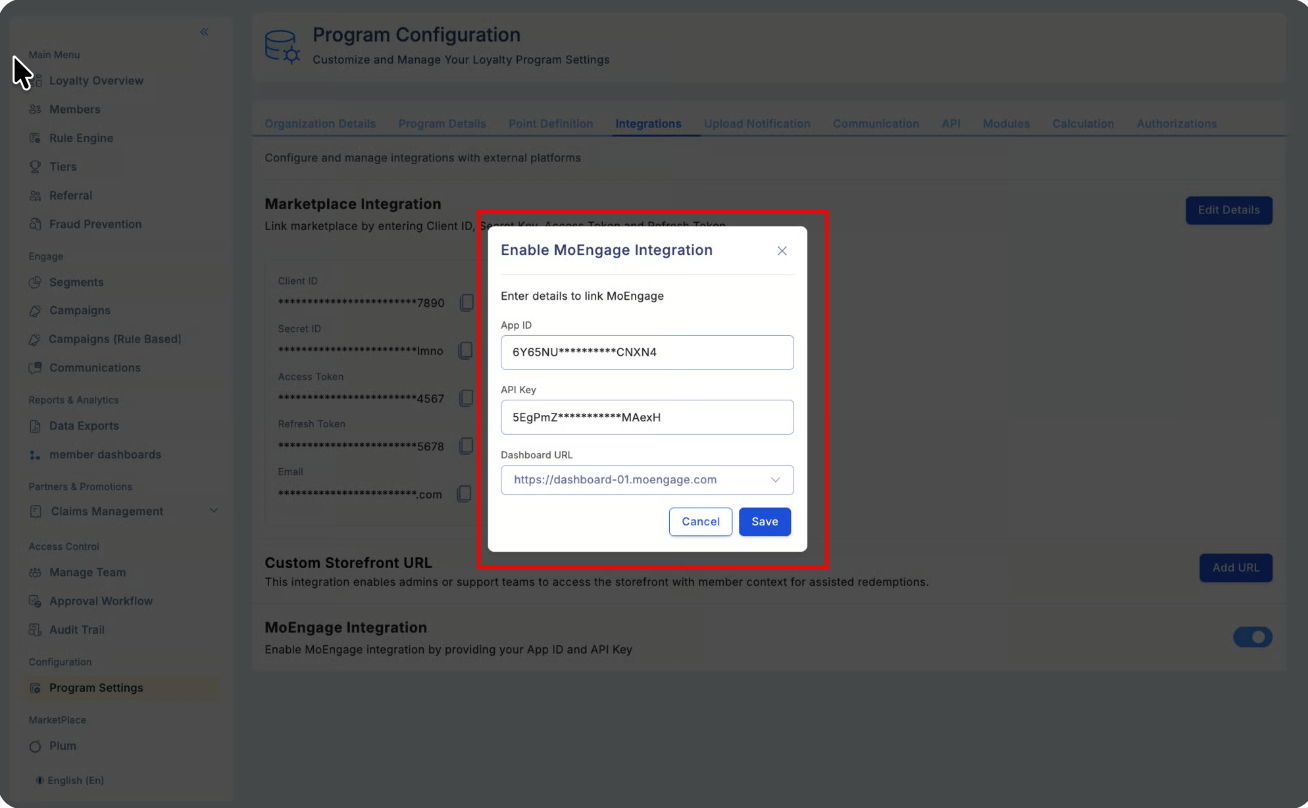
4. Enter your integration parameters:
| Field | Description |
| ----------------- | ----------------------------------------------------------------------------------- |
| **App ID** | Your MoEngage Workspace ID. |
| **API Key** | Your MoEngage Data API Key. |
| **Dashboard URL** | Your regional dashboard API URL (for example, `https://dashboard-01.moengage.com`). |
5. Click **Save**.
3. In the integration catalog, locate the **MoEngage Integration** section, and then turn the toggle on to open the configuration settings.
4. Enter your integration parameters:
| Field | Description |
| ----------------- | ----------------------------------------------------------------------------------- |
| **App ID** | Your MoEngage Workspace ID. |
| **API Key** | Your MoEngage Data API Key. |
| **Dashboard URL** | Your regional dashboard API URL (for example, `https://dashboard-01.moengage.com`). |
5. Click **Save**.
 **Security Warning:** Treat your MoEngage credentials as secrets. Never share them publicly. If you expose your Data API Key, rotate it in MoEngage and update your Loyalife settings immediately.
## Step 2: Verify Data in MoEngage
After the first nightly sync (post-12 AM), to verify data in MoEngage, perform the following steps:
1. **Audience:** Navigate to **Audience** > **Users** to confirm attributes like `tier` and `points_available` appear on profiles.
2. **Events:** Navigate to **Analyse** > **Events** to confirm receipt of events like `loyalty_points_earned`.
## Step 3: Build Campaigns in MoEngage
To build campaigns in MoEngage, perform the following steps:
1. Navigate to **Engage** > **Campaigns** > **+ Create campaign**.
2. Select your channel (**Push**, **Email**, or **SMS**).
3. **Segment:** Use loyalty attributes (for example, `member_lifecycle_stage`) to define your audience.
4. **Trigger:** For real-time responses, select **Event-triggered delivery** and choose a loyalty event (for example, `loyalty_tier_upgraded`). For more information, refer [here](https://help-loyalife.xoxoday.com/user-guides/configuration/moengage).
## Troubleshooting
| Issue | Possible Cause | Solution |
| ------------------------ | ----------------------------- | ---------------------------------------------------------------------------------------------------------------------------------------------------- |
| Data not appearing. | Mismatched regional endpoint. | Confirm the Dashboard URL matches your MoEngage region. Mismatched regions cause silent API failures. |
| Missing Events. | Identity mapping failure. | Ensure the member's Relation Reference in Loyalife exactly matches the Customer ID in MoEngage. MoEngage drops the data if it does not find a match. |
| Sync stops unexpectedly. | API Key rotation. | If you rotate your MoEngage API Key, you must update it in the Loyalife Integration settings immediately to prevent sync interruptions. |
**Security Warning:** Treat your MoEngage credentials as secrets. Never share them publicly. If you expose your Data API Key, rotate it in MoEngage and update your Loyalife settings immediately.
## Step 2: Verify Data in MoEngage
After the first nightly sync (post-12 AM), to verify data in MoEngage, perform the following steps:
1. **Audience:** Navigate to **Audience** > **Users** to confirm attributes like `tier` and `points_available` appear on profiles.
2. **Events:** Navigate to **Analyse** > **Events** to confirm receipt of events like `loyalty_points_earned`.
## Step 3: Build Campaigns in MoEngage
To build campaigns in MoEngage, perform the following steps:
1. Navigate to **Engage** > **Campaigns** > **+ Create campaign**.
2. Select your channel (**Push**, **Email**, or **SMS**).
3. **Segment:** Use loyalty attributes (for example, `member_lifecycle_stage`) to define your audience.
4. **Trigger:** For real-time responses, select **Event-triggered delivery** and choose a loyalty event (for example, `loyalty_tier_upgraded`). For more information, refer [here](https://help-loyalife.xoxoday.com/user-guides/configuration/moengage).
## Troubleshooting
| Issue | Possible Cause | Solution |
| ------------------------ | ----------------------------- | ---------------------------------------------------------------------------------------------------------------------------------------------------- |
| Data not appearing. | Mismatched regional endpoint. | Confirm the Dashboard URL matches your MoEngage region. Mismatched regions cause silent API failures. |
| Missing Events. | Identity mapping failure. | Ensure the member's Relation Reference in Loyalife exactly matches the Customer ID in MoEngage. MoEngage drops the data if it does not find a match. |
| Sync stops unexpectedly. | API Key rotation. | If you rotate your MoEngage API Key, you must update it in the Loyalife Integration settings immediately to prevent sync interruptions. |