> ## Documentation Index
> Fetch the complete documentation index at: https://moengage-unity-sdk-initialization-split.mintlify.site/llms.txt
> Use this file to discover all available pages before exploring further.
# How to Encourage Anonymous Users to Log In to the Website
# Introduction
Many app users interact anonymously without logging in, making it hard to understand their full intent. However, repeated app usage or specific interactions suggest high interest, making these users valuable for engagement.
Since they haven’t logged in, direct communication such as email or SMS isn’t possible. The best way to reach them is through On-site Messaging (OSM), displaying personalized prompts encouraging them to log in.
This article outlines how to create an OSM campaign targeting anonymous users, encouraging them to log in and explore the app's full benefits.
# Expected Result
Anonymous users will see a pop-up with a personalized message when they visit the website, encouraging them to log in and engage with the app. This aims to increase user registration and engagement.
* Your website must be integrated with [MoEngage Web SDK](/developer-guide/web-sdk/web-sdk-overview/web-sdk-overview).
* Events such as “Product Viewed” and “Added to Cart” must be integrated to capture a user’s behavior.
* Configure and integrate [On-site Messaging](/developer-guide/web-sdk/onsite-messaging/configure-and-integrate-on-site-messaging).
# Create an OSM Campaign
In this section, let us create an OSM campaign.
## Step 1: Target Users
1. Navigate to the sidebar on the left and click **Engage** > **Campaigns** and click **+ Create campaign**, or click **+ Create new**> **Campaign**.
2. Under **Inbound**, click **On-site**. You are taken to the first step, "Target users," of defining your campaign.
3. Enter the following details:
* **Campaign name**: Enter a name for the campaign. For example, "Personalized message."
* **Campaign tags**: Select the relevant campaign tags.
4. In the **Target platforms** section, select **Web**.
5. In the **Trigger criteria** section, select **On Page Load** to display a pop-up when an anonymous user visits the website.
6. In the **Select trigger time** section, select **After Delay** and set the delay to 10 seconds. When the targeted users open the website the next time, the OSM will be triggered after 10 seconds.
7. In the **Select pages** section, select **All pages**.
8. In the **Target Audience** section, define your audience as "users without an ID who are using the app without logging in" and exclude users who have logged in or have repeatedly dismissed the pop-up.
Campaigns become visible within minutes after publishing.
9. After the segment is refreshed, users who fulfill the segment criteria can view the campaign. For more information, refer [here](/user-guide/campaigns-and-channels/on-site-message/analyze/campaign-delivery-mobile-in-app-and-on-site-messaging-campaigns).
10. Click **Next** to move to the second step, "Content," where you can define the content for your campaign.
## Step 2: Content
For our use case, let us select the [New Editor](/user-guide/campaigns-and-channels/on-site-message/create/create-osm-campaign#step-2-define-content), which has over 40 different designs.
The communication can be of the following two types. You can use either of these communications to nudge your users to push for the next step:
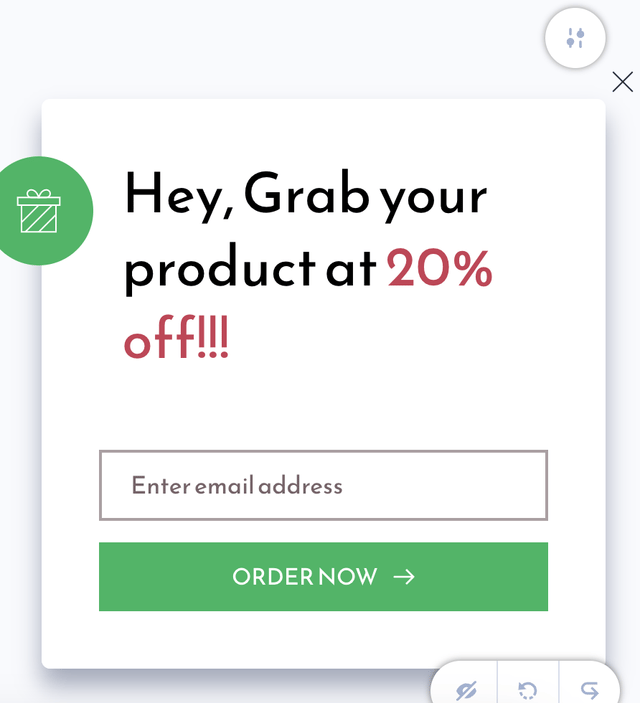
* **Non-personalized communication**: This would be an OSM with a simple message, such as a coupon code.
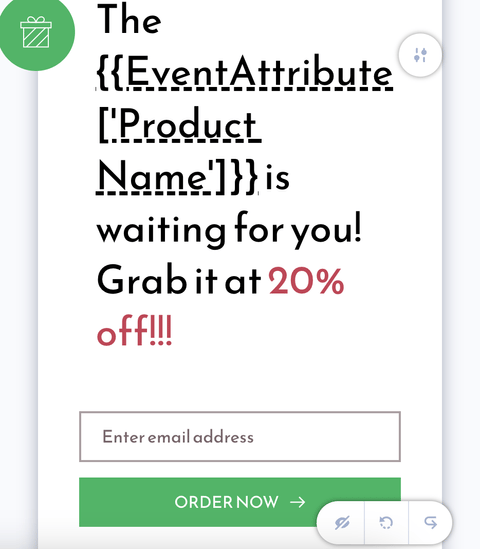
* **Personalized communication**: This would be an OSM with details such as product name and image with an engaging message.
1. Select a customizable pop-up template from the MoEngage library.
2. Design the pop-up message by performing the below-mentioned steps:
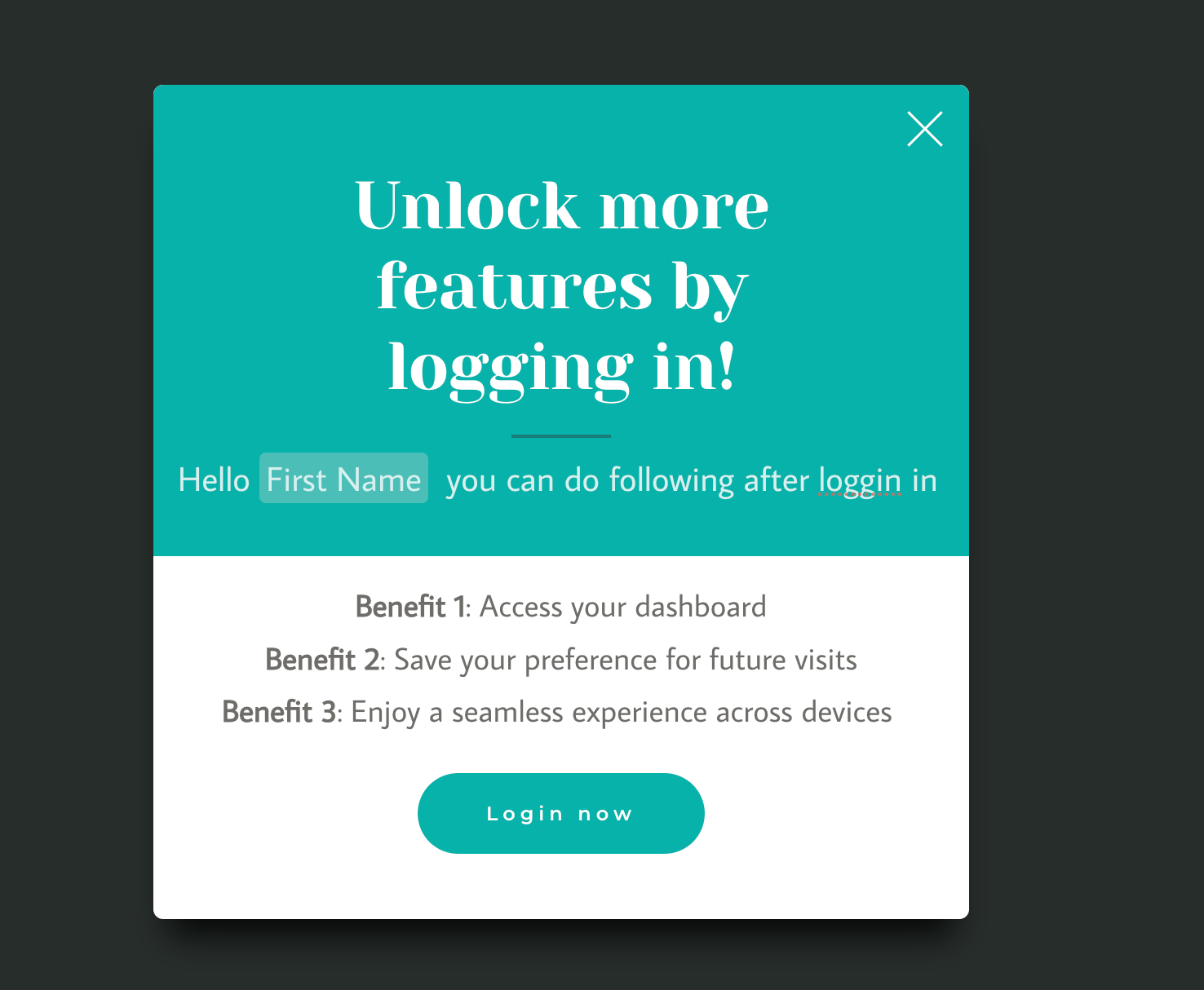
* **Add a Title:** "Unlock More Features by Logging In!"
* **Style**: Use a bold and attractive font to grab attention.
* **Include a Personalized Message:**
* **Text**: "Hello! {name} you can do the following after logging in"
* **Style**: Ensure the text is friendly and engaging.
* **Highlight the Benefits of Logging In:**
* **Benefit 1:** "Access your personalized dashboard."
* **Benefit 2:** "Save your preferences for future visits."
* **Benefit 3:** "Enjoy a seamless experience across devices."
* **Add a Call-to-Action (CTA) Button:** "Log In Now"
* **Link**: Direct the button to the login page.
* **Style**: Make the button stand out with a vibrant color and clear font.
* **Add a Close Button:** Allow users to dismiss the pop-up if they are uninterested.\\
3. Click **Next** to move to the third step, "Schedule and goals," where you can define your campaign's schedule and goals.
## Step 3: Schedule and Goals
1. In the **Send campaign** section, define when you want to start and end your OSM campaign and the frequency and limits to ensure the message is shown appropriately.
2. In the **Conversion Goals** section, add conversion goals that you would like to track.
3. In the **Campaign priority** section, assign a priority to this OSM campaign. Assigning a priority helps you decide which OSM to show a user when they are eligible for more than one OSM at a specific time. For example, selecting **Critical** ensures that the users will always see this even when there are other campaigns for which they are eligible. For more information, refer to [Create OSM Pro Campaign](/user-guide/campaigns-and-channels/on-site-message/create/create-osm-campaign).
4. In the **Global Delivery controls** section, turn the **Ignore global minimum delay** toggle on to override the defined minimum delay between any two campaigns defined in settings.
5. In the **Local Delivery controls** section, define the controls based on your requirements. For more information, refer to [Create OSM Pro Campaign](/user-guide/campaigns-and-channels/on-site-message/create/create-osm-campaign). Configure the pop-up to be shown only once per user.
6. Click **Publish**.
# Conclusion
In this use case, we created an OSM campaign to drive conversions from anonymous users, encouraging them to log in and explore the app's full benefits.
OSMs are powerful tools for reminding your users or sending an outbound message to help them proceed to the next step. By implementing this log-in encouragement pop-up, anonymous users are informed about the benefits of logging in through a personalized message. This approach helps to increase user registration and engagement, ultimately improving overall user activity and satisfaction.
 You are taken to the first step, "Target users," of defining your campaign.
3. Enter the following details:
* **Campaign name**: Enter a name for the campaign. For example, "Personalized message."
* **Campaign tags**: Select the relevant campaign tags.
4. In the **Target platforms** section, select **Web**.
5. In the **Trigger criteria** section, select **On Page Load** to display a pop-up when an anonymous user visits the website.
6. In the **Select trigger time** section, select **After Delay** and set the delay to 10 seconds. When the targeted users open the website the next time, the OSM will be triggered after 10 seconds.
You are taken to the first step, "Target users," of defining your campaign.
3. Enter the following details:
* **Campaign name**: Enter a name for the campaign. For example, "Personalized message."
* **Campaign tags**: Select the relevant campaign tags.
4. In the **Target platforms** section, select **Web**.
5. In the **Trigger criteria** section, select **On Page Load** to display a pop-up when an anonymous user visits the website.
6. In the **Select trigger time** section, select **After Delay** and set the delay to 10 seconds. When the targeted users open the website the next time, the OSM will be triggered after 10 seconds. 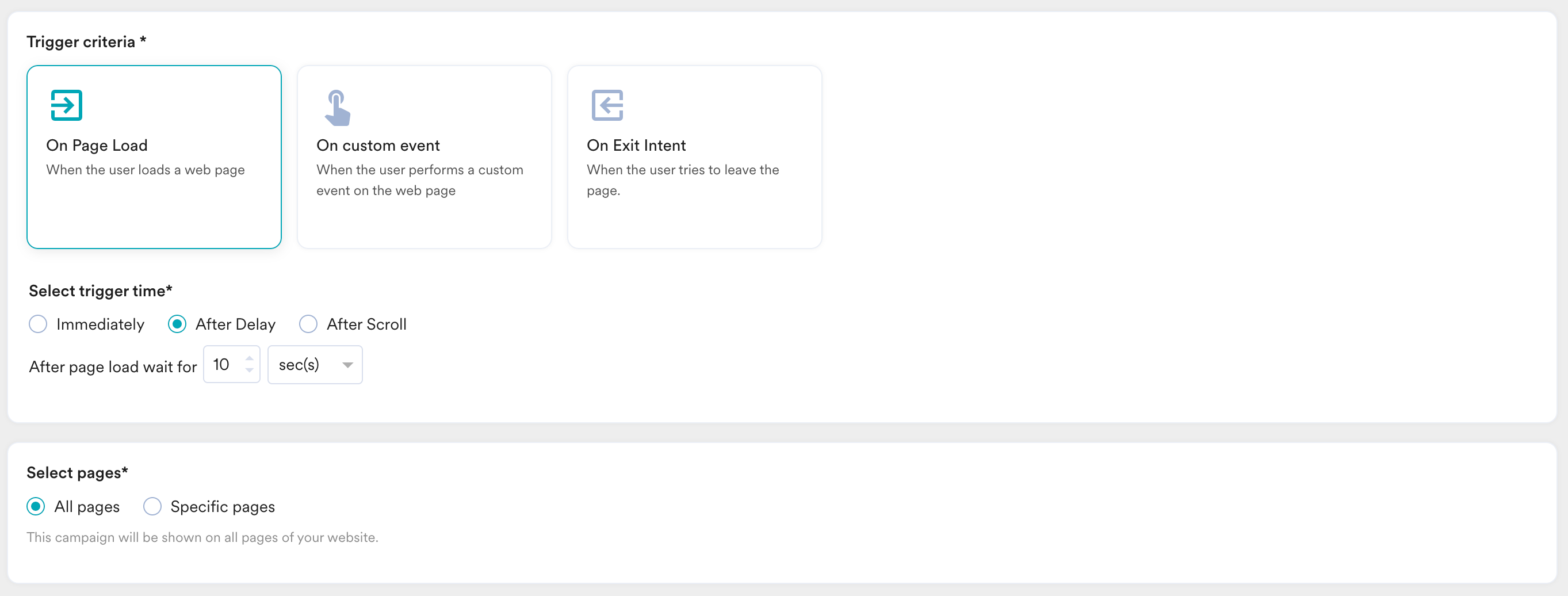 7. In the **Select pages** section, select **All pages**.
8. In the **Target Audience** section, define your audience as "users without an ID who are using the app without logging in" and exclude users who have logged in or have repeatedly dismissed the pop-up.
7. In the **Select pages** section, select **All pages**.
8. In the **Target Audience** section, define your audience as "users without an ID who are using the app without logging in" and exclude users who have logged in or have repeatedly dismissed the pop-up. 
 * **Personalized communication**: This would be an OSM with details such as product name and image with an engaging message.
 1. Select a customizable pop-up template from the MoEngage library.
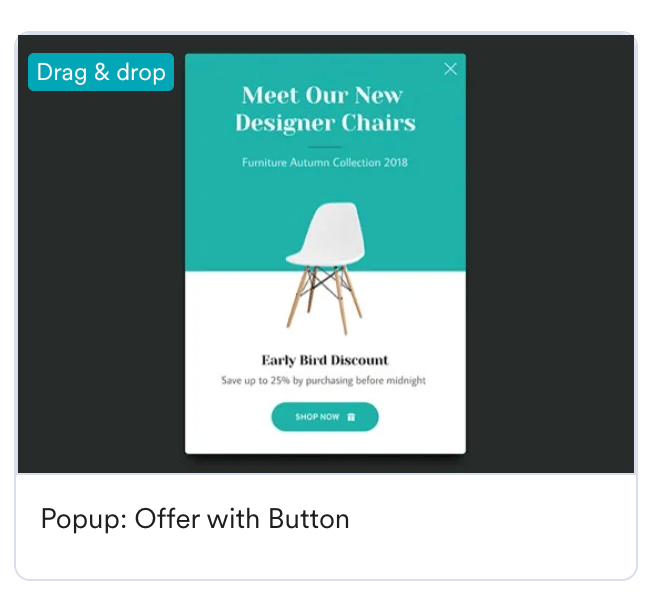 2. Design the pop-up message by performing the below-mentioned steps:
* **Add a Title:** "Unlock More Features by Logging In!"
* **Style**: Use a bold and attractive font to grab attention.
* **Include a Personalized Message:**
* **Text**: "Hello! {name} you can do the following after logging in"
* **Style**: Ensure the text is friendly and engaging.
* **Highlight the Benefits of Logging In:**
* **Benefit 1:** "Access your personalized dashboard."
* **Benefit 2:** "Save your preferences for future visits."
* **Benefit 3:** "Enjoy a seamless experience across devices."
* **Add a Call-to-Action (CTA) Button:** "Log In Now"
* **Link**: Direct the button to the login page.
* **Style**: Make the button stand out with a vibrant color and clear font.
* **Add a Close Button:** Allow users to dismiss the pop-up if they are uninterested.\\
3. Click **Next** to move to the third step, "Schedule and goals," where you can define your campaign's schedule and goals.
## Step 3: Schedule and Goals
1. In the **Send campaign** section, define when you want to start and end your OSM campaign and the frequency and limits to ensure the message is shown appropriately.
2. Design the pop-up message by performing the below-mentioned steps:
* **Add a Title:** "Unlock More Features by Logging In!"
* **Style**: Use a bold and attractive font to grab attention.
* **Include a Personalized Message:**
* **Text**: "Hello! {name} you can do the following after logging in"
* **Style**: Ensure the text is friendly and engaging.
* **Highlight the Benefits of Logging In:**
* **Benefit 1:** "Access your personalized dashboard."
* **Benefit 2:** "Save your preferences for future visits."
* **Benefit 3:** "Enjoy a seamless experience across devices."
* **Add a Call-to-Action (CTA) Button:** "Log In Now"
* **Link**: Direct the button to the login page.
* **Style**: Make the button stand out with a vibrant color and clear font.
* **Add a Close Button:** Allow users to dismiss the pop-up if they are uninterested.\\
3. Click **Next** to move to the third step, "Schedule and goals," where you can define your campaign's schedule and goals.
## Step 3: Schedule and Goals
1. In the **Send campaign** section, define when you want to start and end your OSM campaign and the frequency and limits to ensure the message is shown appropriately. 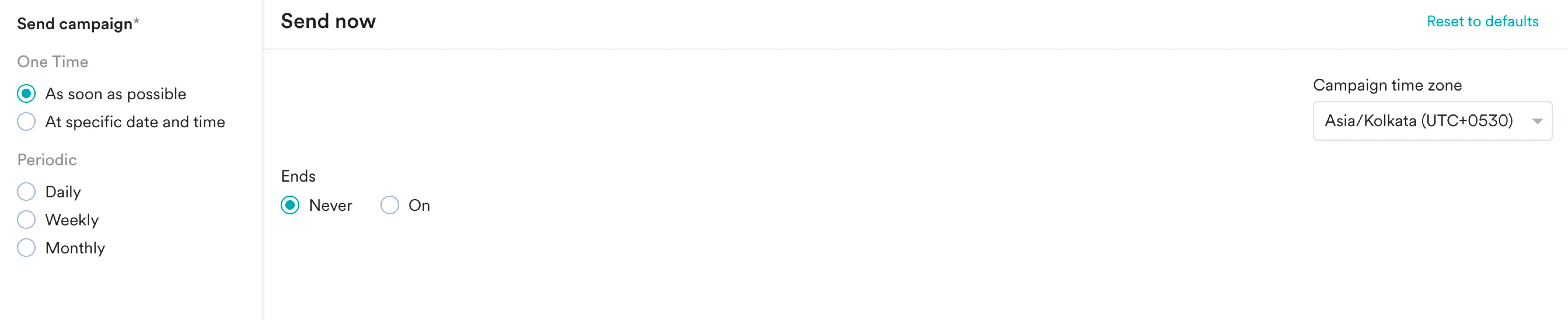 2. In the **Conversion Goals** section, add conversion goals that you would like to track.
3. In the **Campaign priority** section, assign a priority to this OSM campaign. Assigning a priority helps you decide which OSM to show a user when they are eligible for more than one OSM at a specific time. For example, selecting **Critical** ensures that the users will always see this even when there are other campaigns for which they are eligible. For more information, refer to [Create OSM Pro Campaign](/user-guide/campaigns-and-channels/on-site-message/create/create-osm-campaign).
4. In the **Global Delivery controls** section, turn the **Ignore global minimum delay** toggle on to override the defined minimum delay between any two campaigns defined in settings.
5. In the **Local Delivery controls** section, define the controls based on your requirements. For more information, refer to [Create OSM Pro Campaign](/user-guide/campaigns-and-channels/on-site-message/create/create-osm-campaign). Configure the pop-up to be shown only once per user.
2. In the **Conversion Goals** section, add conversion goals that you would like to track.
3. In the **Campaign priority** section, assign a priority to this OSM campaign. Assigning a priority helps you decide which OSM to show a user when they are eligible for more than one OSM at a specific time. For example, selecting **Critical** ensures that the users will always see this even when there are other campaigns for which they are eligible. For more information, refer to [Create OSM Pro Campaign](/user-guide/campaigns-and-channels/on-site-message/create/create-osm-campaign).
4. In the **Global Delivery controls** section, turn the **Ignore global minimum delay** toggle on to override the defined minimum delay between any two campaigns defined in settings.
5. In the **Local Delivery controls** section, define the controls based on your requirements. For more information, refer to [Create OSM Pro Campaign](/user-guide/campaigns-and-channels/on-site-message/create/create-osm-campaign). Configure the pop-up to be shown only once per user. 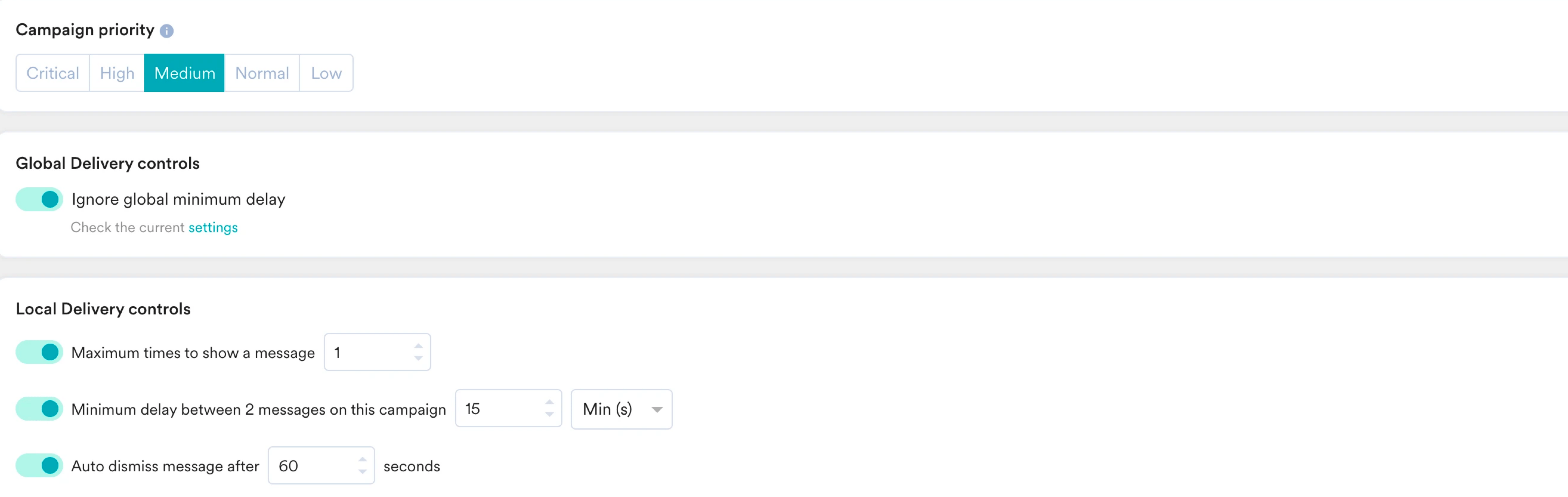 6. Click **Publish**.
# Conclusion
In this use case, we created an OSM campaign to drive conversions from anonymous users, encouraging them to log in and explore the app's full benefits.
OSMs are powerful tools for reminding your users or sending an outbound message to help them proceed to the next step. By implementing this log-in encouragement pop-up, anonymous users are informed about the benefits of logging in through a personalized message. This approach helps to increase user registration and engagement, ultimately improving overall user activity and satisfaction.
6. Click **Publish**.
# Conclusion
In this use case, we created an OSM campaign to drive conversions from anonymous users, encouraging them to log in and explore the app's full benefits.
OSMs are powerful tools for reminding your users or sending an outbound message to help them proceed to the next step. By implementing this log-in encouragement pop-up, anonymous users are informed about the benefits of logging in through a personalized message. This approach helps to increase user registration and engagement, ultimately improving overall user activity and satisfaction.