> ## Documentation Index
> Fetch the complete documentation index at: https://moengage-unity-sdk-initialization-split.mintlify.site/llms.txt
> Use this file to discover all available pages before exploring further.
# Merlin AI In-App Template Generator
> Generate responsive, accessible in-app message templates from text prompts using Merlin AI, including gamified elements and countdown timer designs.
The Merlin AI Template Generator allows you to create In-App message templates using text prompts. You can create HTML designs that are accessible, responsive, and equipped with standard tracking capabilities.
## Use Cases
Merlin AI can be used to generate various types of In-App templates. You can use Merlin AI to:
* **Create gamified templates:** Build interactive components like "Spin the Wheel" to drive user participation and reward distribution.
* **Highlight time-sensitive offers:** Generate countdown timers to emphasize sales deadlines or registration windows.
* **Capture user leads:** Design pop-ups with input fields to collect information such as email addresses or phone numbers.
* **Collect customer feedback:** Build multi-option survey forms to track user preferences or net promoter scores (NPS).
* **Announce product updates:** Create full-screen or partial pop-ups to communicate new feature launches or seasonal sales.
For industry-specific examples and ready-to-use prompts, see [In-App Template Use Cases by Industry](/user-guide/ai-and-intelligence/merlin-ai/merlin-ai-in-app-template-generator/in-app-template-use-cases).
**Feature Specifications**
* **Tracking:** Automatically includes event tracking for close buttons, form submissions, and primary CTA clicks.
* **Responsiveness:** Templates adapt to both portrait and landscape orientations by default.
* **Accessibility:** Designs follow accessibility standards for inclusive user interaction.
## Generate a Template
To generate an In-App template with Merlin AI, follow these steps:
1. Navigate to the **Content** step of the [In-App campaign creation](/user-guide/campaigns-and-channels/in-app-message/create/create-in-app-campaign) flow.
2. In the **Merlin AI template generator** section, click **+ Create new**.
 3. Specify your requirements using one of the following methods:
* **Select a Suggestion:** Choose a pre-defined use case, such as a *Spin the wheel pop-up* or *Survey form*.
* **Custom Prompt:** Enter technical or design requirements in the input field.
* **Reference Image:** Click the **Add image with your prompt** icon next to the prompt field to attach a PNG reference (for example, a screenshot or a Figma export). For more details, see [Use a reference image](#use-a-reference-image).
3. Specify your requirements using one of the following methods:
* **Select a Suggestion:** Choose a pre-defined use case, such as a *Spin the wheel pop-up* or *Survey form*.
* **Custom Prompt:** Enter technical or design requirements in the input field.
* **Reference Image:** Click the **Add image with your prompt** icon next to the prompt field to attach a PNG reference (for example, a screenshot or a Figma export). For more details, see [Use a reference image](#use-a-reference-image).
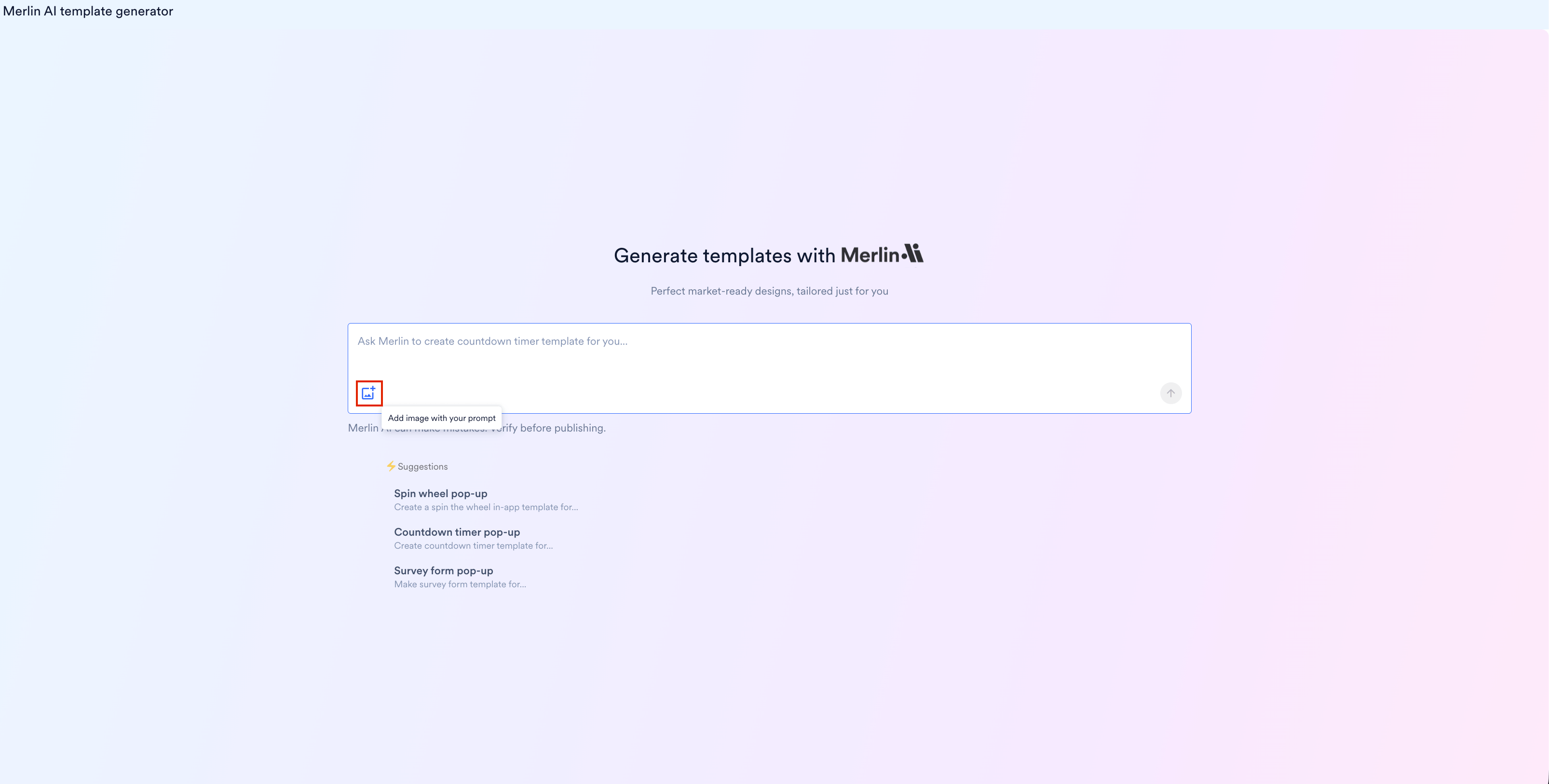 4. Click the **Send** icon to generate the template.
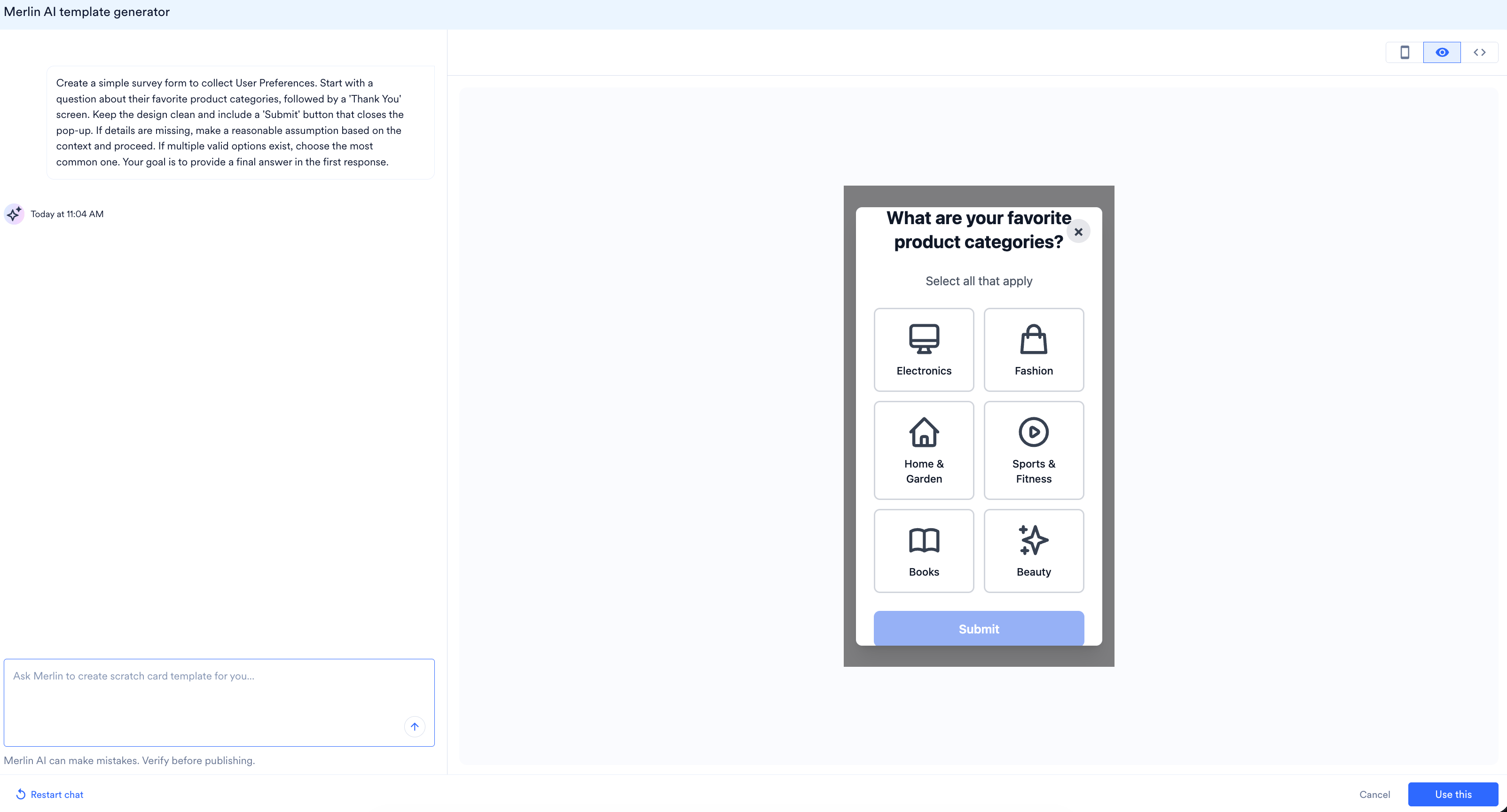
5. Review the generated design using the preview tools:
* **Device Preview:** Click the **Phone** icon to view the layout on a mobile screen.
* **Preview:** Click the **Eye** icon to preview the generated template.
* **Code Inspector:** Click the **Code** icon to view the underlying HTML code.
4. Click the **Send** icon to generate the template.
5. Review the generated design using the preview tools:
* **Device Preview:** Click the **Phone** icon to view the layout on a mobile screen.
* **Preview:** Click the **Eye** icon to preview the generated template.
* **Code Inspector:** Click the **Code** icon to view the underlying HTML code.
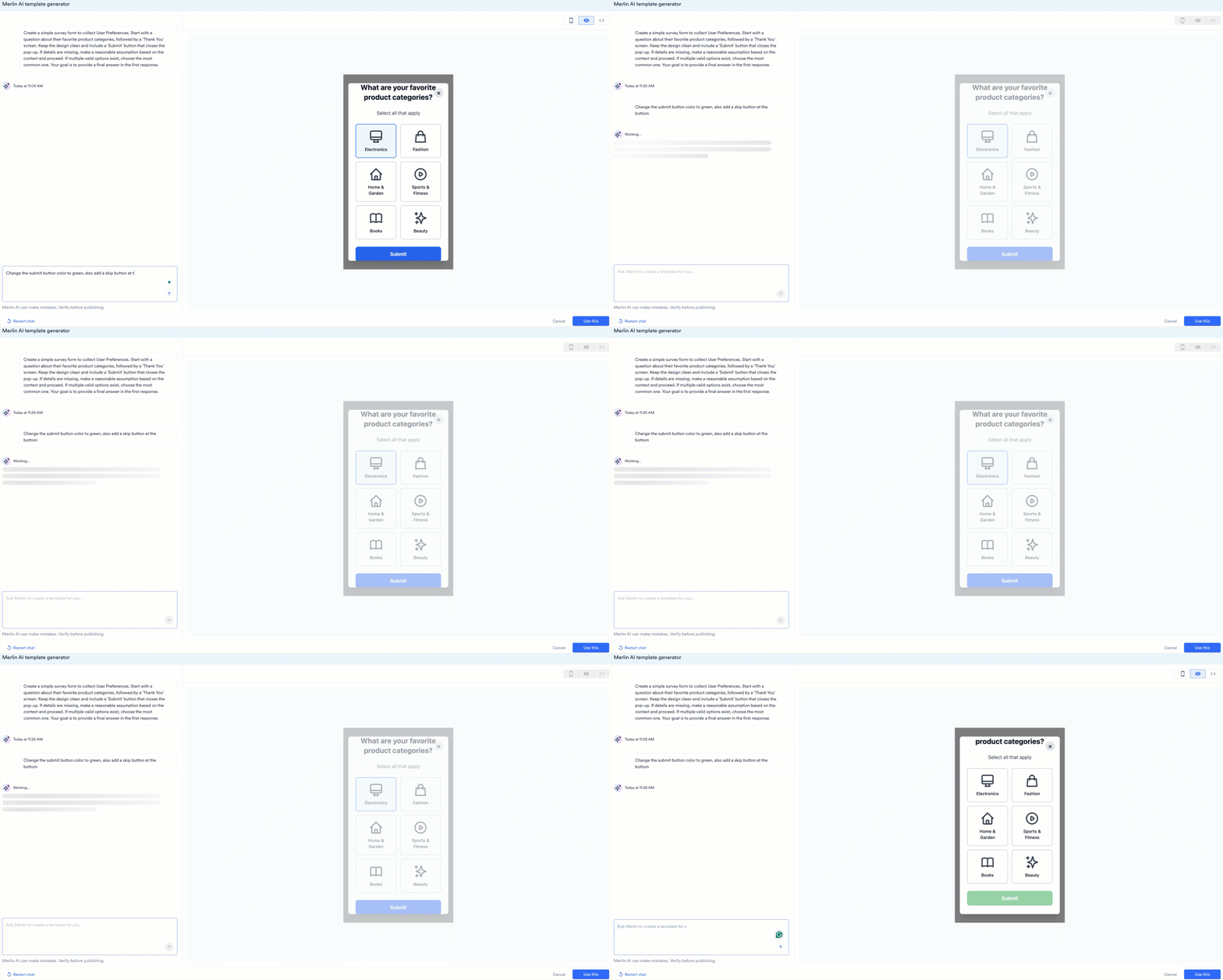
 6. To refine the design, provide additional instructions in the prompt field (for example, "Change the 'Submit' button color to green" or "Add a 'Skip' option at the bottom").
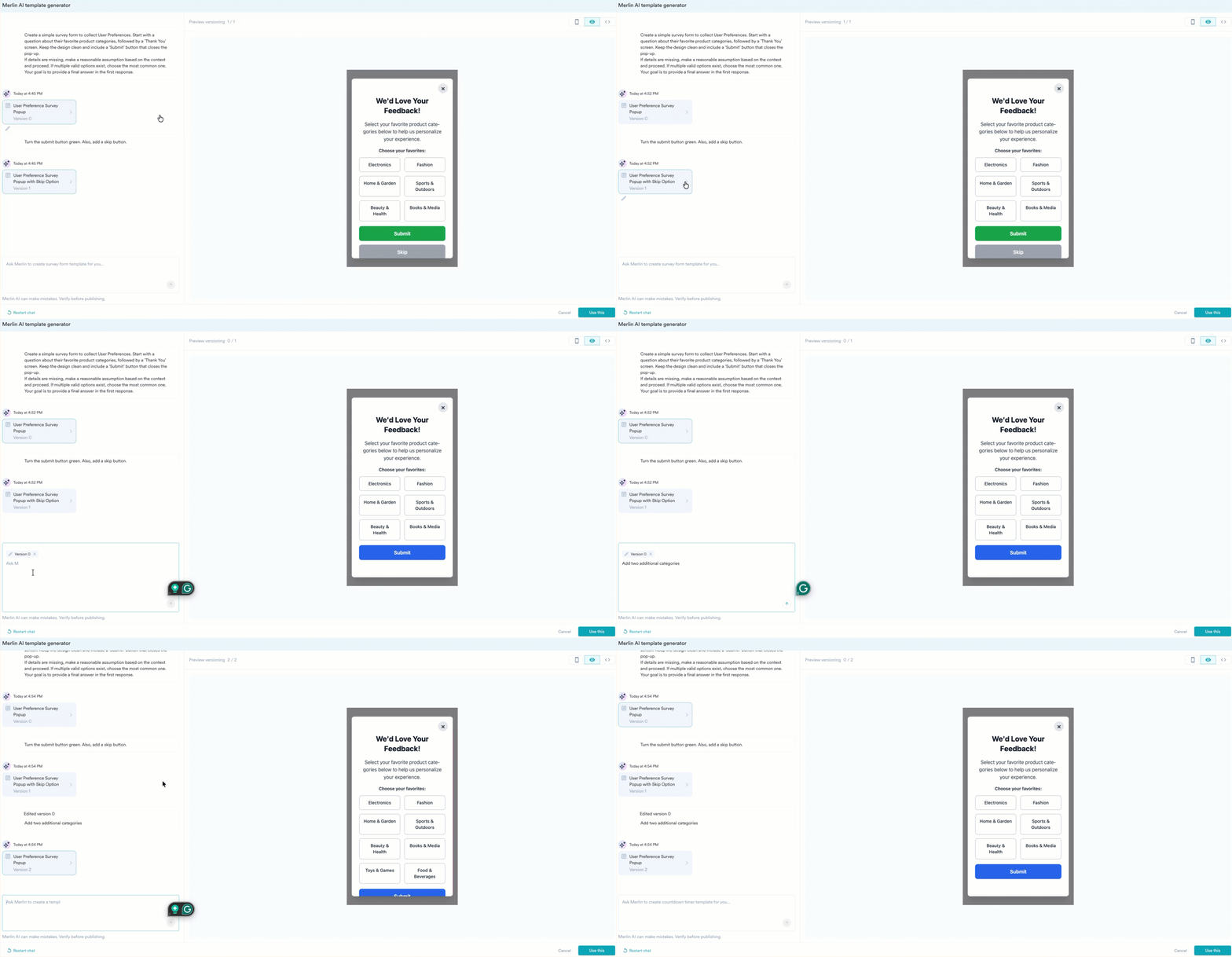
 7. Each iteration creates a new **Version** card in the chat history.
* **Preview Versions:** Click any version card (for example, Version 0, Version 1) in the chat to view that specific design in the preview pane.
* **Edit a Version:** Click the **Pencil icon** on a version card to select it as the base for further prompt-based edits.
7. Each iteration creates a new **Version** card in the chat history.
* **Preview Versions:** Click any version card (for example, Version 0, Version 1) in the chat to view that specific design in the preview pane.
* **Edit a Version:** Click the **Pencil icon** on a version card to select it as the base for further prompt-based edits.
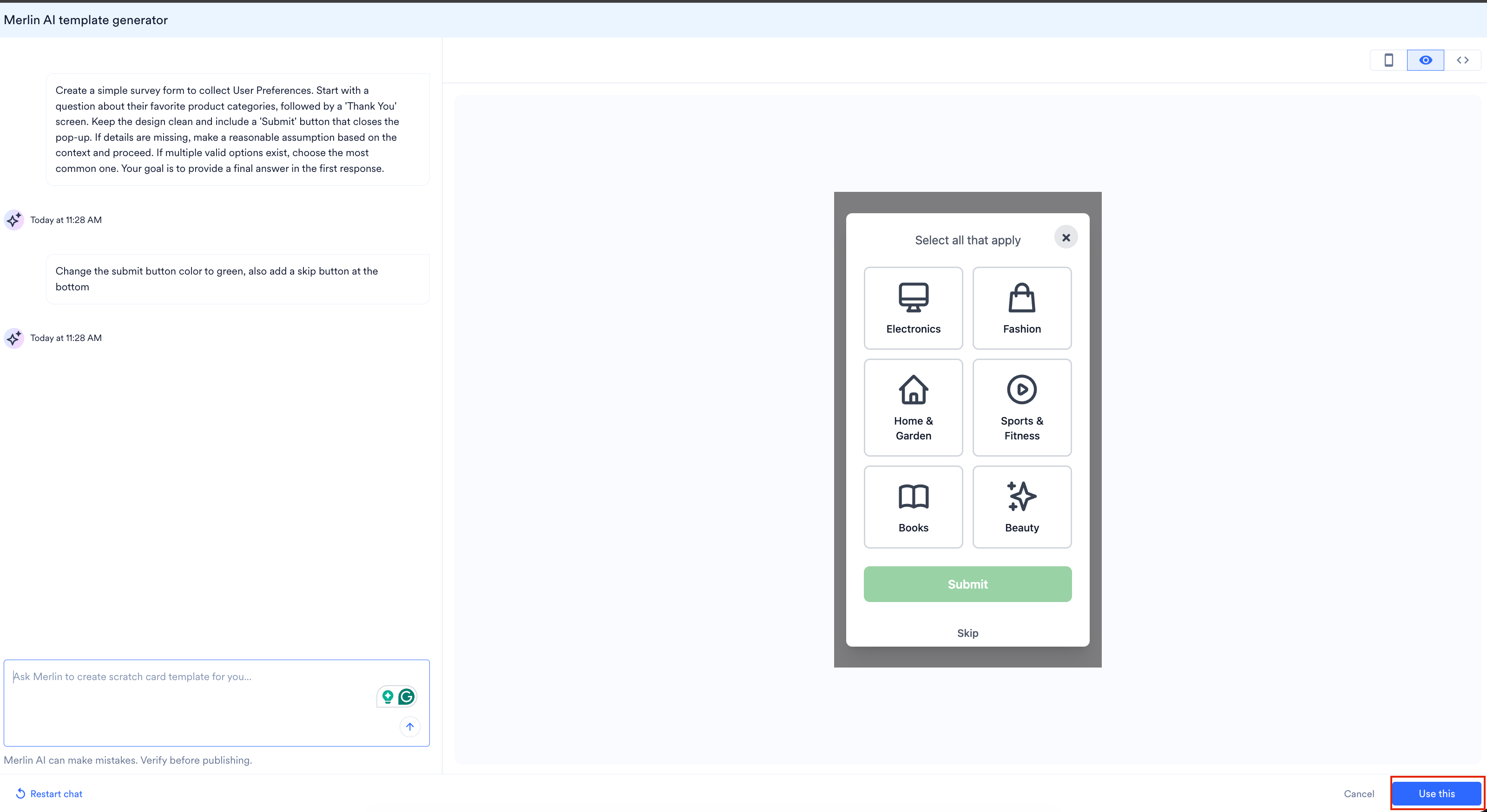
 8. Click **Use this** to apply the generated HTML to your campaign.
## Use a Reference Image
You can attach a reference image alongside your prompt to generate a template that mirrors an existing design. This is useful when you want to replicate a screenshot, recreate a template you've seen elsewhere, or convert an approved design from a tool like Figma into an In-App template.
To generate a template from a reference image:
1. In the Merlin AI chat, click the **Image** icon next to the prompt field.
2. Upload a PNG file of the design you want to replicate.
3. Enter a prompt describing what you want (for example, *Create a similar template*).
4. Click the **Send** icon. Merlin AI generates an HTML template based on the reference image and your prompt.
5. Refine the output using follow-up prompts, the same way you would with a text-only generation.
8. Click **Use this** to apply the generated HTML to your campaign.
## Use a Reference Image
You can attach a reference image alongside your prompt to generate a template that mirrors an existing design. This is useful when you want to replicate a screenshot, recreate a template you've seen elsewhere, or convert an approved design from a tool like Figma into an In-App template.
To generate a template from a reference image:
1. In the Merlin AI chat, click the **Image** icon next to the prompt field.
2. Upload a PNG file of the design you want to replicate.
3. Enter a prompt describing what you want (for example, *Create a similar template*).
4. Click the **Send** icon. Merlin AI generates an HTML template based on the reference image and your prompt.
5. Refine the output using follow-up prompts, the same way you would with a text-only generation.
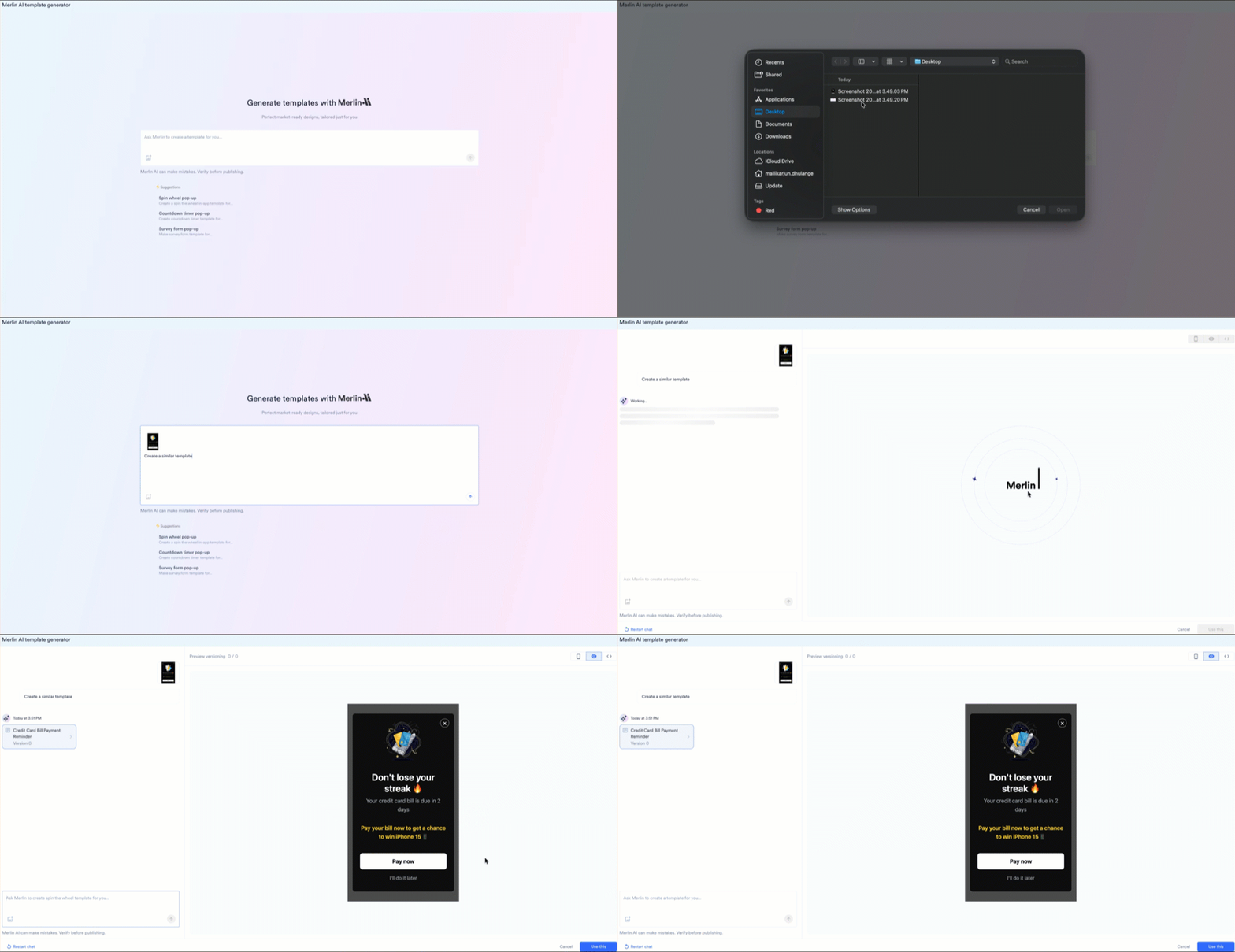 **Image Upload Limits**
* You can attach **one image per prompt**.
* You can upload up to **10 images per session**.
For tips on using a Figma export as your reference, see the [FAQs](#faqs) at the bottom of this page.
## Prompt Guidelines
To ensure accurate output, provide specific details on the layout and components. Refer to the following structure:
**Template Type:** Full-screen, Nudge, or Bottom sheet.
**Use Case:** Lead generation, Promotional, or Feedback survey.
**Core Components:** Input fields, countdown timers, or interactive wheels.
**Functional Elements:** Specific CTA text, hex color codes, and close button placement.
### Example: Structured Prompt
The following is an example of a comprehensive prompt for a "Spin the Wheel" campaign:
**Type:** Fullscreen
**Use Case:** Lead Gen
**Core Component:** Spin wheel with 6 slices containing the following prizes:
* Slice 1: 10% Off (Coupon Code: SUMMER10)
* Slice 2: 20% Off (Coupon Code: SUMMER20)
* Slice 3: Free Shipping (Coupon Code: FREESHIP)
* Slice 4: 15% Off (Coupon Code: SUMMER15)
* Slice 5: Buy 1 Get 1 50% Off (Coupon Code: SUMMERBOGO)
* Slice 6: Better Luck Next Time (No coupon code)
**Other Components:**
* Dismiss button (X) in top-right corner.
* Email input field for lead capture before spinning.
* Winning overlay screen: prize name, coupon code, and a "Shop Now" button.
* Losing overlay screen: "Better Luck Next Time" text with a "Browse Anyway" button.
**Theme:** Clean Summer Sale theme.
**CTA:** Spin to Win.
**Action Logic:** On clicking "Spin to Win," the wheel spins and lands on a random slice. If the user wins, display the winning overlay with store redirection. If the user loses, display the losing overlay with "Browse Anyway" redirection.
## Template Management
### Save for Future Use
Generated templates can be saved for use in other campaigns:
1. To transfer the generated design to the HTML editor, click **Use this**.
**Image Upload Limits**
* You can attach **one image per prompt**.
* You can upload up to **10 images per session**.
For tips on using a Figma export as your reference, see the [FAQs](#faqs) at the bottom of this page.
## Prompt Guidelines
To ensure accurate output, provide specific details on the layout and components. Refer to the following structure:
**Template Type:** Full-screen, Nudge, or Bottom sheet.
**Use Case:** Lead generation, Promotional, or Feedback survey.
**Core Components:** Input fields, countdown timers, or interactive wheels.
**Functional Elements:** Specific CTA text, hex color codes, and close button placement.
### Example: Structured Prompt
The following is an example of a comprehensive prompt for a "Spin the Wheel" campaign:
**Type:** Fullscreen
**Use Case:** Lead Gen
**Core Component:** Spin wheel with 6 slices containing the following prizes:
* Slice 1: 10% Off (Coupon Code: SUMMER10)
* Slice 2: 20% Off (Coupon Code: SUMMER20)
* Slice 3: Free Shipping (Coupon Code: FREESHIP)
* Slice 4: 15% Off (Coupon Code: SUMMER15)
* Slice 5: Buy 1 Get 1 50% Off (Coupon Code: SUMMERBOGO)
* Slice 6: Better Luck Next Time (No coupon code)
**Other Components:**
* Dismiss button (X) in top-right corner.
* Email input field for lead capture before spinning.
* Winning overlay screen: prize name, coupon code, and a "Shop Now" button.
* Losing overlay screen: "Better Luck Next Time" text with a "Browse Anyway" button.
**Theme:** Clean Summer Sale theme.
**CTA:** Spin to Win.
**Action Logic:** On clicking "Spin to Win," the wheel spins and lands on a random slice. If the user wins, display the winning overlay with store redirection. If the user loses, display the losing overlay with "Browse Anyway" redirection.
## Template Management
### Save for Future Use
Generated templates can be saved for use in other campaigns:
1. To transfer the generated design to the HTML editor, click **Use this**.
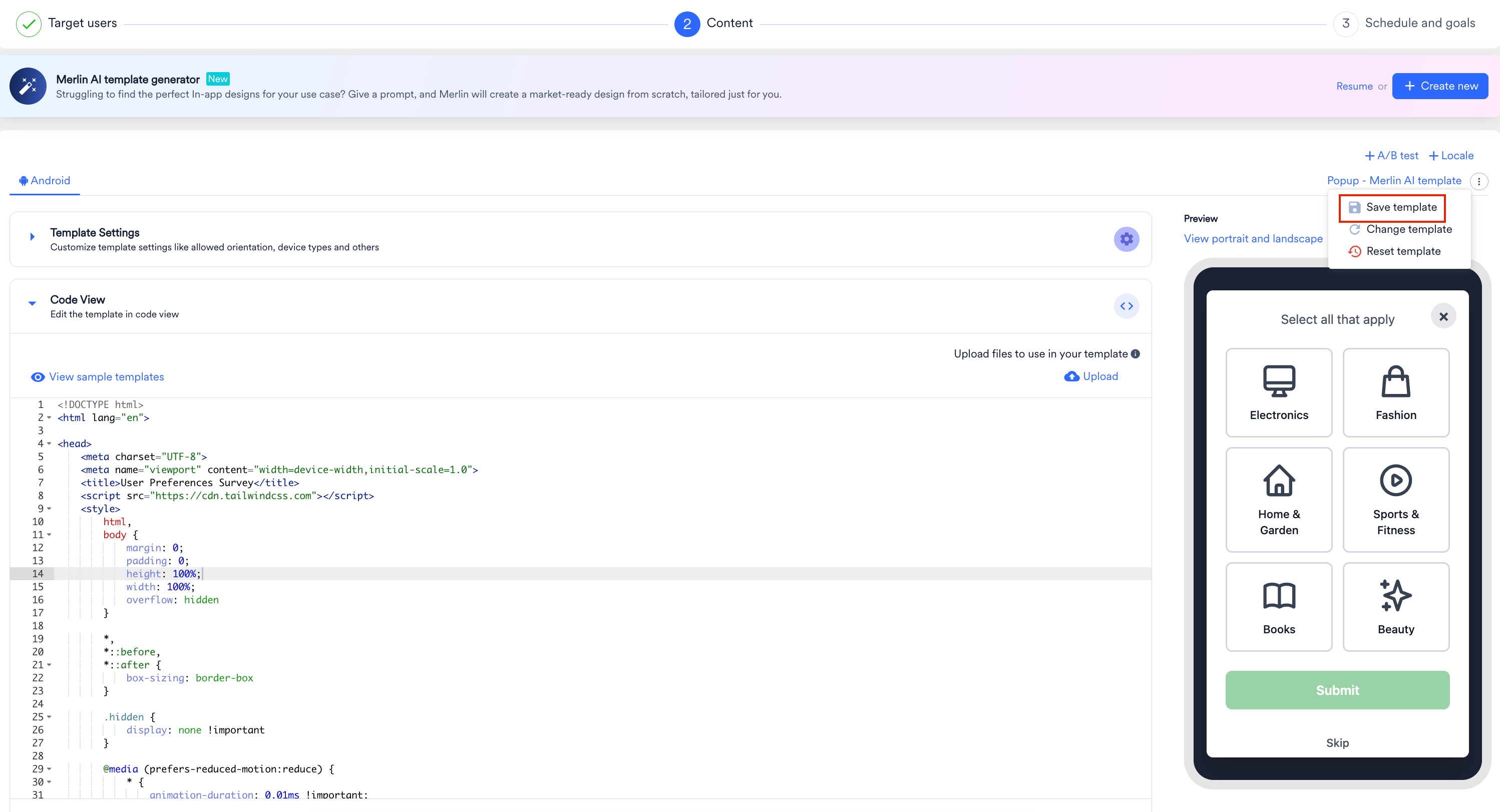
 2. On the Content page, click the **three dots** menu.
3. Click **Save Template**. The **Save as template for future use** dialog box appears.
2. On the Content page, click the **three dots** menu.
3. Click **Save Template**. The **Save as template for future use** dialog box appears.
 4. In the **Save as** box, enter a desired name for your template.
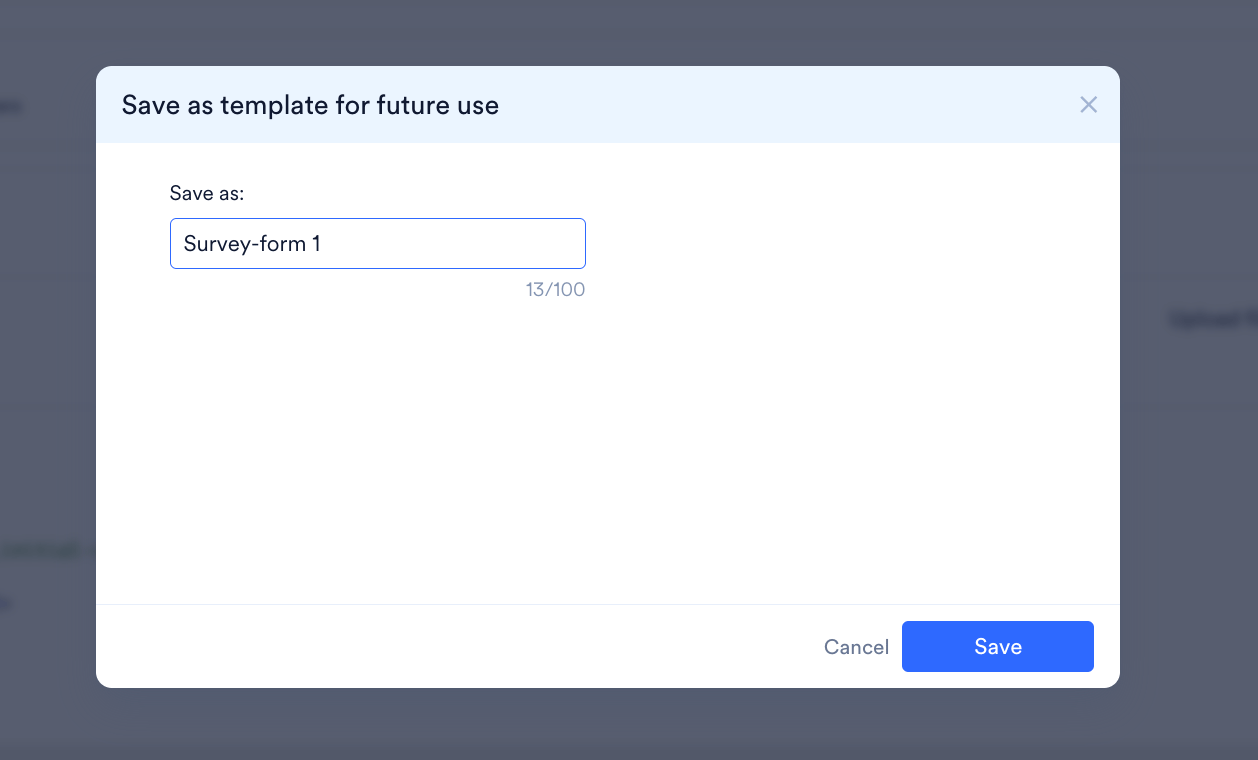 5. Click **Save**.
**Note**
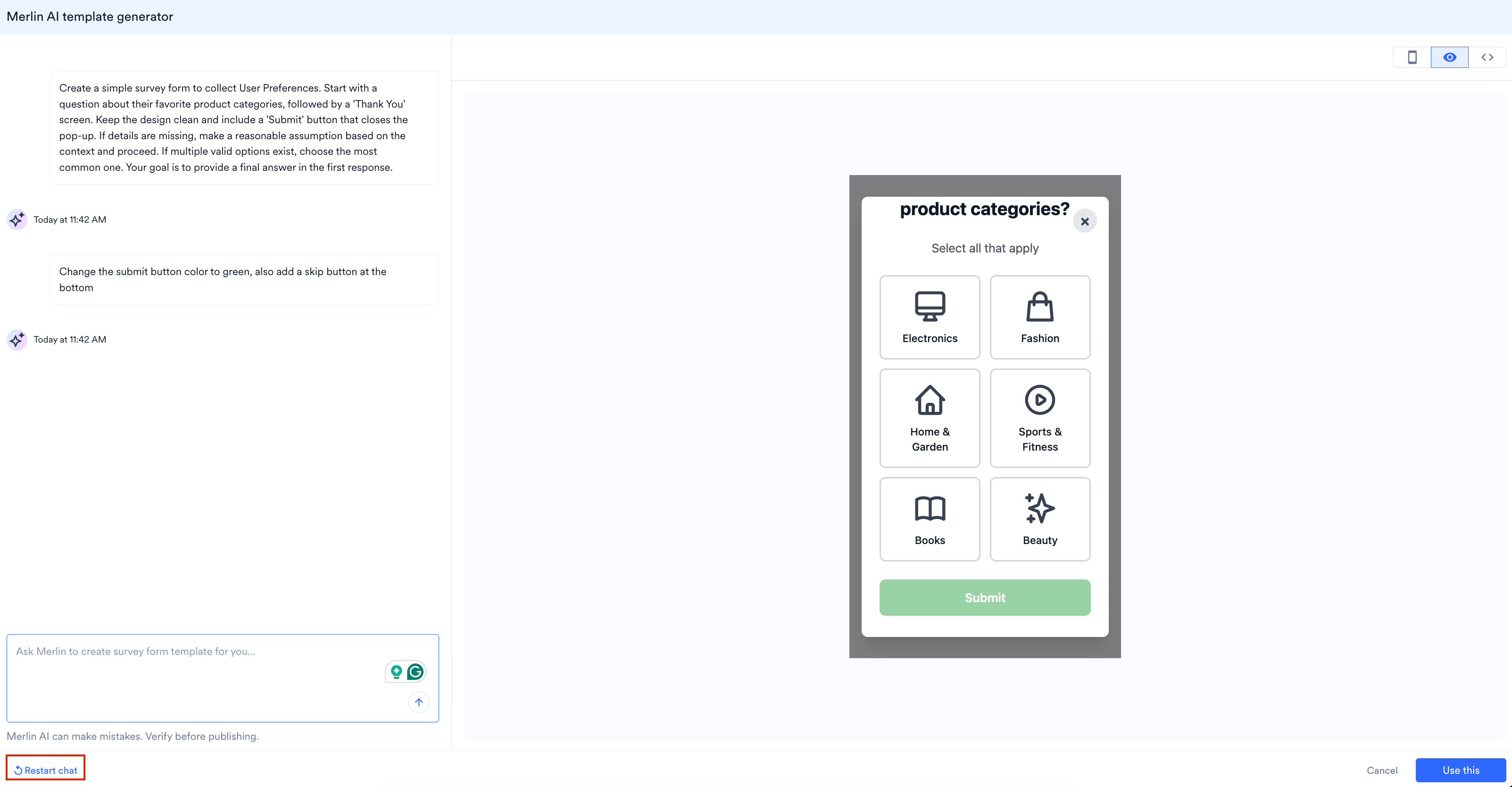
Merlin AI chat data is volatile and persisted for the **current session only**. Refreshing the browser, closing the application tab, or selecting **Restart chat** will permanently delete the conversation history and any unsaved designs.
### Navigation Actions
* **Resume:** Returns to the active generation session if you have navigated to other parts of the dashboard within the same session.
5. Click **Save**.
**Note**
Merlin AI chat data is volatile and persisted for the **current session only**. Refreshing the browser, closing the application tab, or selecting **Restart chat** will permanently delete the conversation history and any unsaved designs.
### Navigation Actions
* **Resume:** Returns to the active generation session if you have navigated to other parts of the dashboard within the same session.
 * **Restart Chat:** Clears all current session data to initiate a new prompt sequence.
 ## FAQs
If your design team works in Figma, you can use the exported design as a reference image:
1. In Figma, select the frame containing your In-App design.
2. Export the frame as a PNG file.
3. In the Merlin AI chat, click the **Add image with your prompt** icon and upload the exported PNG.
4. Enter a prompt such as *Create a similar template* and click the **Send** icon.
The same workflow applies to designs exported from other tools such as Photoshop or Sketch — Merlin AI accepts any PNG reference.
Reference images must be **PNG** files. You can attach **one image per prompt**, and up to **10 images per session**.
See [In-App Template Use Cases by Industry](/user-guide/ai-and-intelligence/merlin-ai/merlin-ai-in-app-template-generator/in-app-template-use-cases) for ready-to-use prompts across retail and e-commerce, BFSI, entertainment and media, and travel and hospitality.
No. Merlin AI chat data is persisted for the current session only. To keep a generated template for reuse, click **Use this**, then save it from the Content page using **Save Template**. See [Save for Future Use](#save-for-future-use).
## FAQs
If your design team works in Figma, you can use the exported design as a reference image:
1. In Figma, select the frame containing your In-App design.
2. Export the frame as a PNG file.
3. In the Merlin AI chat, click the **Add image with your prompt** icon and upload the exported PNG.
4. Enter a prompt such as *Create a similar template* and click the **Send** icon.
The same workflow applies to designs exported from other tools such as Photoshop or Sketch — Merlin AI accepts any PNG reference.
Reference images must be **PNG** files. You can attach **one image per prompt**, and up to **10 images per session**.
See [In-App Template Use Cases by Industry](/user-guide/ai-and-intelligence/merlin-ai/merlin-ai-in-app-template-generator/in-app-template-use-cases) for ready-to-use prompts across retail and e-commerce, BFSI, entertainment and media, and travel and hospitality.
No. Merlin AI chat data is persisted for the current session only. To keep a generated template for reuse, click **Use this**, then save it from the Content page using **Save Template**. See [Save for Future Use](#save-for-future-use).