> ## Documentation Index
> Fetch the complete documentation index at: https://moengage-unity-sdk-initialization-split.mintlify.site/llms.txt
> Use this file to discover all available pages before exploring further.
# Message Archival
> Archive customer messages in MoEngage for regulatory compliance and record-keeping. Store communications sent across channels via S3 or SFTP exports.
The Message Archival feature is an add-on (paid). For further assistance, please contact your MoEngage Customer Success Manager (CSM) or the Support team.
# Overview
Message archival is the process of storing any communication sent to customers for later access. Retaining these customer messages is important for multiple reasons, including:
* **Regulatory compliance**: Various regulatory bodies globally, depending on the region and/or industry (especially in the BFSI sector), mandate businesses to store any "electronic communication" with the customer. While certain rules recommend storing customer communications, others necessitate businesses to do so. In a few cases, the retention rules also describe the type of communication that should be retained, for instance, either storing all messages (including promotional ones) or storing at least transactional messages for a defined period.\
Some rules and guidelines by the respective regions are as follows:
| Country or Region | Rule or Guideline |
| ----------------- | ---------------------------------------------------------------------------------------------------------------------------------------------------------------------------- |
| US | [FINRA Rule 2210](https://www.finra.org/rules-guidance/rulebooks/finra-rules/2210) |
| | [SEC Rule 17a-4](https://www.law.cornell.edu/cfr/text/17/240.17a-4) |
| | [GLBA Rule for Financial Information Privacy](https://www.ftc.gov/business-guidance/resources/how-comply-privacy-consumer-financial-information-rule-gramm-leach-bliley-act) |
| | [FRCP Rule 26](https://en.wikipedia.org/wiki/Federal_Rules_of_Civil_Procedure) |
| Canada | [IDA 29.7](https://www.iiroc.ca/sites/default/files/2021-06/RulesCollated_en.pdf) |
| EU | [MiFID II](https://www.esma.europa.eu/sites/default/files/library/esma35-43-349_mifid_ii_qas_on_investor_protection_topics.pdf) |
| UK | [Durable Medium](https://www.fca.org.uk/firms/durable-medium) |
| India | [Digital Lending Guidelines](https://rbidocs.rbi.org.in/rdocs/notification/PDFs/GUIDELINESDIGITALLENDINGD5C35A71D8124A0E92AEB940A7D25BB3.PDF) |
The retention period varies for each rule: for instance, SEC Rule 17a-4 has a default six-year retention period whereas GLBA rule for Financial Information Privacy has a default retention of seven years.
* **Customer experience**: Your customers may be contacting your support touch-points, enquiring about a message they have received. To serve these customers better, you need to empower your teams with information on all transactional and/or promotional messages sent to customers. Your customer service teams can then respond to a customer query and/or complaint by reviewing the personalized message sent to the customer. Combining this with the message sent/delivery events (using MoEngage [S3 Exports](/user-guide/data/exports/events/data-warehouse/s3-exports) or [Streams](https://www.moengage.com/docs/api/data/moengage-streams)) can give your teams a 360-degree view of messages received or those that remained undelivered because of various reasons such as the Email box being full or mobile number being unavailable and so on. This 360-degree view of communication sent by you (brand) to your customers helps customer service teams get a holistic context, thereby reducing the turnaround time (TAT) and the cost to serve and, more importantly, improving the overall customer experience.
* **Audit**: Message archival is a powerful tool for reviewing the content sent to customers. If ever there is a case where a customer complains or disputes a message they received, you can use these archived files to identify the relevance of the claim.
MoEngage recommends you to retain a copy of the customer messages for at least two to six months, if not more, for the above mentioned reasons.
# Message Archival in MoEngage
MoEngage offers the Message Archival feature where businesses can choose to keep a copy of actual notification content sent to customers. This feature helps you stay compliant with regulations, solves your audit needs, and enables you to cater to your customers better. The feature is available for the Email, SMS, Push and RCS channels.
Other benefits of this feature include:
* **Indefinite storage**: You can choose to store these messages in MoEngage for a month or as long as you need.
* **Automated archival**: Once the feature is enabled, it would automatically archive customer messages across all vendors/platforms for the specified channels.
* **Secure storage**: MoEngage ensures the message files are kept in a safe manner, including keeping the messages encrypted.
* **UI-based access**: Each message can be accessed for a user and event on the MoEngage dashboard.
* **Option to download each file**: Easily download the message files to keep a local copy.
* **Fetch message files (optional)**: MoEngage allows you to pull these messages to your file store. All the files have a unique identifier to ensure the files can be traced back to the campaign/alert.
| Channels | Message Archival supported? |
| ---------- | --------------------------- |
| Push | Yes |
| SMS | Yes |
| RCS | Yes |
| Email | Yes |
| WhatsApp | No |
| In-App | No |
| OSM | No |
| Connectors | No |
# View a Message Copy on the Dashboard
The *View sent message* option is exclusively available for messages archived to MoEngage or client-owned S3 bucket, and not for those archived to an SFTP server.
You can view the copy of an archived message (Email, Push, SMS, or RCS) sent to the customer on the MoEngage dashboard. To do so:
* Go to the **Activity Info** tab in the User Profile of the customer for whom you wish to look up the communication sent.
* Under **User Activity** > **Events**, you will find the list of events associated with the user.
* Message copies are available under the *Email Sent,* *SMS Sent, Notification Received Android, Notification Sent iOS, Notification Received Web*, and *RCS Sent* events.
To view the copy of the email sent to a customer:
1. Navigate to the User Profile of the user.
2. Click **Activity Info** tab.
3. Look for the email sent to the customer under the *Email Sent* event associated with the campaign you are looking for.
4. Click **View sent message** to view the communication sent to the customer.
5. Click **Download** in the top-right corner to download the EML file corresponding to the email sent.
**Note**:
* The links in the email copy are added only for illustration and may not work.
* Templates beyond 250 KB will not be archived.
* Email attachments are not archived.
 To view a copy of the SMS message sent to a customer:
1. Navigate to the User Profile of the user.
2. Click the **Activity Info** tab.
3. Look for the SMS sent to the customer under the *SMS Sent* event associated with the campaign.
4. Click **View sent message** to view the communication sent to the customer.
5. Click **Download** to download a PDF of the SMS sent.
**Note**:
* The links in the SMS copy are added only for illustration and may not work.
* If the SMS Connector is Sinch, the **View sent message** option is also available for the *SMS Delivered* event.
To view a copy of the SMS message sent to a customer:
1. Navigate to the User Profile of the user.
2. Click the **Activity Info** tab.
3. Look for the SMS sent to the customer under the *SMS Sent* event associated with the campaign.
4. Click **View sent message** to view the communication sent to the customer.
5. Click **Download** to download a PDF of the SMS sent.
**Note**:
* The links in the SMS copy are added only for illustration and may not work.
* If the SMS Connector is Sinch, the **View sent message** option is also available for the *SMS Delivered* event.
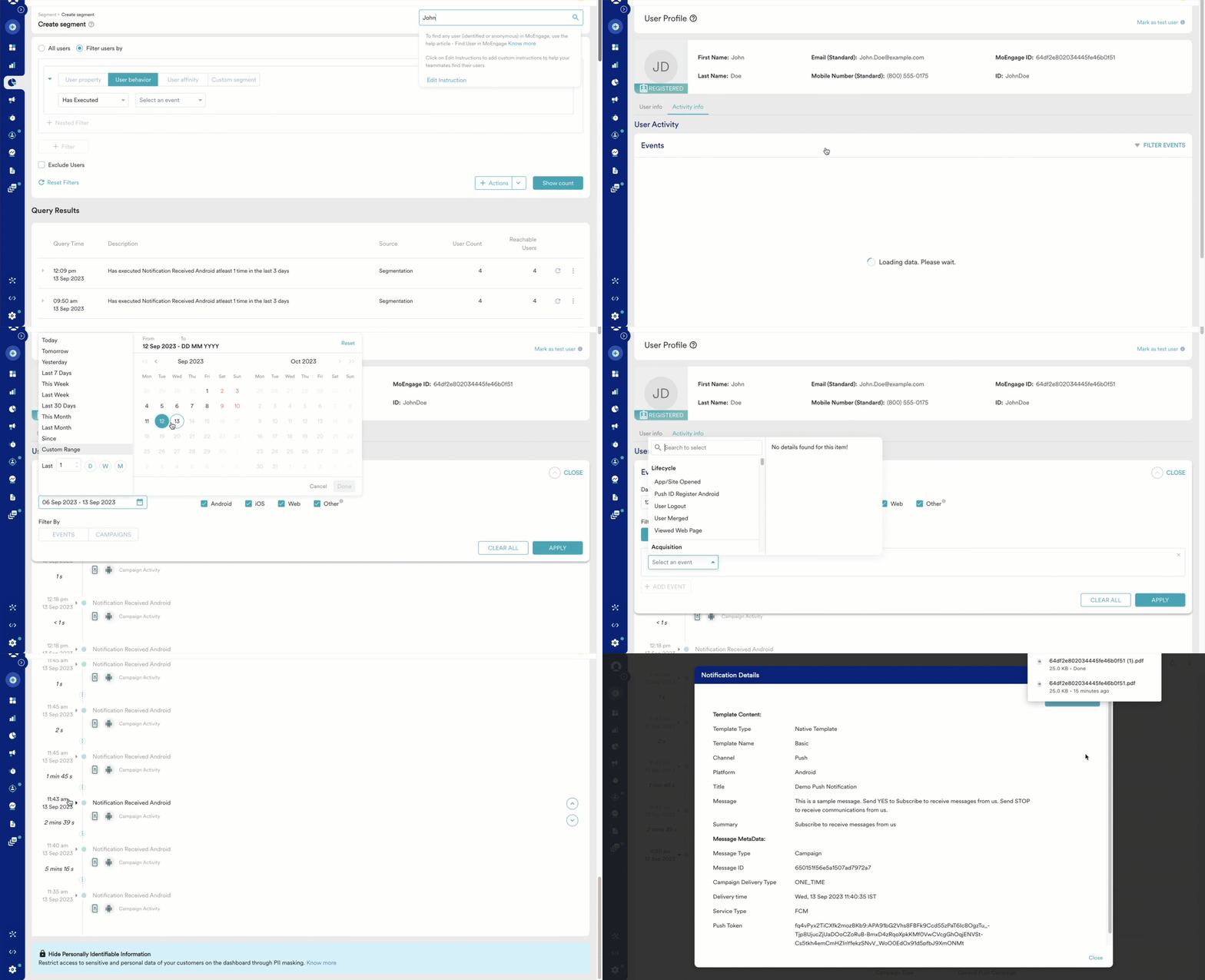
 To view the copy of the Push notification sent to a customer:
1. Navigate to the User Profile of the user.
2. Click the **Activity Info** tab.
3. Look for the Push notification sent to the customer under the *Notification Received Android,* or *Notification Received iOS,* or *Notification Received Web* event (based on the platform) associated with the campaign.
4. Click **View sent message** to view the communication sent to the customer.
5. Click **Download as PDF** to download a PDF of the Push notification sent.
**Note**:
* The links in the Push notification copy are added only for illustration and may not work.
* Emojis in the Push message would not be available in downloaded PDF.
To view the copy of the Push notification sent to a customer:
1. Navigate to the User Profile of the user.
2. Click the **Activity Info** tab.
3. Look for the Push notification sent to the customer under the *Notification Received Android,* or *Notification Received iOS,* or *Notification Received Web* event (based on the platform) associated with the campaign.
4. Click **View sent message** to view the communication sent to the customer.
5. Click **Download as PDF** to download a PDF of the Push notification sent.
**Note**:
* The links in the Push notification copy are added only for illustration and may not work.
* Emojis in the Push message would not be available in downloaded PDF.
 To view a copy of the RCS message sent to a customer:
1. Navigate to the User Profile of the user.
2. Click the **Activity Info** tab.
3. Look for the RCS sent to the customer under the *RCS Sent* event associated with the campaign.
4. Click **View sent message** to view the communication sent to the customer.
5. Click **Download** to download a PDF of the RCS sent.
* The archived copy reflects whichever template type was used for the campaign — **Text**, **Rich card**, or **Carousel**.
* For campaigns using a **Carousel** template, all cards sent as part of that message (up to 10) are archived together, not just the first card. When you view or download the archived copy for a recipient, you can see every card that was sent to them, including any card-level personalization that was applied.
* The links in the RCS message copy are added only for illustration and may not work.
* If a fallback SMS was sent instead of the RCS message (for example, because the recipient's device or network didn't support RCS), the archived copy reflects the SMS content, and is available under the corresponding *SMS Sent* event instead.
To view a copy of the RCS message sent to a customer:
1. Navigate to the User Profile of the user.
2. Click the **Activity Info** tab.
3. Look for the RCS sent to the customer under the *RCS Sent* event associated with the campaign.
4. Click **View sent message** to view the communication sent to the customer.
5. Click **Download** to download a PDF of the RCS sent.
* The archived copy reflects whichever template type was used for the campaign — **Text**, **Rich card**, or **Carousel**.
* For campaigns using a **Carousel** template, all cards sent as part of that message (up to 10) are archived together, not just the first card. When you view or download the archived copy for a recipient, you can see every card that was sent to them, including any card-level personalization that was applied.
* The links in the RCS message copy are added only for illustration and may not work.
* If a fallback SMS was sent instead of the RCS message (for example, because the recipient's device or network didn't support RCS), the archived copy reflects the SMS content, and is available under the corresponding *SMS Sent* event instead.
 Message Archival is not supported in MoEngage when PII Tokenized Sending is enabled. PII Tokenized Sending allows you to engage with your customers without storing their PII within the MoEngage platform. For more information, refer to [PII Tokenized Sending](/user-guide/data/privacy/personal-data-or-personally-identifiable-information-pii/pii-tokenized-sending).
# Store Your Files
You have the following options to store your files:
* Store them in the MoEngage S3 bucket
* Store them in your S3 bucket
* Store them in your SFTP server
### Store them in the MoEngage S3 bucket
Storing your files in the MoEngage S3 bucket can be beneficial if you want to view the archived files on the MoEngage UI. If you store the files only in your own S3 bucket, MoEngage will need Read Access to display those archived files on the UI.
If you choose a configuration, you cannot change it later. If you decide to store the message files in your S3 bucket, you cannot change this configuration and store them with MoEngage.
### Store them in your S3 bucket
If you want to store these files with the MoEngage S3 bucket, then MoEngage will create a bucket for you and store your messages securely.
Perform the following steps to store files in your S3 Bucket:
1. Share the name of the S3 bucket where you want to store your data and provide read and write access to MoEngage.
2. You also need to provide the ARN URL for your bucket. For more information, refer to [Set Up the ARN URL](/user-guide/campaigns-and-channels/campaign-management-and-reports/message-archival/message-archival#set-up-the-arn-url).
3. MoEngage requires the folder name for storing your files.
4. MoEngage requires the name of a different file path if you want to change from the default file path.
### Store them in your SFTP server
This option allows you to store archival data on your own SFTP server using user credential authentication. For a detailed guide on setting up the connection, refer to the [SFTP Integration documentation.](https://partners.moengage.com/hc/en-us/articles/26763225201172-SFTP#h_01HYTHXP4D381B4PT9B5GNJHZ7)
For information on:
* File path and naming convention, refer to [File Path and Naming Convention](/user-guide/campaigns-and-channels/campaign-management-and-reports/message-archival/file-path-and-naming-convention).
* File contents, refer to [File Contents](/user-guide/campaigns-and-channels/campaign-management-and-reports/message-archival/file-contents).
## Set Up the ARN URL
Even if you have an S3 bucket already, we still recommend creating a new bucket specifically for MoEngage so you can limit permissions.
This step requires collaboration with your IT or DevOps team to configure AWS S3 access.
1. To create a bucket for your app, open the [S3 console](https://console.aws.amazon.com/s3/ "https://console.aws.amazon.com/s3/") and follow the instructions to Sign in or Create an Account with AWS.
2. After you sign in, select **S3** from the **Storage & Content Delivery** category.
3. Select **Create Bucket** on the next screen and you will be prompted to create your bucket and select a region.
4. Navigate to the **Policies** tab in the navigation bar and select **Get Started** then **Create Policy**. This will allow you to add permissions for your user.
5. Select **Create Your Own Policy**. This will give limited permissions so we only can access the bucket that you specify.
6. When creating your own policy, specify a **Policy Name** of your choice and enter the following code into the **Policy Document** section. Be sure to replace the **INSERTSID** with your SID, **INSERTPOLICYID** with your policy ID, and **INSERTBUCKETNAME** with your bucket name.
```json DC-01, DC-02, DC-03, and DC-04 wrap theme={null}
{
"Version": "2012-10-17",
"Id": {{INSERTPOLCIYID}},
"Statement": [
{
"Sid": {{INSERTSID}},
"Effect": "Allow",
"Principal": {
"AWS": [
"arn:aws:iam::612427630422:role/campaigns_archival_s3_export-role-e1qw8ulf",
"arn:aws:iam::612427630422:role/S3-EC2-InstanceRole"
]
},
"Action": [
"s3:GetObject",
"s3:PutObject",
"s3:ListBucket",
"s3:GetLifecycleConfiguration"
],
"Resource": [
"arn:aws:s3:::{{INSERTBUCKETNAME}}",
"arn:aws:s3:::{{INSERTBUCKETNAME}}/*"
]
}
]
}
```
```json DC-05 and DC-06 wrap theme={null}
{
"Version": "2012-10-17",
"Id": {{INSERTPOLCIYID}},
"Statement": [
{
"Sid": {{INSERTSID}},
"Effect": "Allow",
"Principal": {
"AWS": [
"arn:aws:iam::163129101105:role/campaigns_archival_s3_export-role-e1qw8ulf",
"arn:aws:iam::163129101105:role/S3-EC2-InstanceRole"
]
},
"Action": [
"s3:GetObject",
"s3:PutObject",
"s3:ListBucket",
"s3:GetLifecycleConfiguration"
],
"Resource": [
"arn:aws:s3:::{{INSERTBUCKETNAME}}",
"arn:aws:s3:::{{INSERTBUCKETNAME}}/*"
]
}
]
}
```
# Frequently Asked Questions
The file retention period refers to the time duration for which these customer message files are stored with MoEngage. The default message file retention period is dependent on the file retention period of your S3 bucket.
These messages will be visible on the dashboard for 30 days by default. This time is dependent on the event retention period.
The message files are accessed on the MoEngage dashboard using events such as *Email Sent, Notification Received Android, Notification Sent iOS, Notification Received Web,* and *SMS Sent.* To access all the message files stored through the MoEngage dashboard, the event-retention period should be equal to or greater than the retention period of the message files. Alternatively, these message files can be stored for offline access, not through the MoEngage dashboard.
For files stored on your SFTP server, MoEngage does not manage data retention; this is fully managed by you on your server. Furthermore, messages archived to SFTP are not viewable on the MoEngage dashboard.
**Note**: Both the MoEngage event-retention period and message-file retention period can be set as per your needs.
If the event-retention period has expired for your files, you can fetch the files by using a query language and query the S3 where the files are stored.
If your files are stored on an SFTP server, you must access them directly from your SFTP server.
MoEngage supports two retries to combat this situation. The first retry of writing the files occurs one hour after the initial attempt. If S3 is still down, the second retry occurs four hours after the initial attempt.
For SFTP: In case of a connection failure, MoEngage retries writing the files thrice every 5 seconds.
If writing the files is unsuccessful even after retries for either S3 or SFTP, MoEngage stores the copies of these files internally for 60 days. You can contact the Support team to them written to your bucket manually.
The following are the multiple reasons for your files not being written to your storage location.
* For S3, the read or write access for your bucket may be revoked for MoEngage.
* For SFTP, the credentials might be incorrect or have been changed, or your server's firewall may be blocking MoEngage's access.
* The folder where the files are to be stored may not be found.
* Your S3 bucket or SFTP server might be down for an extended period, causing all retries to fail.
Contact your CSM or the Support team.
Message Archival is not supported in MoEngage when PII Tokenized Sending is enabled. PII Tokenized Sending allows you to engage with your customers without storing their PII within the MoEngage platform. For more information, refer to [PII Tokenized Sending](/user-guide/data/privacy/personal-data-or-personally-identifiable-information-pii/pii-tokenized-sending).
# Store Your Files
You have the following options to store your files:
* Store them in the MoEngage S3 bucket
* Store them in your S3 bucket
* Store them in your SFTP server
### Store them in the MoEngage S3 bucket
Storing your files in the MoEngage S3 bucket can be beneficial if you want to view the archived files on the MoEngage UI. If you store the files only in your own S3 bucket, MoEngage will need Read Access to display those archived files on the UI.
If you choose a configuration, you cannot change it later. If you decide to store the message files in your S3 bucket, you cannot change this configuration and store them with MoEngage.
### Store them in your S3 bucket
If you want to store these files with the MoEngage S3 bucket, then MoEngage will create a bucket for you and store your messages securely.
Perform the following steps to store files in your S3 Bucket:
1. Share the name of the S3 bucket where you want to store your data and provide read and write access to MoEngage.
2. You also need to provide the ARN URL for your bucket. For more information, refer to [Set Up the ARN URL](/user-guide/campaigns-and-channels/campaign-management-and-reports/message-archival/message-archival#set-up-the-arn-url).
3. MoEngage requires the folder name for storing your files.
4. MoEngage requires the name of a different file path if you want to change from the default file path.
### Store them in your SFTP server
This option allows you to store archival data on your own SFTP server using user credential authentication. For a detailed guide on setting up the connection, refer to the [SFTP Integration documentation.](https://partners.moengage.com/hc/en-us/articles/26763225201172-SFTP#h_01HYTHXP4D381B4PT9B5GNJHZ7)
For information on:
* File path and naming convention, refer to [File Path and Naming Convention](/user-guide/campaigns-and-channels/campaign-management-and-reports/message-archival/file-path-and-naming-convention).
* File contents, refer to [File Contents](/user-guide/campaigns-and-channels/campaign-management-and-reports/message-archival/file-contents).
## Set Up the ARN URL
Even if you have an S3 bucket already, we still recommend creating a new bucket specifically for MoEngage so you can limit permissions.
This step requires collaboration with your IT or DevOps team to configure AWS S3 access.
1. To create a bucket for your app, open the [S3 console](https://console.aws.amazon.com/s3/ "https://console.aws.amazon.com/s3/") and follow the instructions to Sign in or Create an Account with AWS.
2. After you sign in, select **S3** from the **Storage & Content Delivery** category.
3. Select **Create Bucket** on the next screen and you will be prompted to create your bucket and select a region.
4. Navigate to the **Policies** tab in the navigation bar and select **Get Started** then **Create Policy**. This will allow you to add permissions for your user.
5. Select **Create Your Own Policy**. This will give limited permissions so we only can access the bucket that you specify.
6. When creating your own policy, specify a **Policy Name** of your choice and enter the following code into the **Policy Document** section. Be sure to replace the **INSERTSID** with your SID, **INSERTPOLICYID** with your policy ID, and **INSERTBUCKETNAME** with your bucket name.
```json DC-01, DC-02, DC-03, and DC-04 wrap theme={null}
{
"Version": "2012-10-17",
"Id": {{INSERTPOLCIYID}},
"Statement": [
{
"Sid": {{INSERTSID}},
"Effect": "Allow",
"Principal": {
"AWS": [
"arn:aws:iam::612427630422:role/campaigns_archival_s3_export-role-e1qw8ulf",
"arn:aws:iam::612427630422:role/S3-EC2-InstanceRole"
]
},
"Action": [
"s3:GetObject",
"s3:PutObject",
"s3:ListBucket",
"s3:GetLifecycleConfiguration"
],
"Resource": [
"arn:aws:s3:::{{INSERTBUCKETNAME}}",
"arn:aws:s3:::{{INSERTBUCKETNAME}}/*"
]
}
]
}
```
```json DC-05 and DC-06 wrap theme={null}
{
"Version": "2012-10-17",
"Id": {{INSERTPOLCIYID}},
"Statement": [
{
"Sid": {{INSERTSID}},
"Effect": "Allow",
"Principal": {
"AWS": [
"arn:aws:iam::163129101105:role/campaigns_archival_s3_export-role-e1qw8ulf",
"arn:aws:iam::163129101105:role/S3-EC2-InstanceRole"
]
},
"Action": [
"s3:GetObject",
"s3:PutObject",
"s3:ListBucket",
"s3:GetLifecycleConfiguration"
],
"Resource": [
"arn:aws:s3:::{{INSERTBUCKETNAME}}",
"arn:aws:s3:::{{INSERTBUCKETNAME}}/*"
]
}
]
}
```
# Frequently Asked Questions
The file retention period refers to the time duration for which these customer message files are stored with MoEngage. The default message file retention period is dependent on the file retention period of your S3 bucket.
These messages will be visible on the dashboard for 30 days by default. This time is dependent on the event retention period.
The message files are accessed on the MoEngage dashboard using events such as *Email Sent, Notification Received Android, Notification Sent iOS, Notification Received Web,* and *SMS Sent.* To access all the message files stored through the MoEngage dashboard, the event-retention period should be equal to or greater than the retention period of the message files. Alternatively, these message files can be stored for offline access, not through the MoEngage dashboard.
For files stored on your SFTP server, MoEngage does not manage data retention; this is fully managed by you on your server. Furthermore, messages archived to SFTP are not viewable on the MoEngage dashboard.
**Note**: Both the MoEngage event-retention period and message-file retention period can be set as per your needs.
If the event-retention period has expired for your files, you can fetch the files by using a query language and query the S3 where the files are stored.
If your files are stored on an SFTP server, you must access them directly from your SFTP server.
MoEngage supports two retries to combat this situation. The first retry of writing the files occurs one hour after the initial attempt. If S3 is still down, the second retry occurs four hours after the initial attempt.
For SFTP: In case of a connection failure, MoEngage retries writing the files thrice every 5 seconds.
If writing the files is unsuccessful even after retries for either S3 or SFTP, MoEngage stores the copies of these files internally for 60 days. You can contact the Support team to them written to your bucket manually.
The following are the multiple reasons for your files not being written to your storage location.
* For S3, the read or write access for your bucket may be revoked for MoEngage.
* For SFTP, the credentials might be incorrect or have been changed, or your server's firewall may be blocking MoEngage's access.
* The folder where the files are to be stored may not be found.
* Your S3 bucket or SFTP server might be down for an extended period, causing all retries to fail.
Contact your CSM or the Support team.