> ## Documentation Index
> Fetch the complete documentation index at: https://moengage-unity-sdk-initialization-split.mintlify.site/llms.txt
> Use this file to discover all available pages before exploring further.
# Import and Use Template Groups in Email Content
> Simplify multi-locale and multi-variant email creation with MoEngage template groups. Import and manage related templates for efficient campaigns.
## Overview of Template Groups
As a marketer, you often need to create email campaigns for different languages (multi-locale) or with multiple versions to test (multi-variant). For example, if you want to run a campaign for 20 locales, each with two variants, you would normally set up 40 separate content combinations. These combinations are related because they deliver the same core message.
The Template Groups feature in MoEngage helps you manage these related templates efficiently. Instead of manually adding content for every combination, you can group templates that share a common message but differ by locale or variant.
MoEngage allows you to create Template Groups by passing the *locale*, *variant*, and *group\_id* parameters in the [Create Email Template API](https://www.moengage.com/docs/api/email-templates/create-email-template-v2).
When you use Template Groups, MoEngage imports and renders the mapped templates together. Perform the following steps to access template groups while creating email campaigns:
1. Navigate to Step 2: Content.
2. In the **Imported templates** tab, you can view the template groups created using the [Create Email Template API](https://www.moengage.com/docs/api/email-templates/create-email-template-v2). 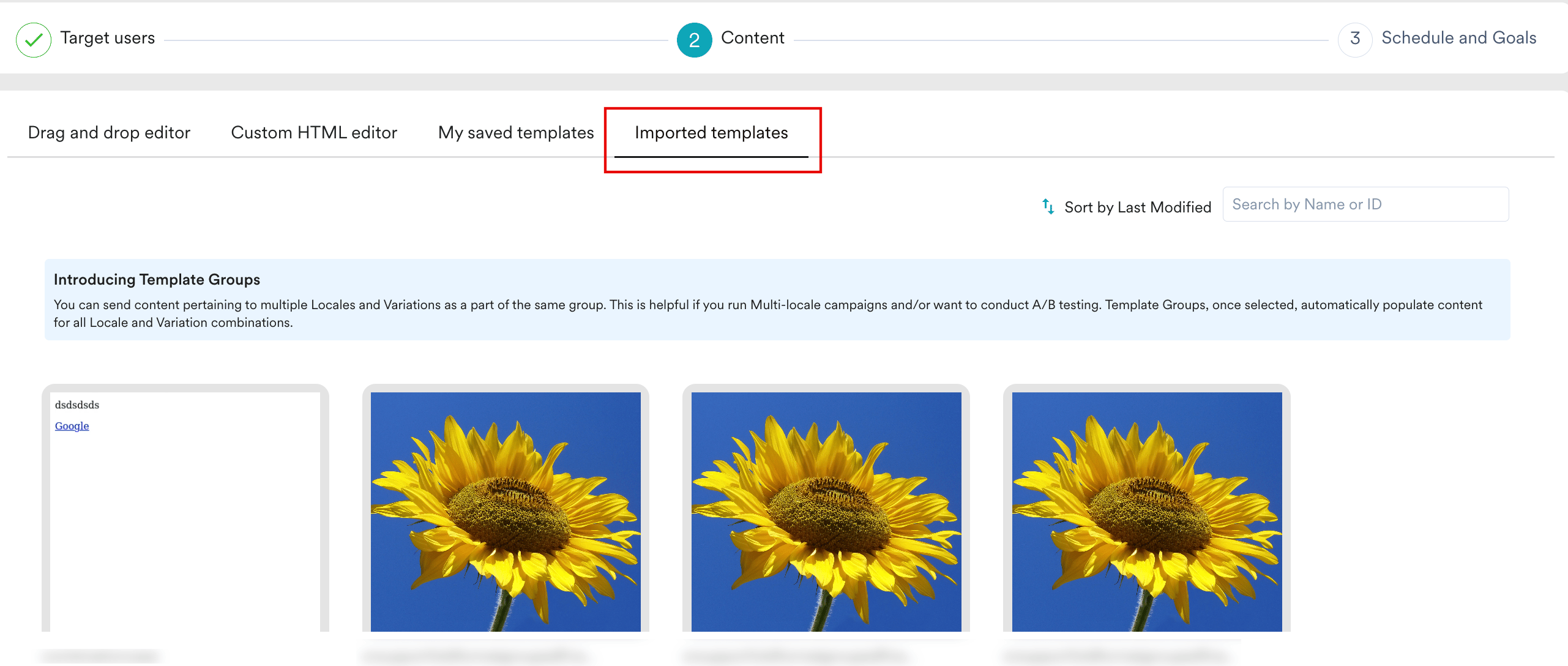 3. Select a template group, and MoEngage automatically populates content for all locale and variation combinations.
This feature saves you time because you need not add templates manually for all locale and variant combinations. In the above example of 40 combinations, it takes just one click to populate all of the relevant content.
Template Grouping is currently not supported within the Template Manager.
## Create and Push a Template Group to MoEngage
If you create your email content outside MoEngage, such as in a Content Management System (CMS), you can push it to MoEngage using the [Create Email Template API](https://www.moengage.com/docs/api/email-templates/create-email-template-v2) of MoEngage. This is useful when you plan to run multi-locale campaigns or conduct A/B tests.
To associate individual templates with a template group, ensure you include the *locale*, *variant*, and *group\_id* parameters when you make the API call. When passing *group\_id* in the API, ensure all templates intended for the same group share the identical *group\_id* value. The *locale* and *variant* parameters then act as unique identifiers to differentiate each individual template within that shared *group\_id*.
## Preview a Template Group
Perform the following steps to preview a template group:
1. In Step 2: Content of the email campaign creation journey, click the **Imported templates** tab. Template groups can be identified with a badge indicating the total number of variations in the template group.
3. Select a template group, and MoEngage automatically populates content for all locale and variation combinations.
This feature saves you time because you need not add templates manually for all locale and variant combinations. In the above example of 40 combinations, it takes just one click to populate all of the relevant content.
Template Grouping is currently not supported within the Template Manager.
## Create and Push a Template Group to MoEngage
If you create your email content outside MoEngage, such as in a Content Management System (CMS), you can push it to MoEngage using the [Create Email Template API](https://www.moengage.com/docs/api/email-templates/create-email-template-v2) of MoEngage. This is useful when you plan to run multi-locale campaigns or conduct A/B tests.
To associate individual templates with a template group, ensure you include the *locale*, *variant*, and *group\_id* parameters when you make the API call. When passing *group\_id* in the API, ensure all templates intended for the same group share the identical *group\_id* value. The *locale* and *variant* parameters then act as unique identifiers to differentiate each individual template within that shared *group\_id*.
## Preview a Template Group
Perform the following steps to preview a template group:
1. In Step 2: Content of the email campaign creation journey, click the **Imported templates** tab. Template groups can be identified with a badge indicating the total number of variations in the template group. 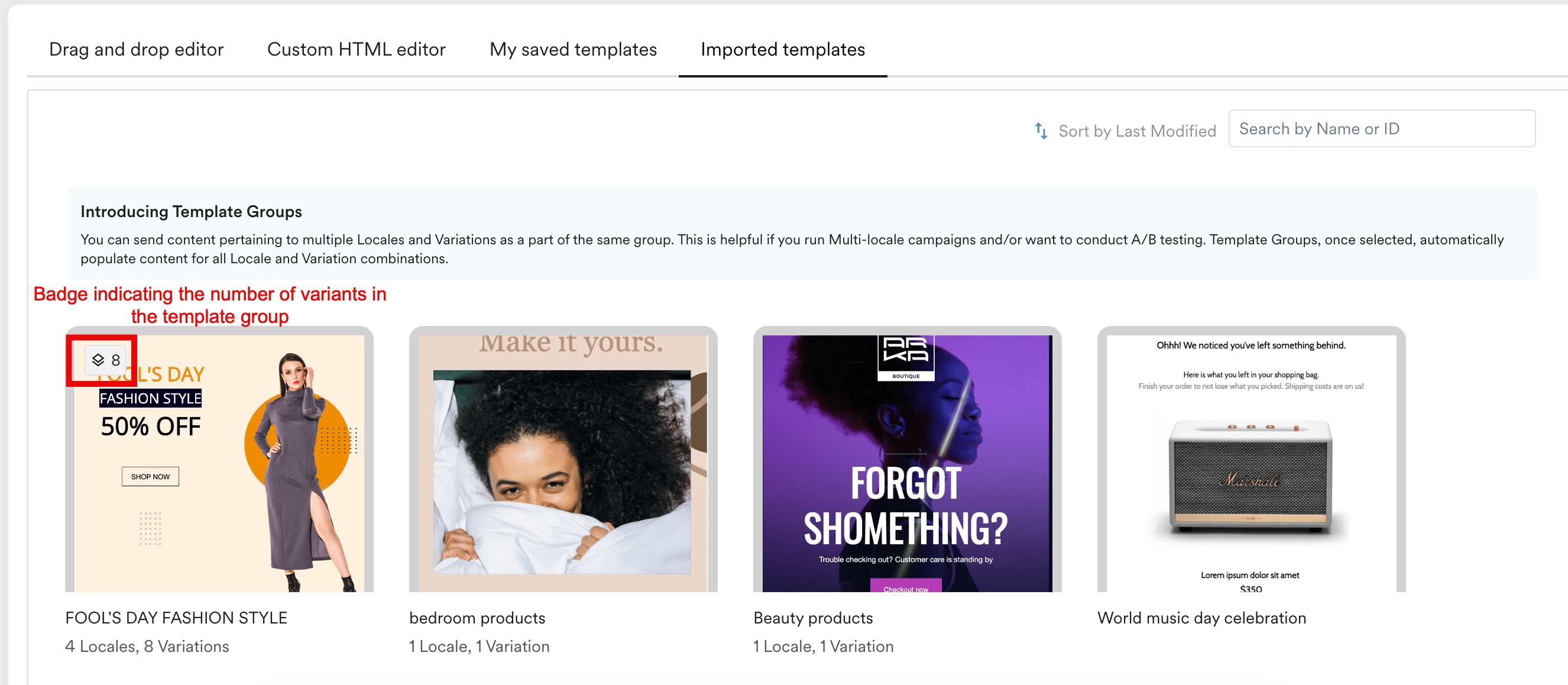 2. Hover the mouse on the thumbnail to see the Preview icon.
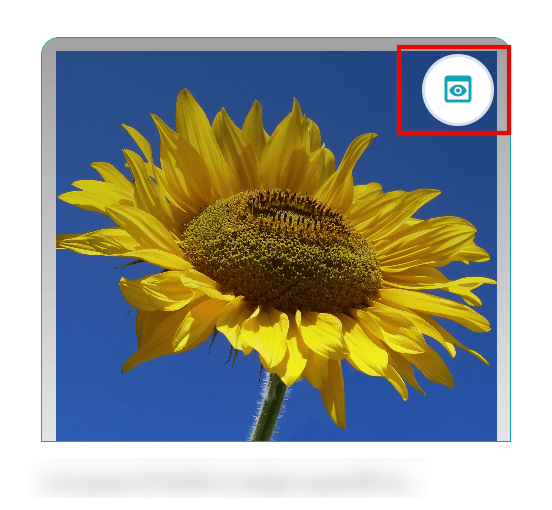 3. Click the Preview icon. The Preview template pop-up is displayed. You can view the preview of each template based on its locale and variation.
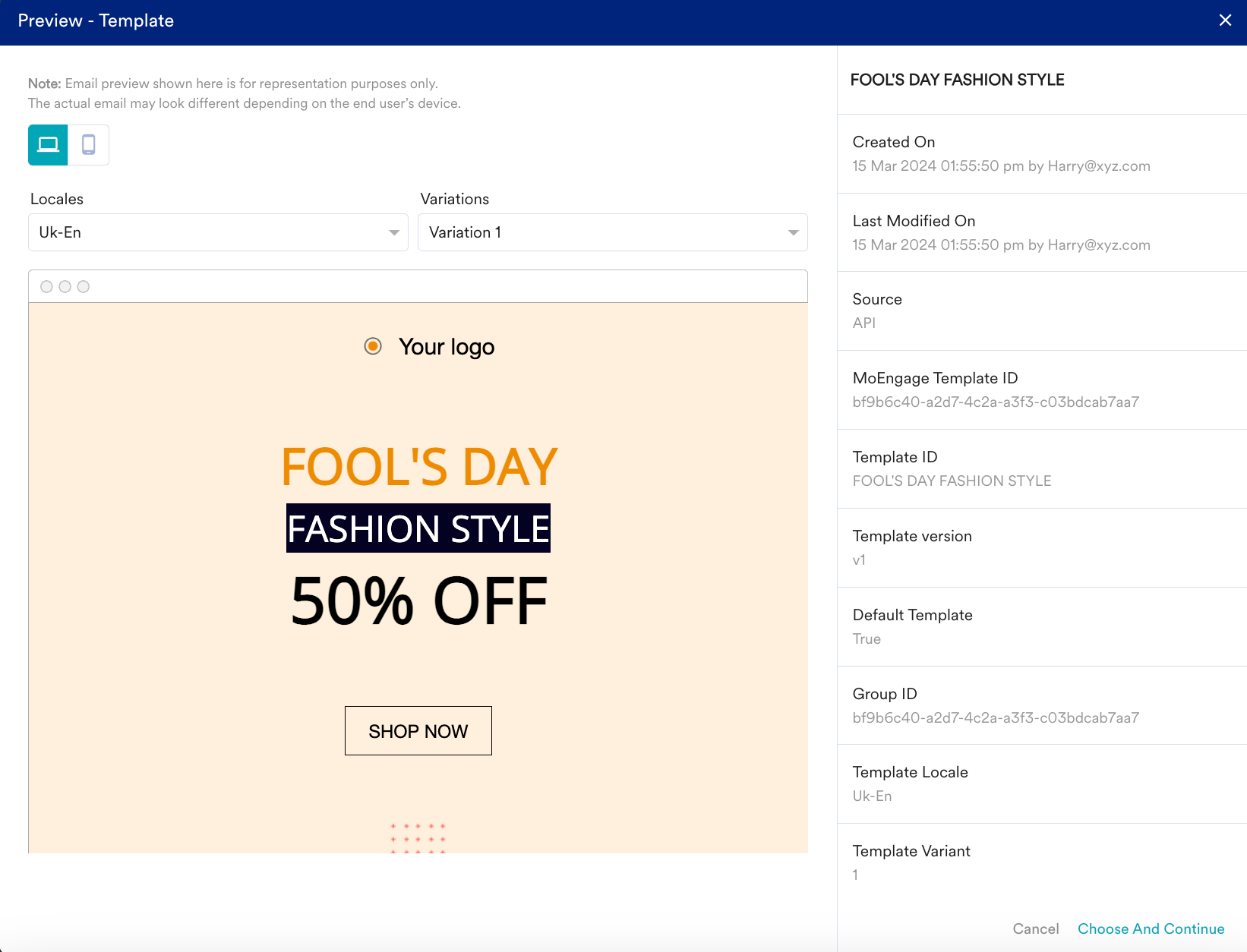 4. From the **Locales** and **Variations** drop-down lists, select the required values to see the associated template. If a locale does not have a variation, the Variations drop-down list is unavailable.
5. Click **Choose and Continue** to add this template group to the email campaign. All templates in the group will get added to the campaign automatically.
## Add a Template Group to Email Campaigns
1. In Step 2: Content, go to the **Imported templates** tab.
2. Hover the mouse on the thumbnail of the required template group.
3. Click the template group to add it to the email campaign. MoEngage automatically creates all locales and all variations within locales, and populates the same on the Step 2: Content page.
4. From the **Locales** and **Variations** drop-down lists, select the required values to see the associated template. If a locale does not have a variation, the Variations drop-down list is unavailable.
5. Click **Choose and Continue** to add this template group to the email campaign. All templates in the group will get added to the campaign automatically.
## Add a Template Group to Email Campaigns
1. In Step 2: Content, go to the **Imported templates** tab.
2. Hover the mouse on the thumbnail of the required template group.
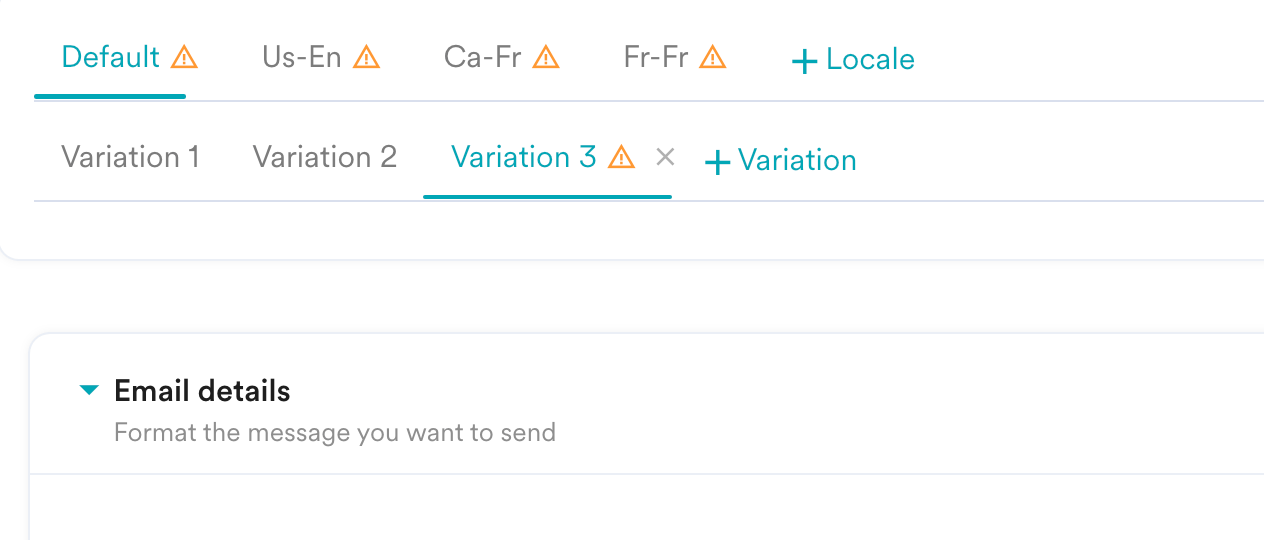
3. Click the template group to add it to the email campaign. MoEngage automatically creates all locales and all variations within locales, and populates the same on the Step 2: Content page.  MoEngage maintains the number of variations consistent across all locales in the template group. If some locales do not have variations, MoEngage adds blank variations in those locales. In that case, the following warning is displayed:
  MoEngage adds warning icons for locales and variations to help you quickly identify that there are blank variations where you must add content. After a template group is added, you can also edit the content of individual templates within the group directly on this page, or re-import updated templates via the Create Email Template API.
  ## Change a Template Group
To change the selected template group:
1. Click the ellipsis icon next to the **Template actions (custom)** button.
## Change a Template Group
To change the selected template group:
1. Click the ellipsis icon next to the **Template actions (custom)** button.
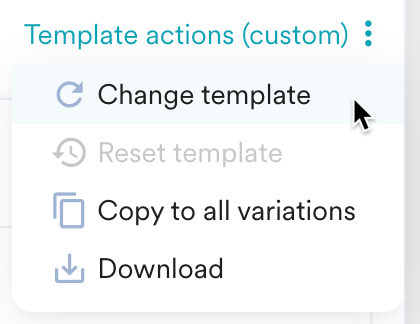 2. Click **Change template**. You are back in the **Import templates** tab.
3. Select the required template.
When you select a template group, the Change template pop-up is displayed, prompting you for confirmation.
2. Click **Change template**. You are back in the **Import templates** tab.
3. Select the required template.
When you select a template group, the Change template pop-up is displayed, prompting you for confirmation.  Click **Add group** to replace all the existing locales and variations with the new group selected.
When you select an individual template, the Change template pop-up is displayed, prompting you for confirmation.
Click **Add group** to replace all the existing locales and variations with the new group selected.
When you select an individual template, the Change template pop-up is displayed, prompting you for confirmation. 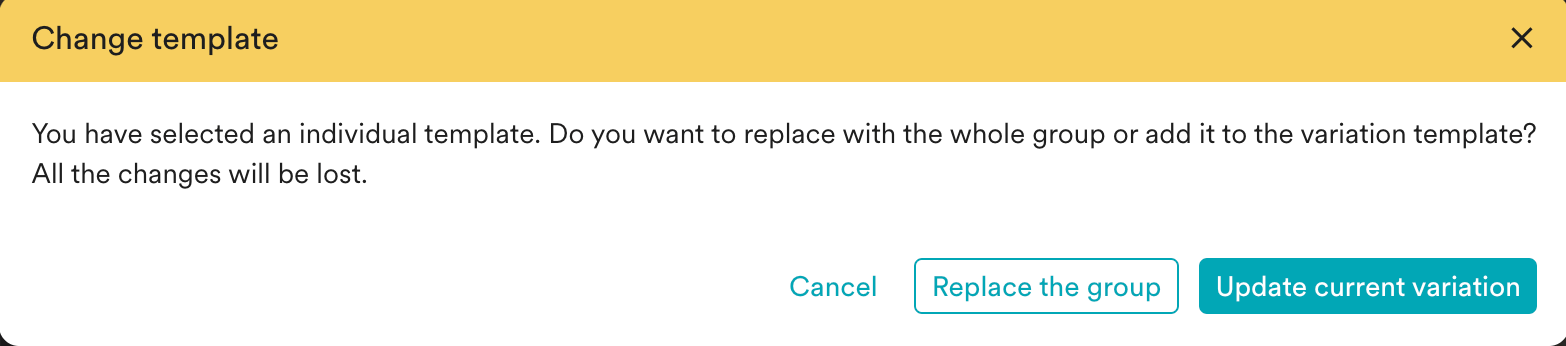 1. Click **Replace the group** to replace the whole group.
2. Click **Update current variation** to add the individual template to the variation template.
## Add a Locale to the Email Campaign
1. Click **+ Locale** to select another locale. A dialog box is displayed where you can search all locales in the system.
1. Click **Replace the group** to replace the whole group.
2. Click **Update current variation** to add the individual template to the variation template.
## Add a Locale to the Email Campaign
1. Click **+ Locale** to select another locale. A dialog box is displayed where you can search all locales in the system.
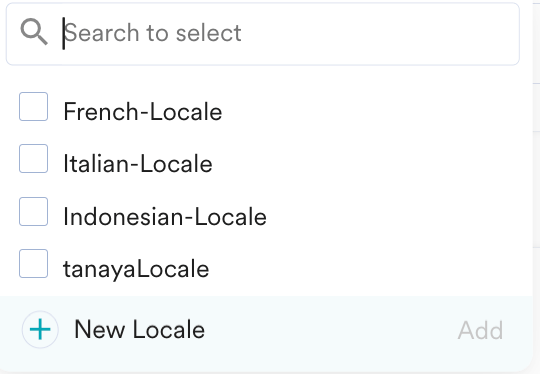 2. Select the required locales and click **Add**. The **Choose content for new added locales** pop-up is displayed.
 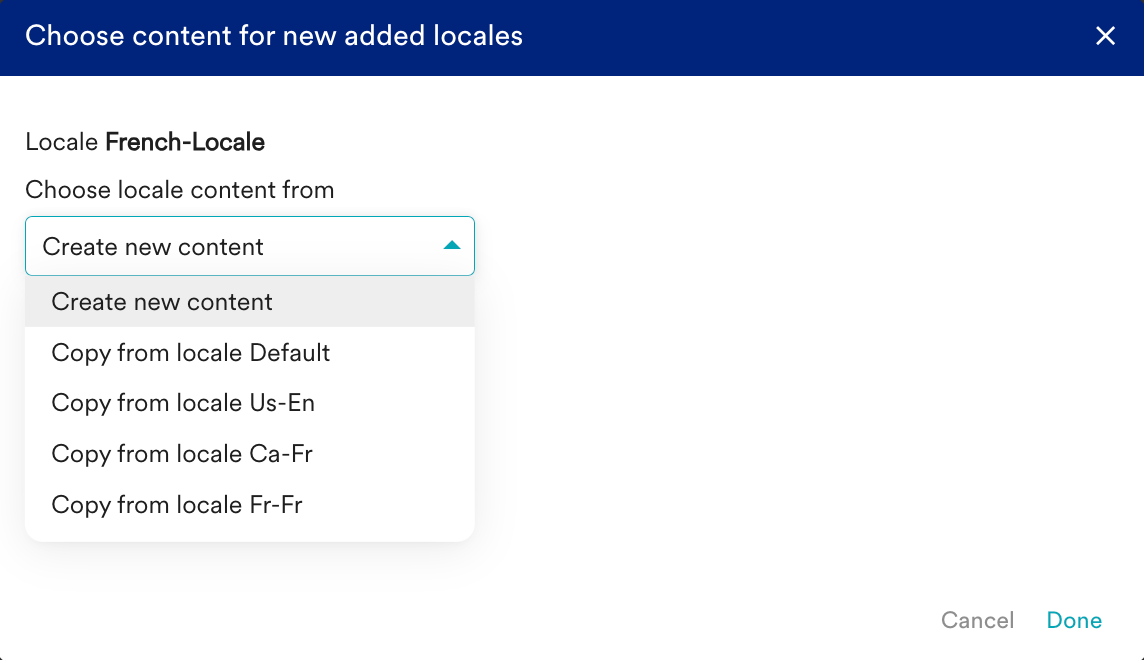 3. For each locale, from the **Choose locale content from** drop-down list, select the locale content from the following options:
* Create new content
* Copy from locale Default
* Copy from locale ``
4. Click **Done**. To make the number of variations consistent across locales, MoEngage adds blank variations for the newly added locales. You must add content before proceeding to the next step.
To add a new locale to the MoEngage system, click **+ Locale** on the **Imported templates** tab and then click **+ New Locale**.
## Add or Remove a Variation
1. Click **+ Variation** to add a variation to a locale. A pop-up window is displayed.
3. For each locale, from the **Choose locale content from** drop-down list, select the locale content from the following options:
* Create new content
* Copy from locale Default
* Copy from locale ``
4. Click **Done**. To make the number of variations consistent across locales, MoEngage adds blank variations for the newly added locales. You must add content before proceeding to the next step.
To add a new locale to the MoEngage system, click **+ Locale** on the **Imported templates** tab and then click **+ New Locale**.
## Add or Remove a Variation
1. Click **+ Variation** to add a variation to a locale. A pop-up window is displayed. 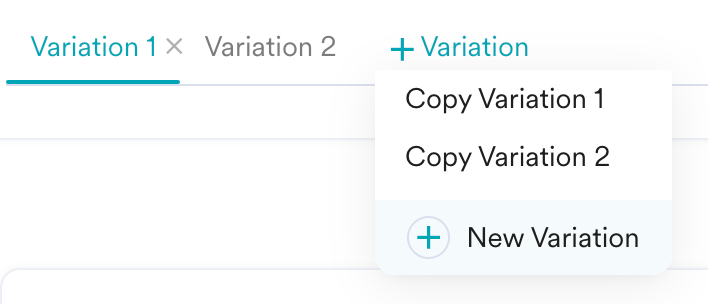 2. Choose one of the following options:
* Click **Copy Variation ``** to copy an existing variation with its content in the selected locale. MoEngage adds the copied variation to all other locales in the template group.
* Click **+ New Variation** to add a new variation. MoEngage adds this blank variation to the selected locale and all other locales in the template group. You must add content before proceeding to next step.
3. To remove a variation, click the delete icon on the variation to be removed.
2. Choose one of the following options:
* Click **Copy Variation ``** to copy an existing variation with its content in the selected locale. MoEngage adds the copied variation to all other locales in the template group.
* Click **+ New Variation** to add a new variation. MoEngage adds this blank variation to the selected locale and all other locales in the template group. You must add content before proceeding to next step.
3. To remove a variation, click the delete icon on the variation to be removed.  MoEngage removes the variation from the selected locale and all other locales.
## Copy Email Addresses to All Variations
You can copy the Sender name, From email address, and Reply-to email address from the default variation of the default locale to all other combinations.
1. Click the ellipsis icon next to the **Template actions (custom)** button. A shortcut menu is displayed.
MoEngage removes the variation from the selected locale and all other locales.
## Copy Email Addresses to All Variations
You can copy the Sender name, From email address, and Reply-to email address from the default variation of the default locale to all other combinations.
1. Click the ellipsis icon next to the **Template actions (custom)** button. A shortcut menu is displayed.
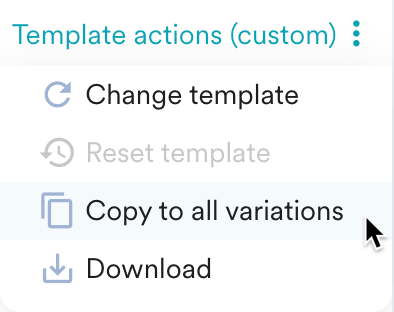 2. Click **Copy to all variations**. This copies the Sender name, From email address, and Reply-to email address from the default variation of the default locale to all other combinations.
## Related Articles
Continue with [email campaign creation](/user-guide/campaigns-and-channels/email/create/create-an-email-campaign).
2. Click **Copy to all variations**. This copies the Sender name, From email address, and Reply-to email address from the default variation of the default locale to all other combinations.
## Related Articles
Continue with [email campaign creation](/user-guide/campaigns-and-channels/email/create/create-an-email-campaign).