> ## Documentation Index
> Fetch the complete documentation index at: https://moengage-unity-sdk-initialization-split.mintlify.site/llms.txt
> Use this file to discover all available pages before exploring further.
# How to view unread/un-clicked notifications in Inbox
> Display unread and unclicked notifications in your app inbox with MoEngage. Requires SDK 4.4.0+, Notification Service Extension, and App Group IDs.
## Task or Objective to be achieved
To show unread/unclicked notifications in the Inbox
## Steps to be carried out
* Make sure that the SDK Version is above 4.4.0, and confirm if you have implemented Notification Service Extension as mentioned [here](https://www.moengage.com/docs/developer-guide/ios-sdk/push/basic/ios-push-integration-tutorial#step-1-implement-notification-service-extension-nse).
* Along with it make sure that the App Group IDs are set correctly for both the [App Target](https://www.moengage.com/docs/developer-guide/ios-sdk/push/basic/ios-push-integration-tutorial#step-1-implement-notification-service-extension-nse) and the [Service Extension Target](https://www.moengage.com/docs/developer-guide/ios-sdk/push/basic/ios-push-integration-tutorial#step-1-implement-notification-service-extension-nse).
For example, to set the app group id in capabilities as well as the code
1. First, select your **App Target** and select **Capabilities** do the changes as shown in the image below:
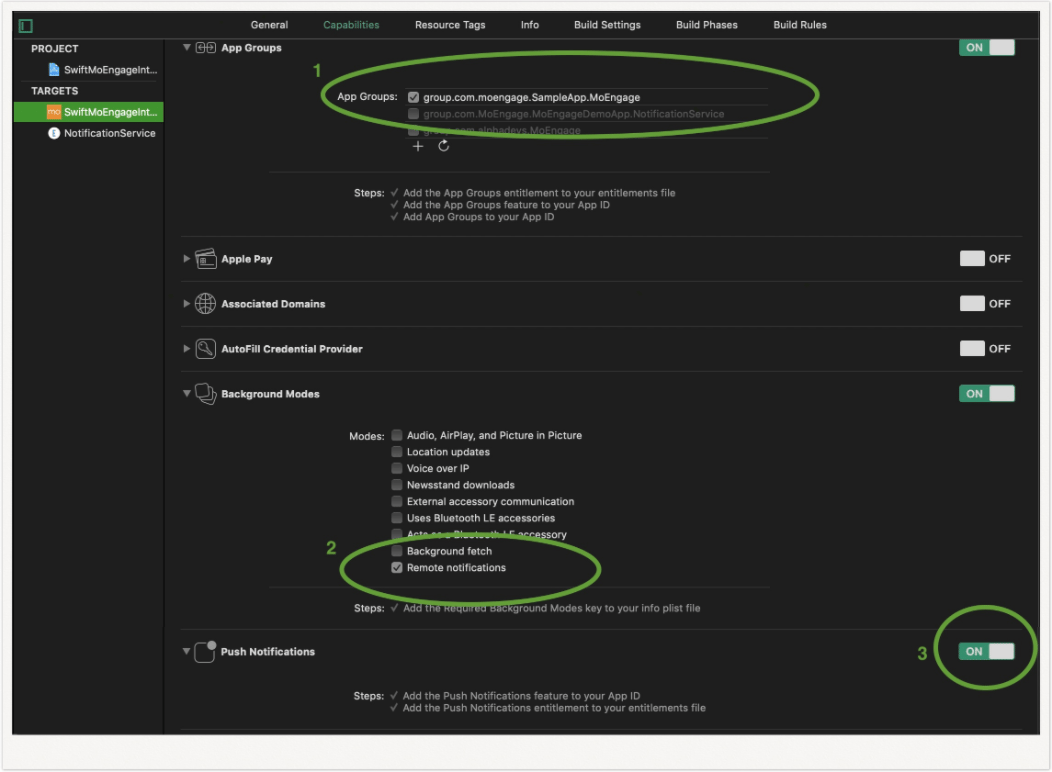 2. Make sure you set the same app group id in the code as well. In this example, the app group id is 'group.com.moengage.SampleApp.MoEngage'.
3. Provide the App Group ID selected in the **Capabilities** tab by calling the setAppGroupID: method before initializing the SDK as shown below:\
**MoEngage.setAppGroupID("group.com.moengage.SampleApp.MoEngage")**
4. Turn ON App Groups for your Notification Service Extension target and enable the same App group id selected for the App Target(In the above steps).
2. Make sure you set the same app group id in the code as well. In this example, the app group id is 'group.com.moengage.SampleApp.MoEngage'.
3. Provide the App Group ID selected in the **Capabilities** tab by calling the setAppGroupID: method before initializing the SDK as shown below:\
**MoEngage.setAppGroupID("group.com.moengage.SampleApp.MoEngage")**
4. Turn ON App Groups for your Notification Service Extension target and enable the same App group id selected for the App Target(In the above steps).
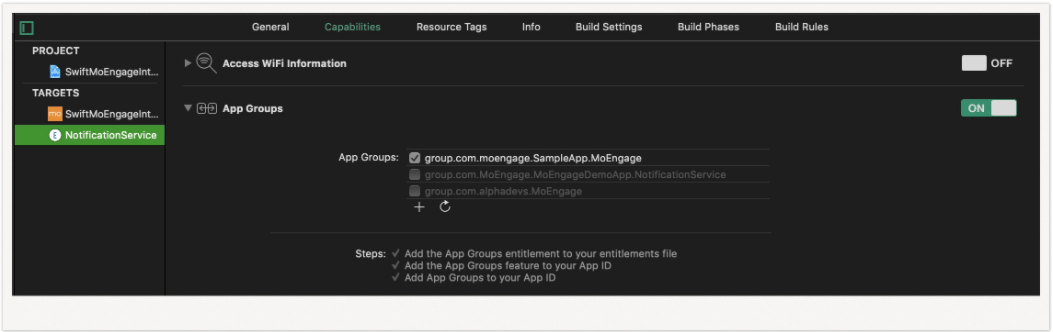 5. In Notification Service Extension class: Set the App Group ID selected in the settings earlier using `setAppGroupID:` method.\
**MORichNotification.setAppGroupID("group.com.moengage.SampleApp.MoEngage")**
## **Solution and steps to verify the result**
1. Send out a push notification from MoEngage Dashboard to your test device.
2. Without clicking on the notification / Without opening the notification, Launch your app and navigate to the Inbox screen.
3. You should be able to view the unclicked/unread notification along with other notifications.
5. In Notification Service Extension class: Set the App Group ID selected in the settings earlier using `setAppGroupID:` method.\
**MORichNotification.setAppGroupID("group.com.moengage.SampleApp.MoEngage")**
## **Solution and steps to verify the result**
1. Send out a push notification from MoEngage Dashboard to your test device.
2. Without clicking on the notification / Without opening the notification, Launch your app and navigate to the Inbox screen.
3. You should be able to view the unclicked/unread notification along with other notifications.