> ## Documentation Index
> Fetch the complete documentation index at: https://moengage-unity-sdk-initialization-split.mintlify.site/llms.txt
> Use this file to discover all available pages before exploring further.
# Personalization of OSM Content
> Personalize On-site Messaging content in MoEngage using user attributes, events, catalogs, and content APIs. Add dynamic content with the @ symbol.
You can personalize content in your On-Site Messaging (OSM) campaigns. Use the **@** symbol to add dynamic content to text and images.
You can personalize campaign content by using the following data types:
* User Attributes
* User Events
* Product Catalogs
* Content APIs
* Content Blocks
* Auxiliary Data
For more information about these personalization options, see:
* [MoEngage Templating Language (Jinja)](/user-guide/campaigns-and-channels/getting-started/message-personalization/jinja-templating-language)
* [Derived Events & Attributes](/user-guide/data/event-data/derived-events-and-attributes)
* [Product Catalogs](/user-guide/content/recommendations/prerequisites/catalogs)
* [Content APIs](/user-guide/campaigns-and-channels/getting-started/campaign-content/content-apis)
* [Content Blocks](/user-guide/content/content-blocks/content-blocks)
* [Auxiliary Data](/user-guide/data/imports/file-based-imports/auxiliary-data)
To personalize content in your OSM campaign, follow these steps:
1. In step 2 of campaign creation, click the **text box** or the **Image Property URL**.
2. To personalize text, press **@** anywhere within the **text area**. The Data Personalization pop-up window appears.
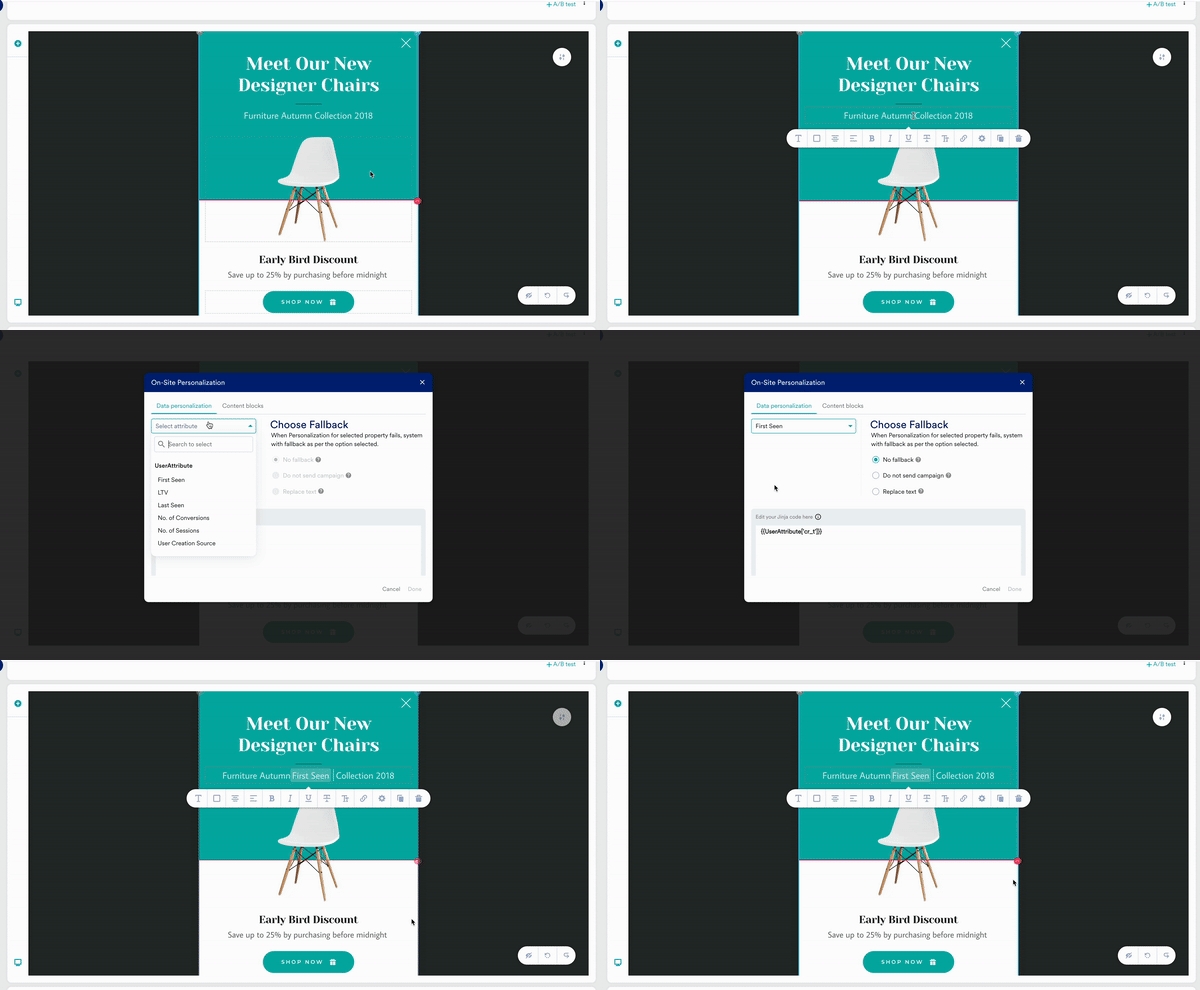 3. To personalize an image, click the **@** button. The Data Personalization pop-up window appears.
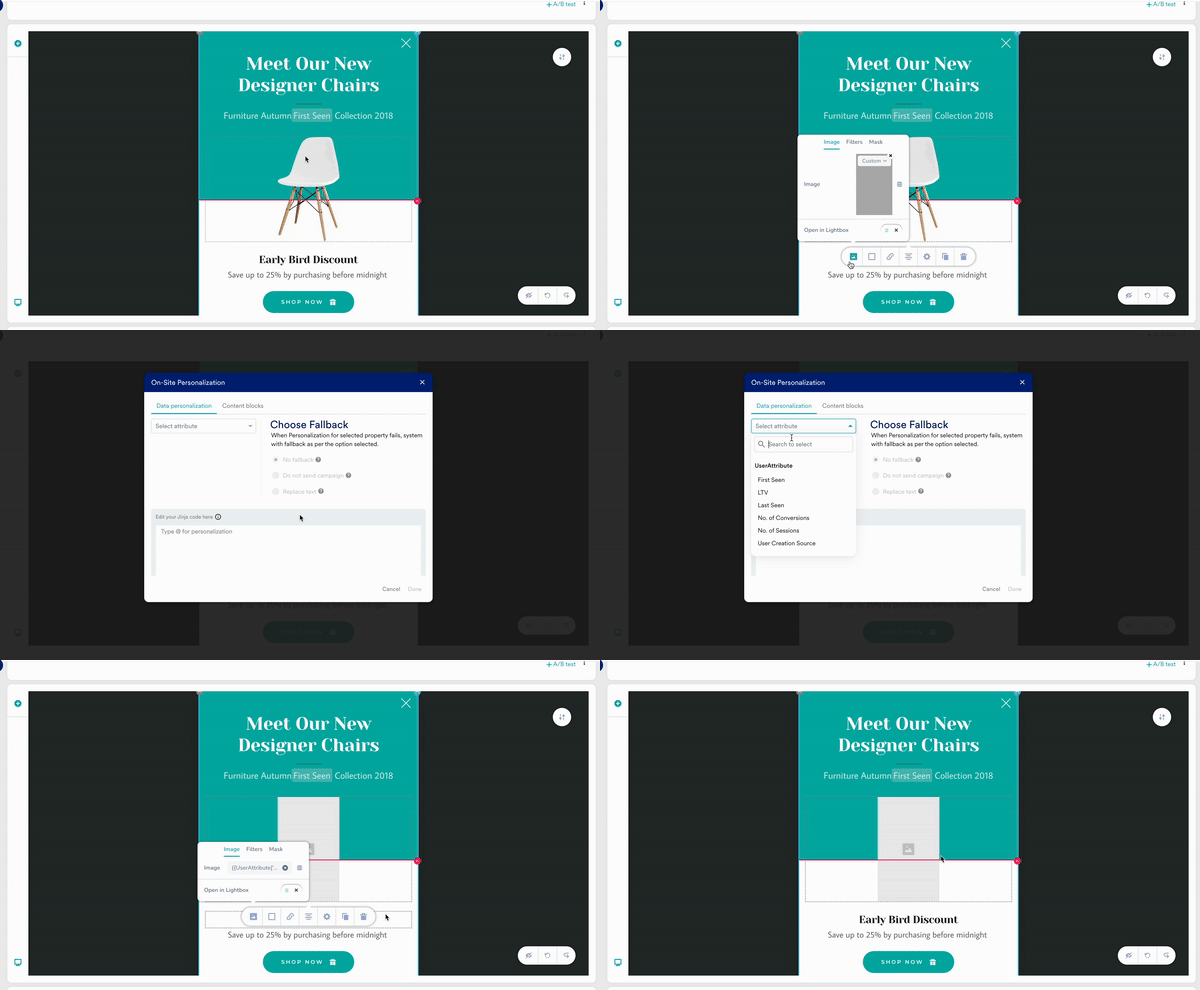 4. In the Data Personalization pop-up, do one of the following:
1. Select **Data Personalization**.
1. From the drop-down list, select one of the following data types:
* **User Attributes**
* **Product Catalogs**
* **Content API**
1. Modify the values of the Content API parameters. For more information, refer [here](/user-guide/campaigns-and-channels/getting-started/campaign-content/content-apis).
2. Select one of the following fallback options:
* **No Fallback**: No alternate content is displayed if personalization fails.
* **Do not send In-App**: In-App messages are not sent if personalization fails.
* **Replace Text**: Type or paste the text to display if personalization fails.
2. Select **Content Block**.
1. Select the **content block** to insert.
2. Click **Insert only the content of the content block**.
This option inserts only the content, which is disconnected from the original content block. Any future updates to the original content block are not reflected in the inserted content.
5. Edit your Jinja code in the **text area** after selecting the attribute or content block.
6. Click **Done**.
7. To edit the Jinja code again, click the personalization in the **text box**.
Avoid selecting another attribute from the drop-down list. Doing so will replace the entire Jinja code in the text box.
4. In the Data Personalization pop-up, do one of the following:
1. Select **Data Personalization**.
1. From the drop-down list, select one of the following data types:
* **User Attributes**
* **Product Catalogs**
* **Content API**
1. Modify the values of the Content API parameters. For more information, refer [here](/user-guide/campaigns-and-channels/getting-started/campaign-content/content-apis).
2. Select one of the following fallback options:
* **No Fallback**: No alternate content is displayed if personalization fails.
* **Do not send In-App**: In-App messages are not sent if personalization fails.
* **Replace Text**: Type or paste the text to display if personalization fails.
2. Select **Content Block**.
1. Select the **content block** to insert.
2. Click **Insert only the content of the content block**.
This option inserts only the content, which is disconnected from the original content block. Any future updates to the original content block are not reflected in the inserted content.
5. Edit your Jinja code in the **text area** after selecting the attribute or content block.
6. Click **Done**.
7. To edit the Jinja code again, click the personalization in the **text box**.
Avoid selecting another attribute from the drop-down list. Doing so will replace the entire Jinja code in the text box.
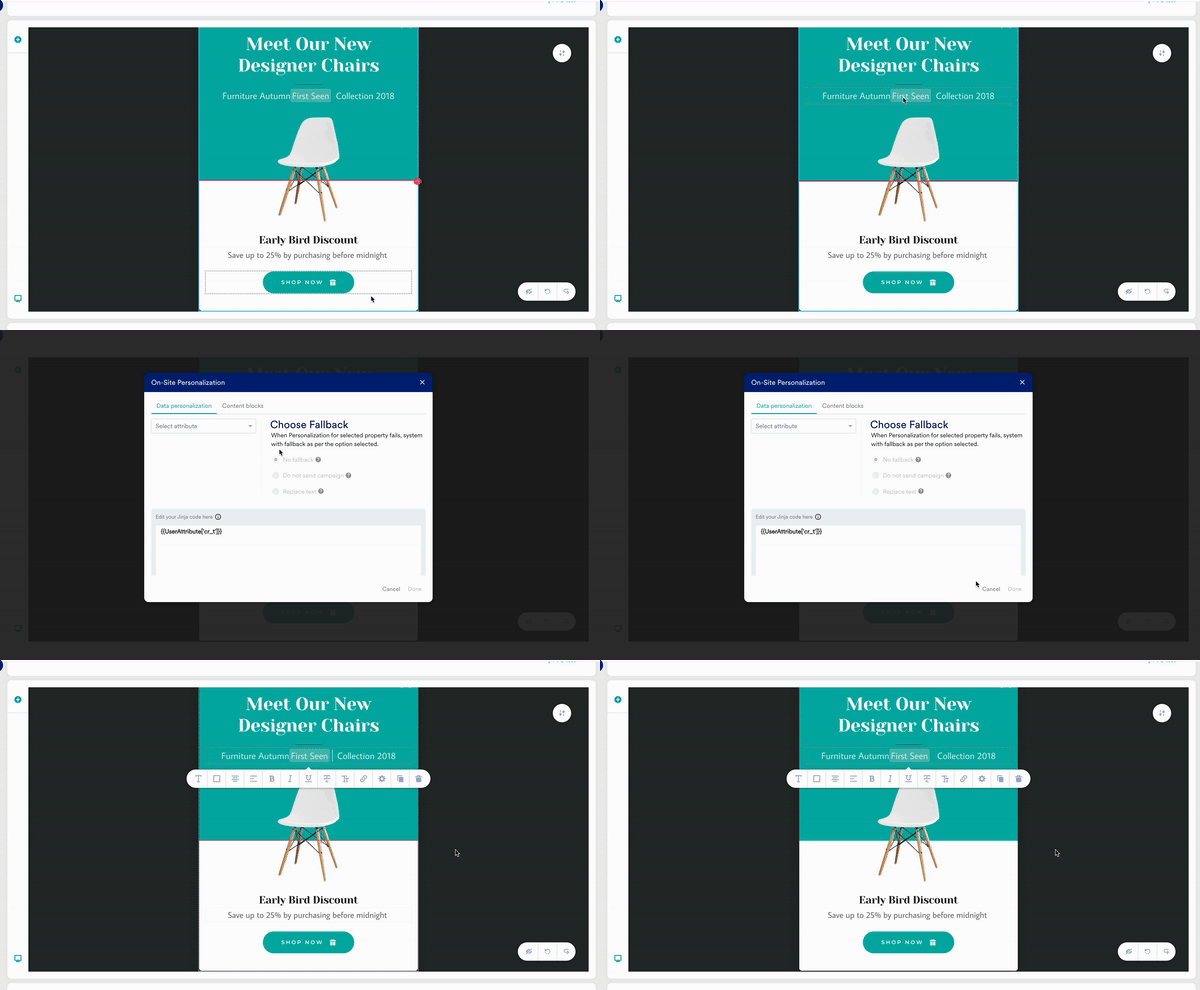 Ensure that custom attributes do not have the same names as MoEngage's standard attributes. If a custom attribute and a standard attribute having the same name are used for personalization, it could result in incorrect personalization.