> ## Documentation Index
> Fetch the complete documentation index at: https://moengage-unity-sdk-initialization-split.mintlify.site/llms.txt
> Use this file to discover all available pages before exploring further.
# Configure an MMS Sender
> Set up and manage MMS senders in MoEngage to authorize message transmission through your provider. A required step before running any MMS campaign.
MMS Senders of MoEngage refer to the entities authorized to initiate and transmit MMS messages through the MoEngage platform.\
Configuring an MMS sender is important because it's the authorized entity that MoEngage uses to transmit messages, making it a mandatory prerequisite for running any MMS campaigns. It also establishes the technical integration between your business's MMS provider and the MoEngage platform.\
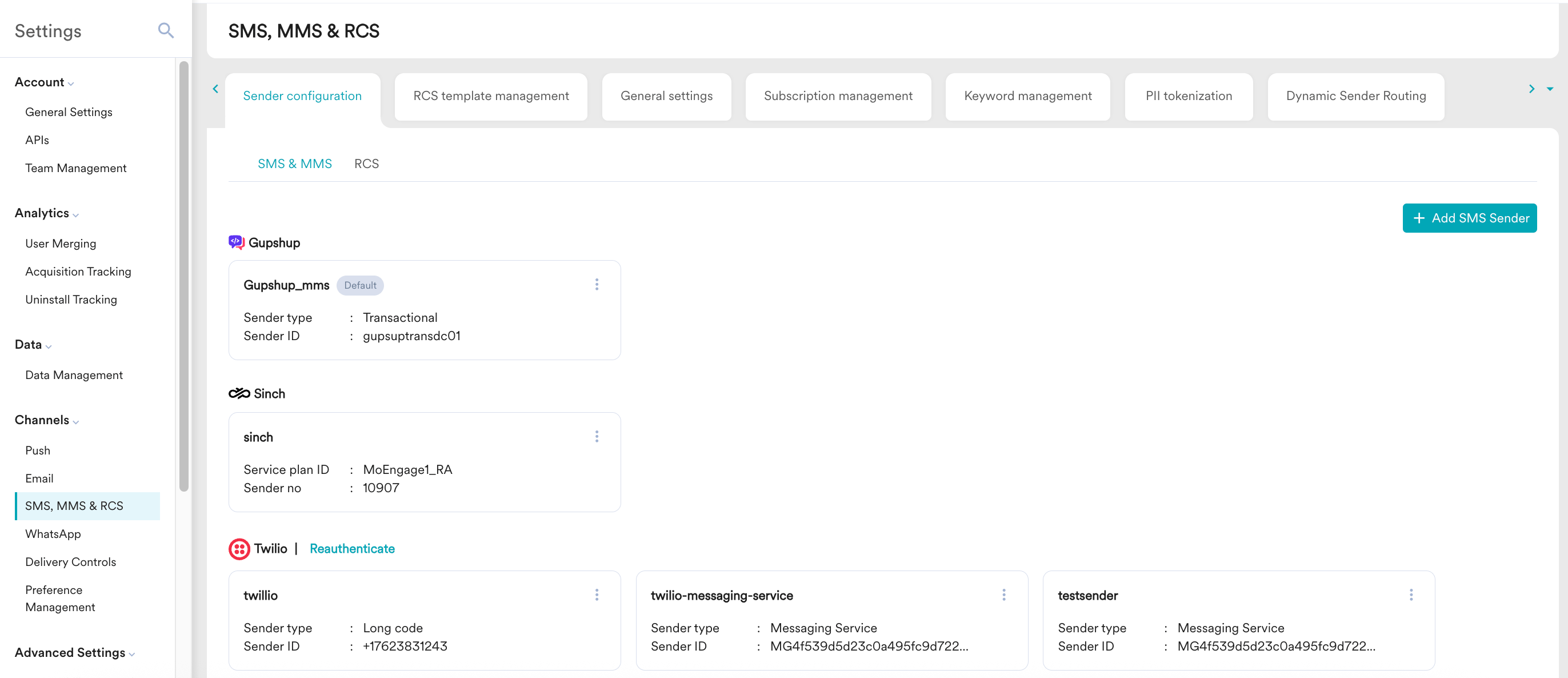
You can add and manage MMS senders in the **Sender configuration** tab of SMS, MMS & RCS settings. You can access the **Sender configuration** tab by navigating to **Settings** > **Channels** > **SMS, MMS & RCS** > **Sender configuration**.
* Currently, MoEngage supports Twilio as an MMS sender.
* CPaaS providers (Twilio) handle sending an SMS as a fallback when MMS isn't supported. For more information, refer to [Twilio Documentation](https://help.twilio.com/articles/360032795214-Getting-Started-with-MMS-Converter-).
 # Configure Your Sender
Perform the following steps to add an MMS sender:
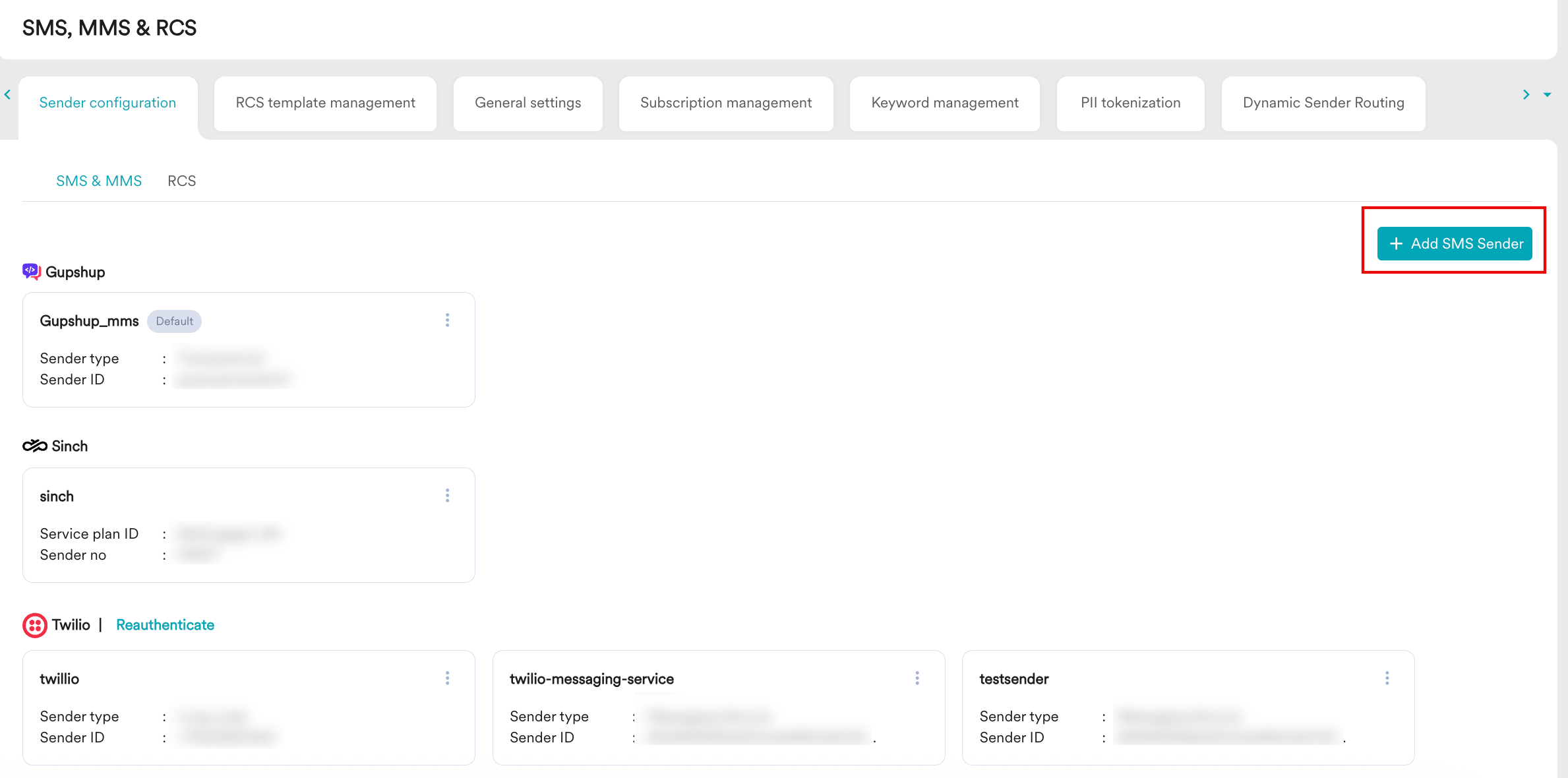
1. On the **SMS & MMS** tab, click **Add SMS Sender**. The **Add sender** page is displayed.
# Configure Your Sender
Perform the following steps to add an MMS sender:
1. On the **SMS & MMS** tab, click **Add SMS Sender**. The **Add sender** page is displayed.
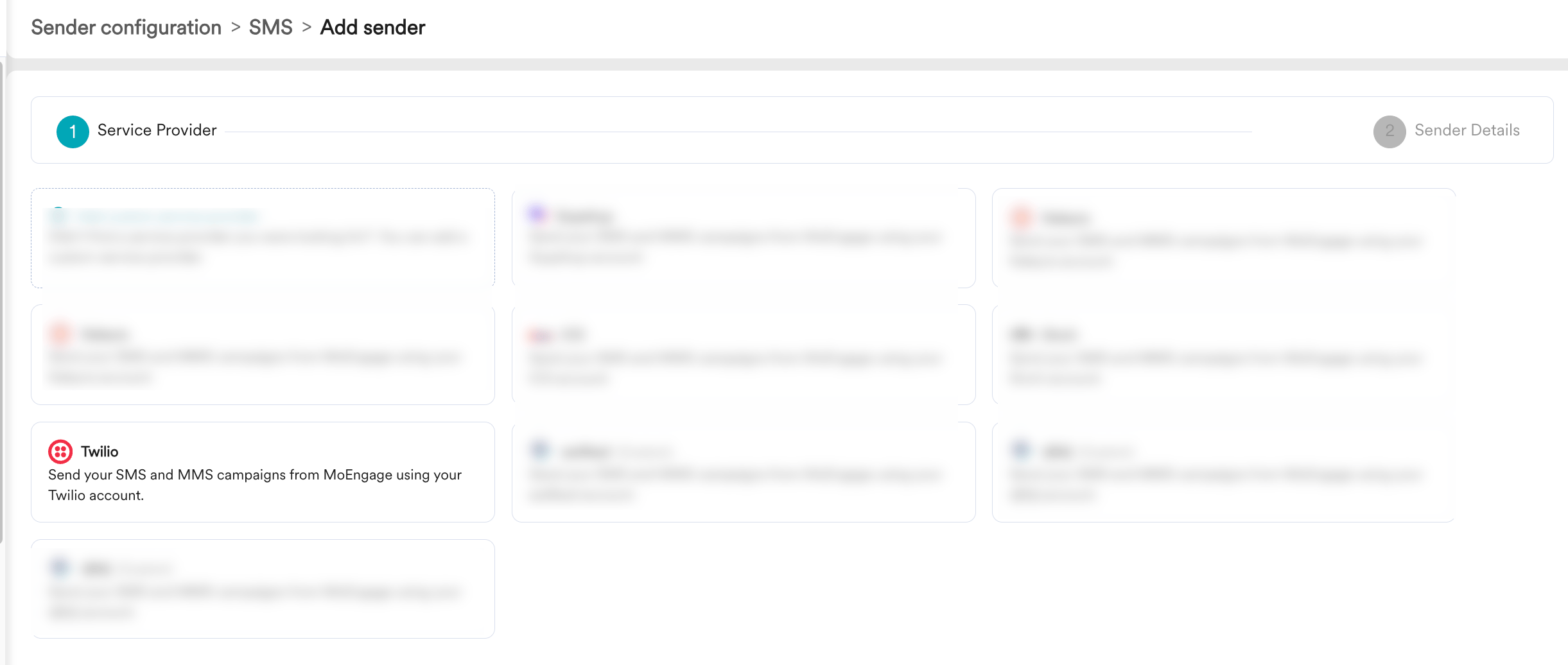
 2. In step 1, **Service Provider**, select your service provider. Note that MoEngage currently supports Twilio as an MMS sender; therefore, select Twilio from the list of senders.
 3. In step 2, **Sender Details**, select the **This sender supports MMS** check box and add the required sender details. To complete the sender configuration, refer to the [Twilio partner guide](https://partners.moengage.com/hc/en-us/articles/4422459355028-Twilio).
4. Click **Save**. The added sender will be displayed under the **Sender configuration** > **SMS & MMS** tab.
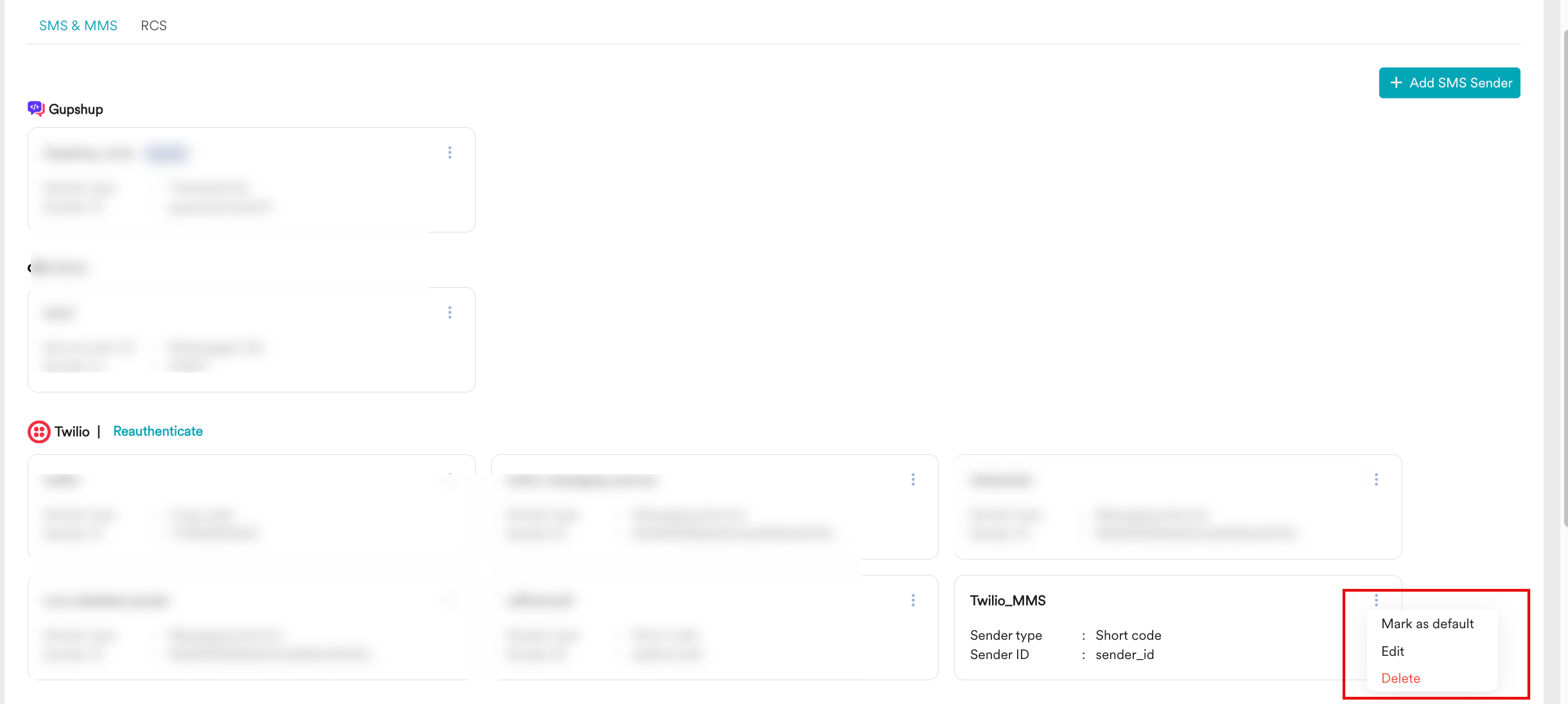
5. Click the ellipsis icon ( ) to **Mark as default**, **Edit,** or **Delete** the sender. When you delete a sender, a pop-up appears that displays all the active campaigns associated with it. You must stop each active campaign to delete the sender.
3. In step 2, **Sender Details**, select the **This sender supports MMS** check box and add the required sender details. To complete the sender configuration, refer to the [Twilio partner guide](https://partners.moengage.com/hc/en-us/articles/4422459355028-Twilio).
4. Click **Save**. The added sender will be displayed under the **Sender configuration** > **SMS & MMS** tab.
5. Click the ellipsis icon ( ) to **Mark as default**, **Edit,** or **Delete** the sender. When you delete a sender, a pop-up appears that displays all the active campaigns associated with it. You must stop each active campaign to delete the sender.
 # Other Settings
Before running the MMS campaigns, make sure to validate the following optional configurations:
* Ensure that the attribute that stores the mobile number of users is configured correctly in the [General Settings](/user-guide/campaigns-and-channels/sms-mms-and-rcs/other-settings/configure-sms-mms-and-rcs-general-settings).
* Validate the Personally Identifiable Information (PII) Tokenization settings. This is a security measure used to protect sensitive data. PII tokenization enables brands to prevent sending PII data to MoEngage and fetch it only when necessary to send a message. For more information, refer to [PII Tokenized Sending.](/user-guide/data/privacy/personal-data-or-personally-identifiable-information-pii/pii-tokenized-sending)
* Validate the delivery control settings to ensure that you send the optimum number of messages to your users and not during DND hours. For more information, refer to [Frequency Capping (FC)](/user-guide/settings/channels/delivery-controls/frequency-capping) and [Do Not Disturb (DND).](/user-guide/settings/channels/delivery-controls/do-not-disturb)
# Next Step
[Create an MMS Campaign](/user-guide/campaigns-and-channels/sms-mms-and-rcs/mms/create-an-mms-campaign)
# Other Settings
Before running the MMS campaigns, make sure to validate the following optional configurations:
* Ensure that the attribute that stores the mobile number of users is configured correctly in the [General Settings](/user-guide/campaigns-and-channels/sms-mms-and-rcs/other-settings/configure-sms-mms-and-rcs-general-settings).
* Validate the Personally Identifiable Information (PII) Tokenization settings. This is a security measure used to protect sensitive data. PII tokenization enables brands to prevent sending PII data to MoEngage and fetch it only when necessary to send a message. For more information, refer to [PII Tokenized Sending.](/user-guide/data/privacy/personal-data-or-personally-identifiable-information-pii/pii-tokenized-sending)
* Validate the delivery control settings to ensure that you send the optimum number of messages to your users and not during DND hours. For more information, refer to [Frequency Capping (FC)](/user-guide/settings/channels/delivery-controls/frequency-capping) and [Do Not Disturb (DND).](/user-guide/settings/channels/delivery-controls/do-not-disturb)
# Next Step
[Create an MMS Campaign](/user-guide/campaigns-and-channels/sms-mms-and-rcs/mms/create-an-mms-campaign)