> ## Documentation Index
> Fetch the complete documentation index at: https://moengage-unity-sdk-initialization-split.mintlify.site/llms.txt
> Use this file to discover all available pages before exploring further.
# How to Analyze Performance for Multiple CTAs on a Landing Page
> Track clicks on individual buttons and CTAs within a MoEngage landing page by assigning unique widget IDs for granular click-level analytics.
# Introduction
Understanding user interaction on your landing pages is key to optimizing conversions. While MoEngage aggregates click data for landing pages by default, you often need more granular insights, especially when multiple buttons or calls-to-action (CTAs) are present. This article explains how to track clicks on individual buttons within a single landing page by assigning unique identifiers (widget IDs) to each button.
#### Advantages
* **Granular user interaction insights**: Gain a deeper understanding of user behavior by seeing exactly which specific buttons or calls-to-action (CTAs) users are clicking on, rather than just seeing aggregated clicks for the entire page.
* **Effective CTA performance comparison**: Directly compare how different buttons on the same landing page perform against each other by analyzing the click counts associated with their unique widget\_id.
* **Identify high-performing elements**: Determine precisely which CTAs are most effective at capturing user interest and driving engagement, allowing you to focus on what works best.
* **Data-driven landing page optimization**: Use the specific button click data to make informed decisions about landing page design, layout, and copy, ultimately improving overall page performance and conversion rates.
* **Improved conversion strategy**: By understanding which specific offers or paths users prefer (indicated by button clicks), you can refine your overall marketing and conversion strategies.
# Expected Result
By implementing the steps outlined below, you can differentiate and track clicks for each specific button on your MoEngage landing page. This allows you to analyze user behavior more effectively by seeing exactly which buttons users are interacting with, using the widget\_id attribute associated with the landing page clicked event in MoEngage analytics.
* Ensure that you have access to the Landing Pages feature in MoEngage. If not, enable it for your account by contacting your MoEngage Customer Success Manager (CSM) or the Support team.
* For any click tracking to work on a button, it must have a URL assigned to it in its settings. Ensure all buttons you want to track have a destination URL configured.
We will accomplish this in two main steps:
* [Step 1: Assign Unique Widget IDs to Buttons](#step-1-assign-unique-widget-ids-to-buttons)
* [Step 2: Analyze Clicks in MoEngage Analytics](#step-2-analyze-clicks-in-moengage-analytics)
# Step 1: Assign Unique Widget IDs to Buttons
1. On the left navigation menu in the MoEngage dashboard, click **Content**, and then click **Landing pages**. 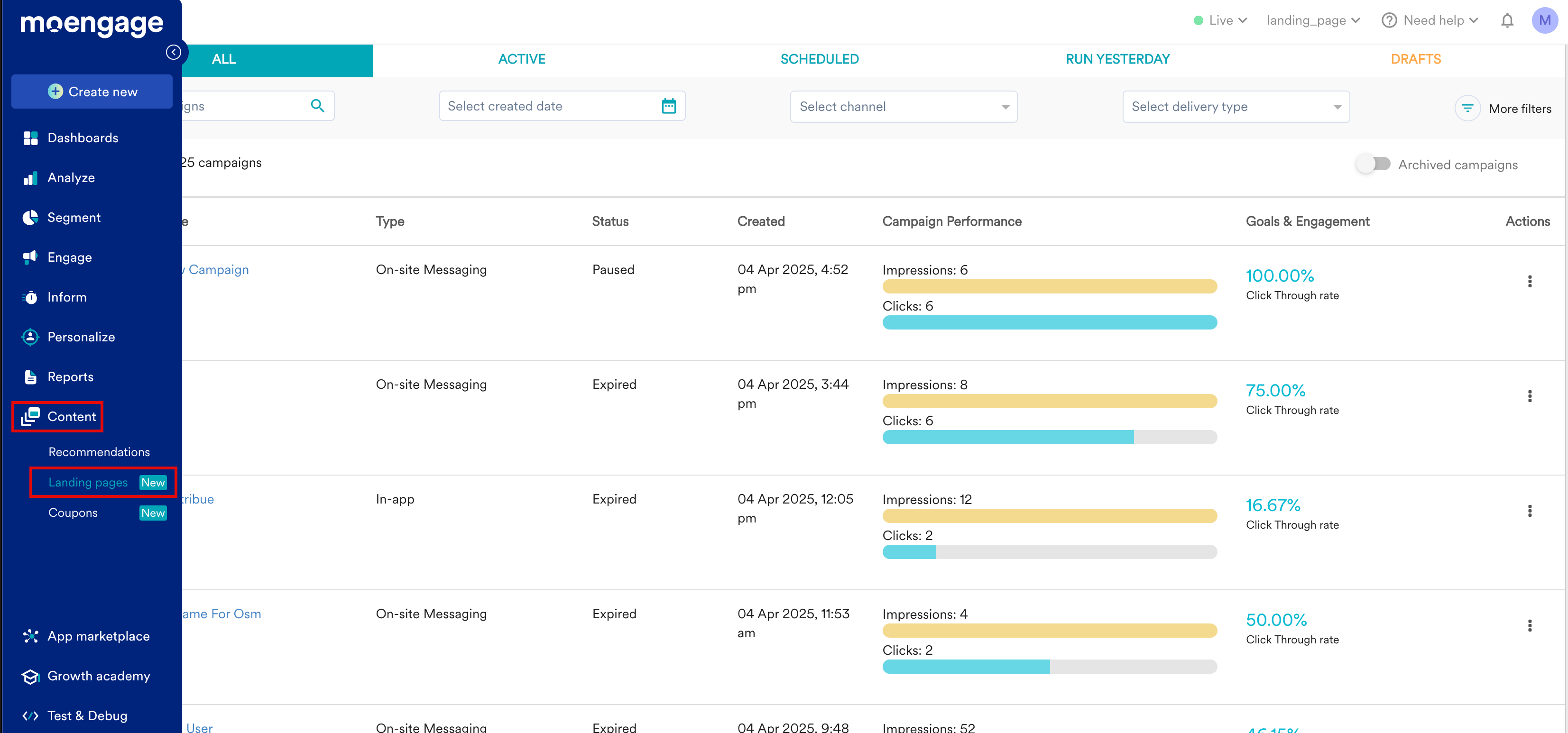 2. On the Landing pages page, click **Create landing page**.
3. Enter a name for the landing page, to identify and manage it easily and select appropriate tags to categorize it.
4. In the **Content** section, select a desired template from the pre-designed template options.
2. On the Landing pages page, click **Create landing page**.
3. Enter a name for the landing page, to identify and manage it easily and select appropriate tags to categorize it.
4. In the **Content** section, select a desired template from the pre-designed template options. 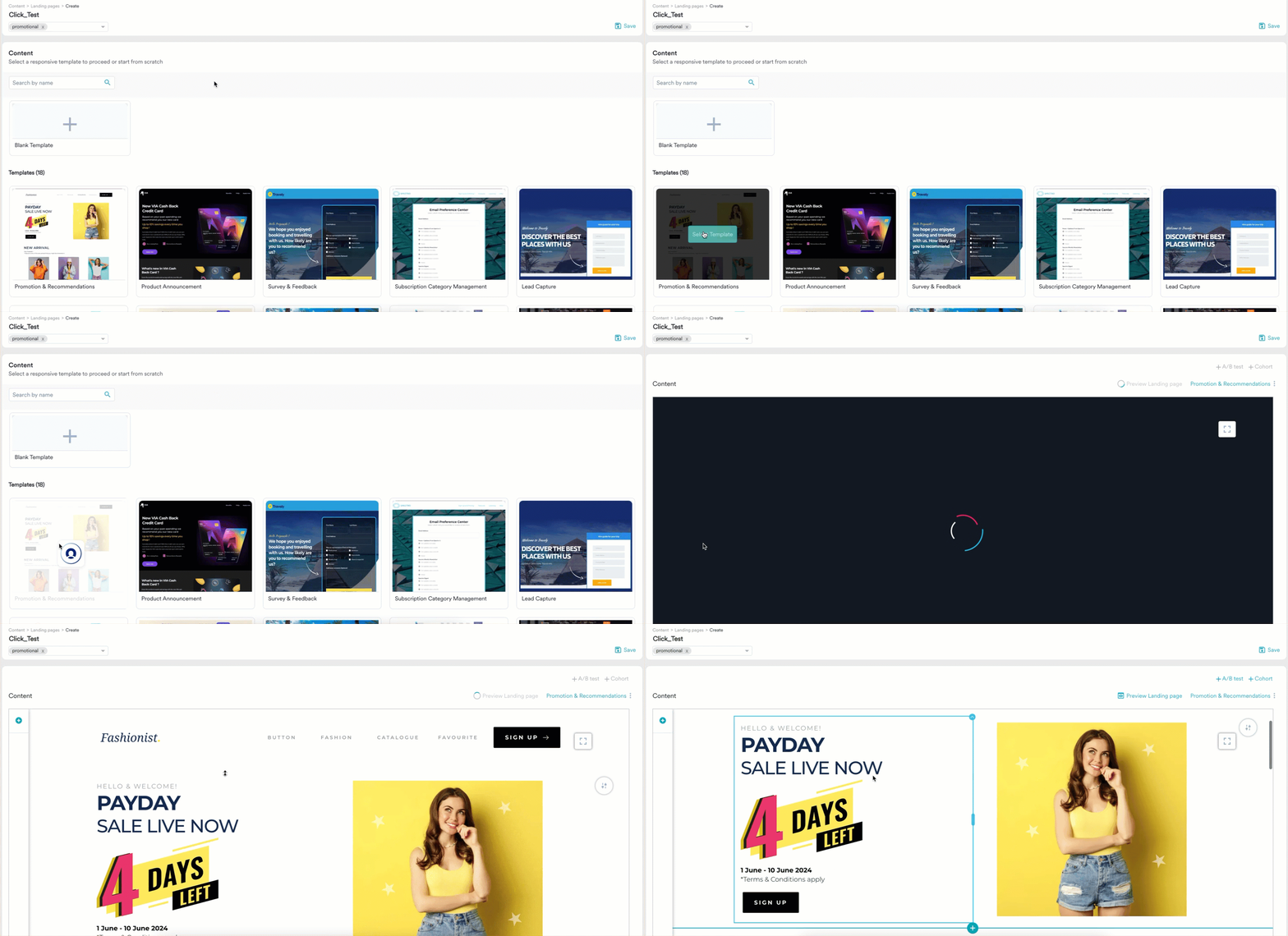 5. In the landing page editor, click the specific button you want to track individually.
6. In the button's settings panel, click the **Settings** icon.
5. In the landing page editor, click the specific button you want to track individually.
6. In the button's settings panel, click the **Settings** icon. 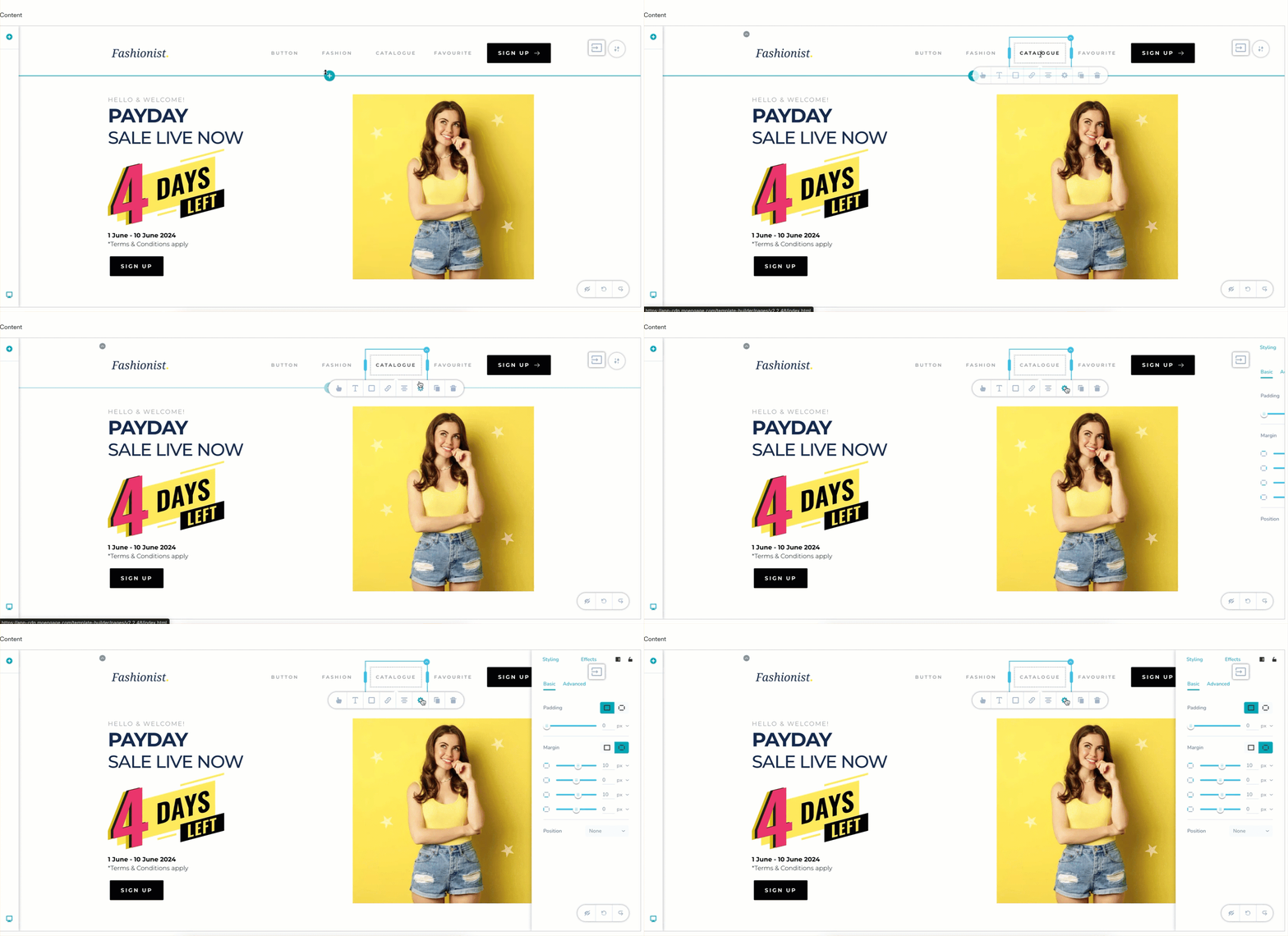 7. Click the **Advanced** section.
8. In the **Custom Attributes** field, you need to add an *onclick* attribute. Type the following, replacing *'YOUR\_UNIQUE\_WIDGET\_ID'* with a descriptive ID for that specific button (For example, *'header\_apply\_now*', 'header\_apply\_now':\
`onclick: "Moengage.landingPages.trackClick(lp_context,'YOUR_UNIQUE_WIDGET_ID');"`
* Example for an **Apply Now** button: `onclick: "Moengage.landingPages.trackClick(lp_context, 'apply_now');"`
* Example for a **Learn More** button: `onclick: "Moengage.landingPages.trackClick(lp_context, 'learn_more_featureX');"`
7. Click the **Advanced** section.
8. In the **Custom Attributes** field, you need to add an *onclick* attribute. Type the following, replacing *'YOUR\_UNIQUE\_WIDGET\_ID'* with a descriptive ID for that specific button (For example, *'header\_apply\_now*', 'header\_apply\_now':\
`onclick: "Moengage.landingPages.trackClick(lp_context,'YOUR_UNIQUE_WIDGET_ID');"`
* Example for an **Apply Now** button: `onclick: "Moengage.landingPages.trackClick(lp_context, 'apply_now');"`
* Example for a **Learn More** button: `onclick: "Moengage.landingPages.trackClick(lp_context, 'learn_more_featureX');"` 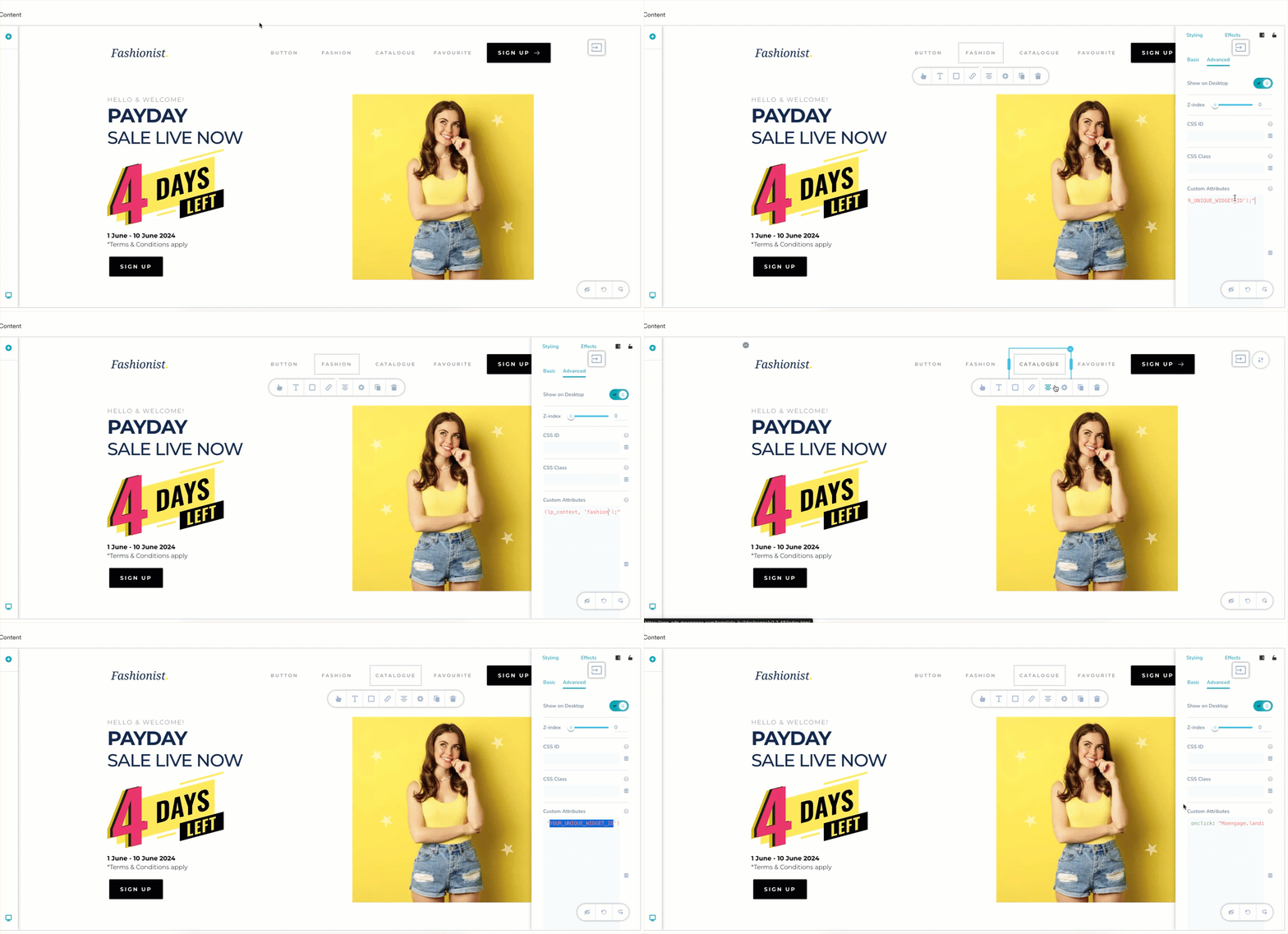 9. Repeat steps 5-8 for every button on the page for which you need distinct click tracking.
10. Configure the URL and settings for your landing page. For more information, refer [here](/user-guide/content/landing-pages/create/create-a-landing-page).
11. Click **Publish** to publish your landing page.
After users start interacting with the updated landing page, we will use MoEngage Analytics to analyze the clicks.
# Step 2: Analyze Clicks in MoEngage Analytics
1. On the left navigation menu in the MoEngage dashboard, click **Analyze**, and then click **Behaviour**.
2. In the **Events & filters** section, select the *landing page clicked* event.
3. Clicking **+ Attributes** to add a filter for the event attribute.
4. Select *landing page ID* from the attributes list and select your landing page.
5. To see clicks for a specific button, add another filter for the event attribute *widget\_id* and enter the unique ID you assigned to that button in Step 1 (For example, *fashion*).
9. Repeat steps 5-8 for every button on the page for which you need distinct click tracking.
10. Configure the URL and settings for your landing page. For more information, refer [here](/user-guide/content/landing-pages/create/create-a-landing-page).
11. Click **Publish** to publish your landing page.
After users start interacting with the updated landing page, we will use MoEngage Analytics to analyze the clicks.
# Step 2: Analyze Clicks in MoEngage Analytics
1. On the left navigation menu in the MoEngage dashboard, click **Analyze**, and then click **Behaviour**.
2. In the **Events & filters** section, select the *landing page clicked* event.
3. Clicking **+ Attributes** to add a filter for the event attribute.
4. Select *landing page ID* from the attributes list and select your landing page.
5. To see clicks for a specific button, add another filter for the event attribute *widget\_id* and enter the unique ID you assigned to that button in Step 1 (For example, *fashion*). 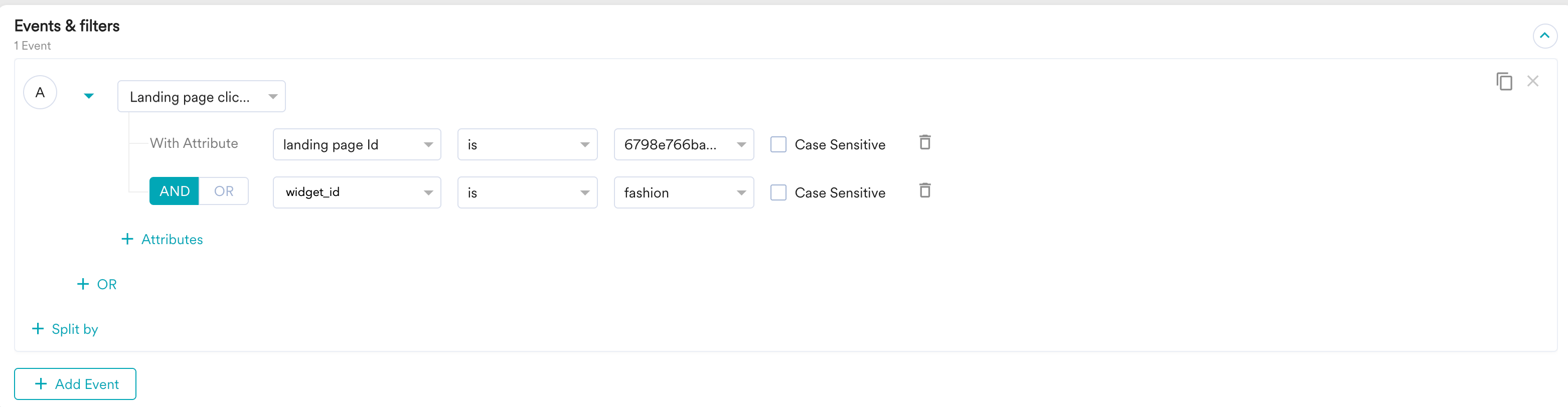 6. Select **All users** in the **Filter users** section.
7. In the **Behavior Options** section, select *Total events* as the **Analysis type**.
8. Select the desired duration for your analysis.
6. Select **All users** in the **Filter users** section.
7. In the **Behavior Options** section, select *Total events* as the **Analysis type**.
8. Select the desired duration for your analysis.  9. Click **Apply**.
10. The report is generated in a chart and table format. It will show you the count of clicks specifically for that button on that landing page.
9. Click **Apply**.
10. The report is generated in a chart and table format. It will show you the count of clicks specifically for that button on that landing page. 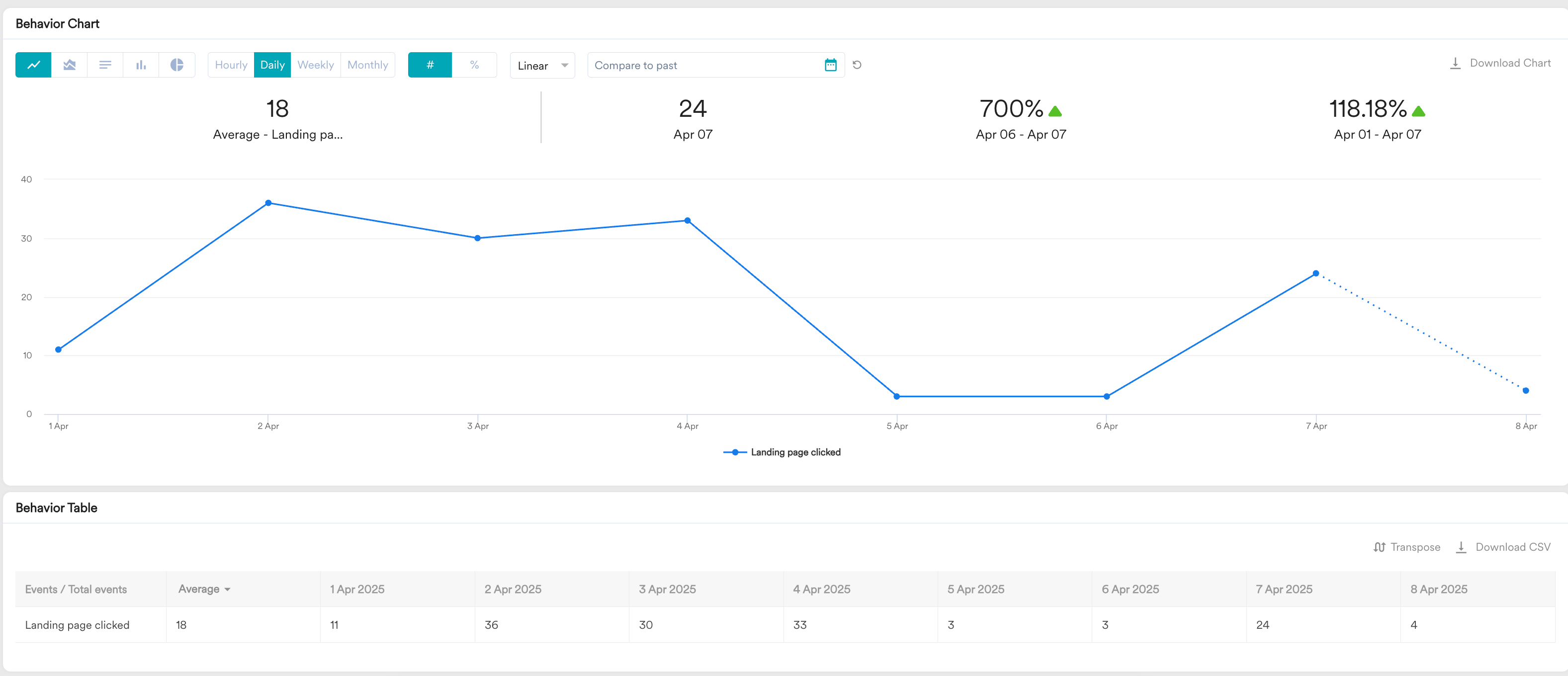 For more information on Behavior Analysis, refer [here](/user-guide/analyze/analytics/behavior/behavior-analysis). You can analyze different *widget\_id* values to compare the performance of various buttons.
# Verification
To verify that the individual button click tracking is working correctly:
1. Visit the published landing page yourself.
2. Click the buttons you configured with unique *widget\_id*.
3. Wait a few minutes for MoEngage to process the events.
4. Follow the steps in [Step 2](#step-2-analyze-clicks-in-moengage-analytics) to check if the landing page clicked events appear with the corresponding *widget\_id* attributes you defined.
# Conclusion
In this article, we configured individual button tracking on a MoEngage landing page by adding a custom *onclick* attribute with a unique *widget\_id* to each button. This method allows for granular analysis of user interactions, helping you understand which CTAs are most effective and optimize your landing page design for better performance.
For more information on Behavior Analysis, refer [here](/user-guide/analyze/analytics/behavior/behavior-analysis). You can analyze different *widget\_id* values to compare the performance of various buttons.
# Verification
To verify that the individual button click tracking is working correctly:
1. Visit the published landing page yourself.
2. Click the buttons you configured with unique *widget\_id*.
3. Wait a few minutes for MoEngage to process the events.
4. Follow the steps in [Step 2](#step-2-analyze-clicks-in-moengage-analytics) to check if the landing page clicked events appear with the corresponding *widget\_id* attributes you defined.
# Conclusion
In this article, we configured individual button tracking on a MoEngage landing page by adding a custom *onclick* attribute with a unique *widget\_id* to each button. This method allows for granular analysis of user interactions, helping you understand which CTAs are most effective and optimize your landing page design for better performance.