> ## Documentation Index
> Fetch the complete documentation index at: https://moengage-unity-sdk-initialization-split.mintlify.site/llms.txt
> Use this file to discover all available pages before exploring further.
# Use PGP Encryption in MoEngage
# Overview - The PGP Encryption Process
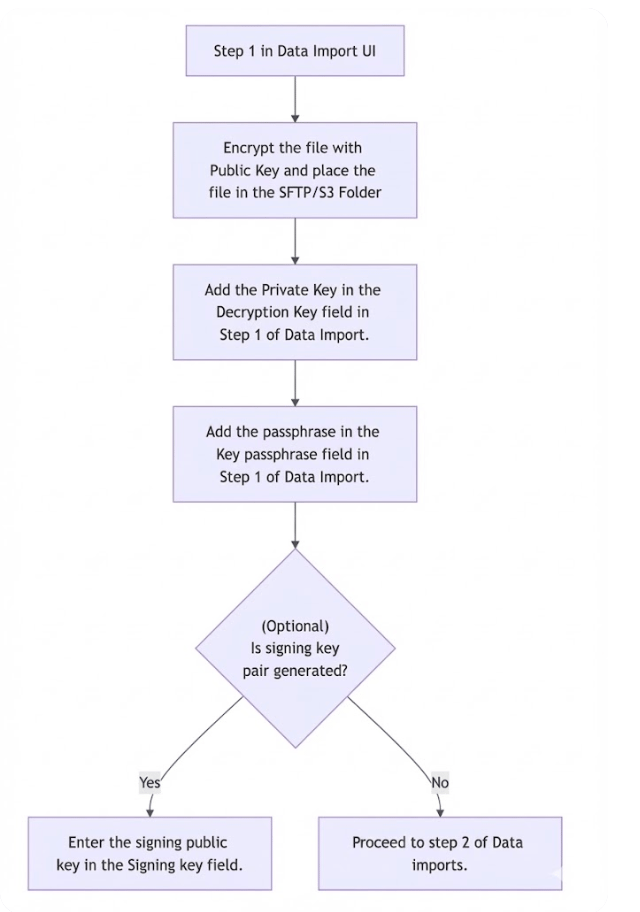
PGP (Pretty Good Privacy) is a security program that allows you to encrypt sensitive files. MoEngage supports PGP encryption in file imports (S3 Import, SFTP Import). This article explains how to use PGP encryption for your sensitive files.
### Prequisites
* **PGP key pair**: A PGP key pair consists of a public key and a private key. Use the public key to encrypt the file, and use the private key to decrypt the file. Do not share the private key with anyone, because it decrypts the sensitive information in the file. This private key is required for the SFTP (SSH File Transfer Protocol) integration process with MoEngage.
* **Signing key pair**: A signing key pair consists of a public key and a private key. Use the public key to sign the file; it is required for MoEngage SFTP integration. Internally, the private key verifies the signature.
 # Use a PGP Key Pair
The following steps describe how to use PGP encryption through [GnuPG](https://www.gnupg.org/index.html), a free implementation of the PGP standard.
## Step 1: Generate a Standard Key Pair (Public and Private)
Generate the PGP key pair by using a PGP tool such as GnuPG. See the following example:
```json Example theme={null}
(env) ubuntu@ip-10-66-67-30:~$ gpg --full-generate-key
gpg (GnuPG) 2.2.19; Copyright (C) 2019 Free Software Foundation, Inc.
This is free software: you are free to change and redistribute it.
There is NO WARRANTY, to the extent permitted by law.
Please select what kind of key you want:
(1) RSA and RSA (default)
(2) DSA and Elgamal
(3) DSA (sign only)
(4) RSA (sign only)
(14) Existing key from card
Your selection? 1
RSA keys may be between 1024 and 1024 bits long.
What keysize do you want? (1024)
Requested keysize is 1024 bits
Please specify how long the key should be valid.
0 = key does not expire
= key expires in n days
w = key expires in n weeks
m = key expires in n months
y = key expires in n years
Key is valid for? (0) 0
Key does not expire at all
Is this correct? (y/N) y
GnuPG needs to construct a user ID to identify your key.
Real name: Moengage
Email address: demo@example.com
Comment:
You selected this USER-ID:
"Moengage "
Change (N)ame, (C)omment, (E)mail or (O)kay/(Q)uit? O
We need to generate a lot of random bytes. It is a good idea to perform
some other action (type on the keyboard, move the mouse, utilize the
disks) during the prime generation; this gives the random number
generator a better chance to gain enough entropy.
We need to generate a lot of random bytes. It is a good idea to perform
some other action (type on the keyboard, move the mouse, utilize the
disks) during the prime generation; this gives the random number
generator a better chance to gain enough entropy.
gpg: key 625A24E04B26F243 marked as ultimately trusted
gpg: revocation certificate stored as '/home/ubuntu/.gnupg/openpgp-revocs.d/F4CDDF1A7B223A63BF90787E625A24E04B26F243.rev'
public and secret key created and signed.
pub rsa1024 2023-01-18 [SC]
F4CDDF1A7B223A63BF90787E625A24E04B26F243
uid Moengage
sub rsa1024 2023-01-18 [E]
```
**Information**
* MoEngage supports file encryption that uses RSA keys of up to 1024 bits in length. We do not recommend using higher bits.
* Ensure that compression is turned off during the encryption process.
## Step 2: Generate a Public Key and Encrypt the Files
Encrypt the file by using the generated public key, and then upload the encrypted file to the S3 or SFTP folder.
```json Encrypt Public Key theme={null}
gpg --encrypt --sign --armor --compress-algo none -r demo@example.com
```
The `--sign` option is used to encrypt a file by signing it.
## Step 3: Add the Keys in the MoEngage UI
Enter the private key in the **Decryption Key** section on the MoEngage UI, and then enter the passphrase in the **Key Passphrase** section. For more information, refer to the [Adding your S3 Credentials (S3 Imports)](/user-guide/data/imports/file-based-imports/s3-imports) and [Adding your S3 Credentials (SFTP Imports) ](/user-guide/data/imports/file-based-imports/sftp-imports) sections.
## Step 4: Decrypt a File
To decrypt an encrypted file, you need two essential elements: your private key and the corresponding passphrase that you established when you created the key pair. In the PGP software, navigate to and select the encrypted file, and then type your passphrase. The software decrypts your file and generates an unencrypted version of the original document.
For Python users, consider the python-gnupg package, a Pythonic wrapper for the gpg command.
```python Example theme={null}
import gnupg
import os
# intialising
gpg = gnupg.GPG(gnupghome=os.path.expanduser( '~' ))
gpg.encoding = 'utf-8'
# importing the private key to the server where we are going to decrypt the file
key_data = ""
import_result = gpg.import_keys(key_data)
gpg.trust_keys(import_result.fingerprints, "TRUST_ULTIMATE")
#
encrypted_file_path = "/path/to/encrypted/file"
with open(encrypted_file_path, 'rb') as file:
status=gpg.decrypt_file(file, passphrase="", output="/path/where we want to store the decrypted file")
print(status.ok)
print(status.stderr)
```
## Step 5: Verify the File's Signature \[Optional Step]
If a signing key was used to sign your file, copy the public key and signing key pair into the appropriate section on the MoEngage dashboard. MoEngage verifies the file in the S3 or SFTP folder for a signature match, as shown in the following example.
```python Example theme={null}
if status.signature_id: # if signature verified then it has value else None
print("signature verified")
else:
print("Not")
```
# Next Steps
1. [S3 Imports](/user-guide/data/imports/file-based-imports/s3-imports)
2. [SFTP Imports](/user-guide/data/imports/file-based-imports/sftp-imports)
# Use a PGP Key Pair
The following steps describe how to use PGP encryption through [GnuPG](https://www.gnupg.org/index.html), a free implementation of the PGP standard.
## Step 1: Generate a Standard Key Pair (Public and Private)
Generate the PGP key pair by using a PGP tool such as GnuPG. See the following example:
```json Example theme={null}
(env) ubuntu@ip-10-66-67-30:~$ gpg --full-generate-key
gpg (GnuPG) 2.2.19; Copyright (C) 2019 Free Software Foundation, Inc.
This is free software: you are free to change and redistribute it.
There is NO WARRANTY, to the extent permitted by law.
Please select what kind of key you want:
(1) RSA and RSA (default)
(2) DSA and Elgamal
(3) DSA (sign only)
(4) RSA (sign only)
(14) Existing key from card
Your selection? 1
RSA keys may be between 1024 and 1024 bits long.
What keysize do you want? (1024)
Requested keysize is 1024 bits
Please specify how long the key should be valid.
0 = key does not expire
= key expires in n days
w = key expires in n weeks
m = key expires in n months
y = key expires in n years
Key is valid for? (0) 0
Key does not expire at all
Is this correct? (y/N) y
GnuPG needs to construct a user ID to identify your key.
Real name: Moengage
Email address: demo@example.com
Comment:
You selected this USER-ID:
"Moengage "
Change (N)ame, (C)omment, (E)mail or (O)kay/(Q)uit? O
We need to generate a lot of random bytes. It is a good idea to perform
some other action (type on the keyboard, move the mouse, utilize the
disks) during the prime generation; this gives the random number
generator a better chance to gain enough entropy.
We need to generate a lot of random bytes. It is a good idea to perform
some other action (type on the keyboard, move the mouse, utilize the
disks) during the prime generation; this gives the random number
generator a better chance to gain enough entropy.
gpg: key 625A24E04B26F243 marked as ultimately trusted
gpg: revocation certificate stored as '/home/ubuntu/.gnupg/openpgp-revocs.d/F4CDDF1A7B223A63BF90787E625A24E04B26F243.rev'
public and secret key created and signed.
pub rsa1024 2023-01-18 [SC]
F4CDDF1A7B223A63BF90787E625A24E04B26F243
uid Moengage
sub rsa1024 2023-01-18 [E]
```
**Information**
* MoEngage supports file encryption that uses RSA keys of up to 1024 bits in length. We do not recommend using higher bits.
* Ensure that compression is turned off during the encryption process.
## Step 2: Generate a Public Key and Encrypt the Files
Encrypt the file by using the generated public key, and then upload the encrypted file to the S3 or SFTP folder.
```json Encrypt Public Key theme={null}
gpg --encrypt --sign --armor --compress-algo none -r demo@example.com
```
The `--sign` option is used to encrypt a file by signing it.
## Step 3: Add the Keys in the MoEngage UI
Enter the private key in the **Decryption Key** section on the MoEngage UI, and then enter the passphrase in the **Key Passphrase** section. For more information, refer to the [Adding your S3 Credentials (S3 Imports)](/user-guide/data/imports/file-based-imports/s3-imports) and [Adding your S3 Credentials (SFTP Imports) ](/user-guide/data/imports/file-based-imports/sftp-imports) sections.
## Step 4: Decrypt a File
To decrypt an encrypted file, you need two essential elements: your private key and the corresponding passphrase that you established when you created the key pair. In the PGP software, navigate to and select the encrypted file, and then type your passphrase. The software decrypts your file and generates an unencrypted version of the original document.
For Python users, consider the python-gnupg package, a Pythonic wrapper for the gpg command.
```python Example theme={null}
import gnupg
import os
# intialising
gpg = gnupg.GPG(gnupghome=os.path.expanduser( '~' ))
gpg.encoding = 'utf-8'
# importing the private key to the server where we are going to decrypt the file
key_data = ""
import_result = gpg.import_keys(key_data)
gpg.trust_keys(import_result.fingerprints, "TRUST_ULTIMATE")
#
encrypted_file_path = "/path/to/encrypted/file"
with open(encrypted_file_path, 'rb') as file:
status=gpg.decrypt_file(file, passphrase="", output="/path/where we want to store the decrypted file")
print(status.ok)
print(status.stderr)
```
## Step 5: Verify the File's Signature \[Optional Step]
If a signing key was used to sign your file, copy the public key and signing key pair into the appropriate section on the MoEngage dashboard. MoEngage verifies the file in the S3 or SFTP folder for a signature match, as shown in the following example.
```python Example theme={null}
if status.signature_id: # if signature verified then it has value else None
print("signature verified")
else:
print("Not")
```
# Next Steps
1. [S3 Imports](/user-guide/data/imports/file-based-imports/s3-imports)
2. [SFTP Imports](/user-guide/data/imports/file-based-imports/sftp-imports)