> ## Documentation Index
> Fetch the complete documentation index at: https://moengage-unity-sdk-initialization-split.mintlify.site/llms.txt
> Use this file to discover all available pages before exploring further.
# Teams 2.0 in MoEngage
> Organize teams by location, language, or custom attributes in MoEngage Teams 2.0 to control access to campaigns, analytics, and user data.
Teams 2.0 is an add-on feature. Contact your MoEngage CSM (customer success manager) or the [Support team](/user-guide/contact-support/raise-a-support-ticket-through-moengage-dashboard) to enable it for your account.
# Overview
Teams can be set up across your customers based on location, language, and custom attributes. This allows you to view and access campaigns, analytics, and customer databases specific to the customers you are handling. Teams in MoEngage support team selection and team-based filters for segmentation, campaigns, and analytics.
For example, businesses operating in multiple countries often require their marketers to have access to data and audiences specific to their respective countries and brands. Teams in MoEngage provide marketers with this particular access, ensuring that customers of a particular brand from a country are not mistakenly targeted with promotions intended for another country. It also allows leadership to view analytics dashboards restricted to their specific region or brand.
# Create a New Team
Users with access to the *Create and Manage* permission under the permission set **Teams** can create, edit, and delete a team. Perform the following steps to create a new team:
1. Navigate to **Settings** > **Account** > **Team management** > **Teams**.
2. Click **+ Create Team**. The **Create Team** screen is displayed.
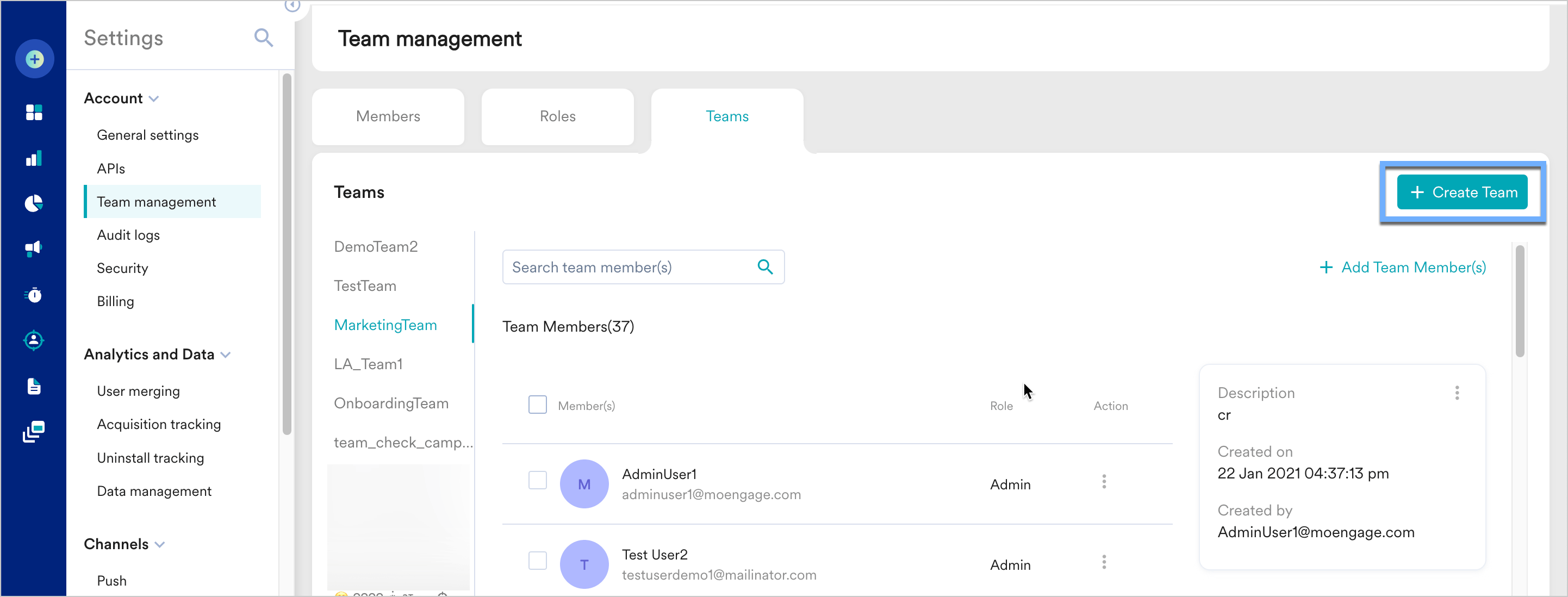 3. Enter the following details:
| Field | Description |
| ---------------------------------------------- | ----------------------------------------------------------------------------------------------------------------------------------------------------------------------------------------------------------------------------------------------------------------------------------------------------------------------------------------------------------------------------------------------------------------------------------------------------------------------------------------------------------------------------------------------------------------------------------------------------------------------------------------------------------------------------------------------------------------------------------------------------------------------------------------------------------------------------------------------------------------------------------------------------------------------------------------------------------------------------------------------------------------------------------------------------------------------------------------------------------------------------------------------------------------------------------------------------------------------------------------------------------------------------------------------------------------------------------------------------------------------------------------------------------------------------------------------------------------------------------------------------------------------------------------------------------------------------------------------------------------------------------------------------------------------------------------------------------------------------------------------------------------------------------------------------------------------------------------------------------------------------------------------------------------------------------------------------------------- |
| **Team Name** | Specify a unique name for your team. |
| **Description** | Add details about the purpose of the team. |
| **Define the targeting criteria for the team** | In the select attribute drop-down list, select the user attribute to filter the users to be targeted by the team being created. You can add up to 5 user attributes to define the team. For example, if your team runs campaigns targeted at users in a specific city, such as New York, you can add the filter condition, as in the following image:
3. Enter the following details:
| Field | Description |
| ---------------------------------------------- | ----------------------------------------------------------------------------------------------------------------------------------------------------------------------------------------------------------------------------------------------------------------------------------------------------------------------------------------------------------------------------------------------------------------------------------------------------------------------------------------------------------------------------------------------------------------------------------------------------------------------------------------------------------------------------------------------------------------------------------------------------------------------------------------------------------------------------------------------------------------------------------------------------------------------------------------------------------------------------------------------------------------------------------------------------------------------------------------------------------------------------------------------------------------------------------------------------------------------------------------------------------------------------------------------------------------------------------------------------------------------------------------------------------------------------------------------------------------------------------------------------------------------------------------------------------------------------------------------------------------------------------------------------------------------------------------------------------------------------------------------------------------------------------------------------------------------------------------------------------------------------------------------------------------------------------------------------------------- |
| **Team Name** | Specify a unique name for your team. |
| **Description** | Add details about the purpose of the team. |
| **Define the targeting criteria for the team** | In the select attribute drop-down list, select the user attribute to filter the users to be targeted by the team being created. You can add up to 5 user attributes to define the team. For example, if your team runs campaigns targeted at users in a specific city, such as New York, you can add the filter condition, as in the following image: 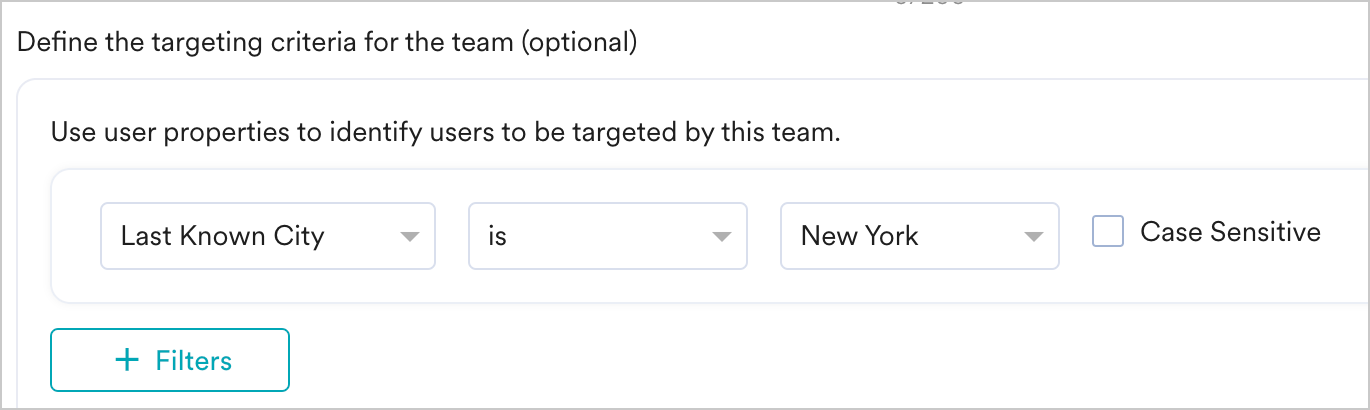 |
4. Click **Create**. You get a success message upon successful creation, as shown in the following image.
|
4. Click **Create**. You get a success message upon successful creation, as shown in the following image.
 5. The newly created team is available at the end in the left menu on the **Teams** page.
# Edit a Team
You can edit the name and description of a team. To edit a team:
1. Navigate to **Settings** **-> Account -> Team management -> Teams**.
2. Select the relevant team from the left navigation menu that you want to edit.
3. Click on the vertical ellipsis icon beside **Description**.
5. The newly created team is available at the end in the left menu on the **Teams** page.
# Edit a Team
You can edit the name and description of a team. To edit a team:
1. Navigate to **Settings** **-> Account -> Team management -> Teams**.
2. Select the relevant team from the left navigation menu that you want to edit.
3. Click on the vertical ellipsis icon beside **Description**.
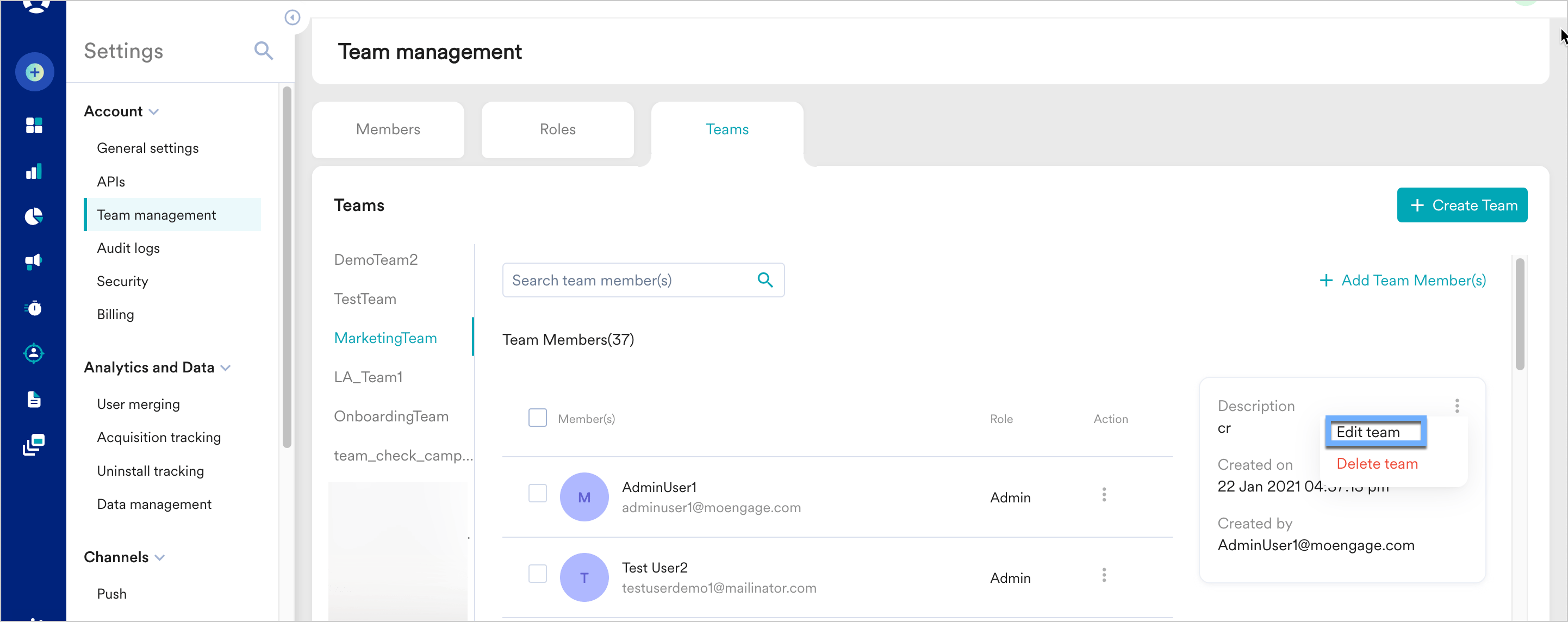 4. Click **Edit team**. The **Edit team** page is displayed.
5. You can edit the **Team Name**, **Description**, and targeting criteria.
6. Click **Save**. You will be prompted for confirmation.
4. Click **Edit team**. The **Edit team** page is displayed.
5. You can edit the **Team Name**, **Description**, and targeting criteria.
6. Click **Save**. You will be prompted for confirmation.
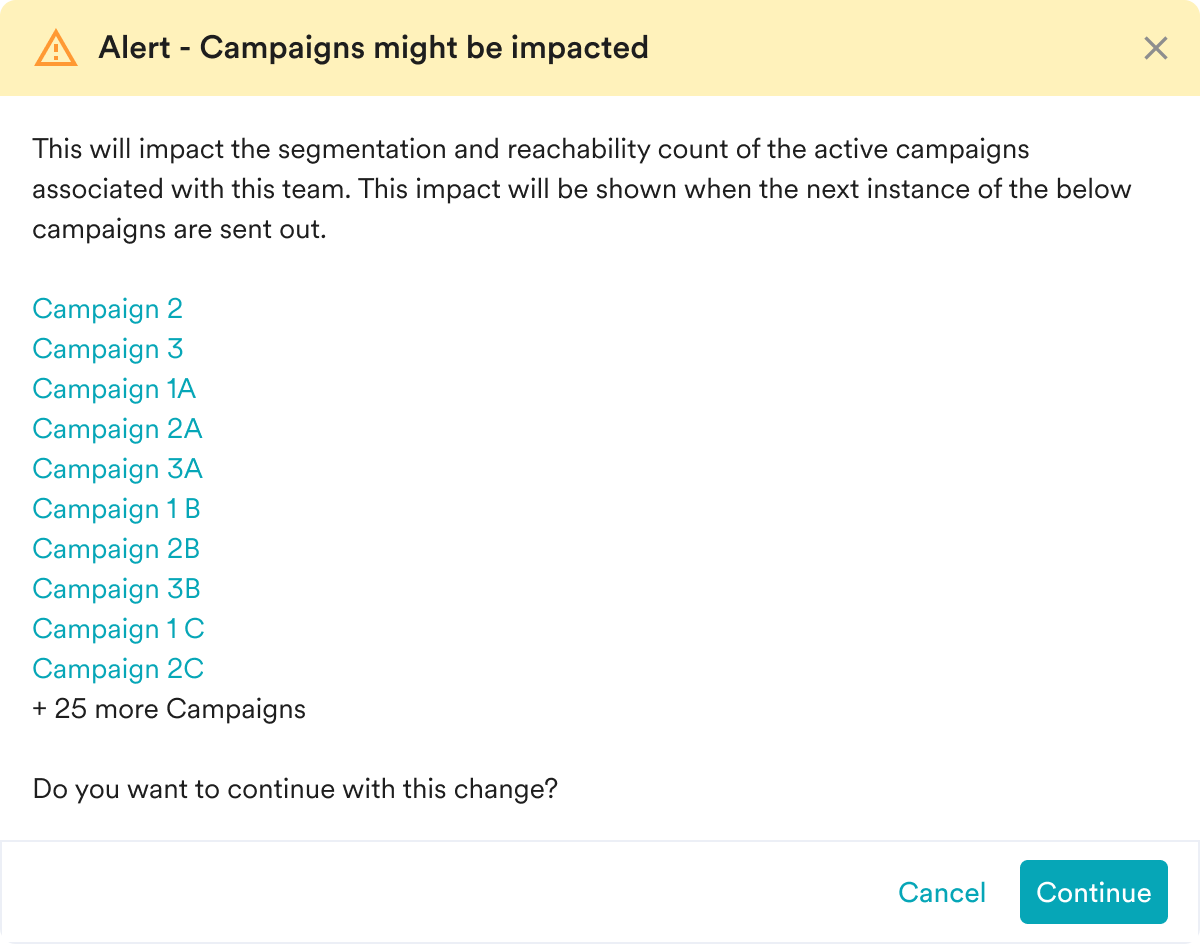 7. Note that editing a team's targeting criteria impacts active campaigns in their next run. For example, your current target segment for the team is users in two countries, France and Belgium. If you remove users in Belgium from this target user set by editing the segment criteria, the user base targeted in the next run of your active campaigns will be impacted (only users in France will be targeted for the campaigns run by the team).
# Remove a Team
Follow the steps below to remove a team:
1. Navigate to **Settings** > **Account** > **Team management** > **Teams**.
2. Select the relevant team from the left navigation menu that you want to delete.
3. Click on the vertical ellipsis icon beside **Description**.
4. Click **Delete team**. You are prompted for confirmation and notified of the following:
* When you delete a team, its campaigns and custom segments are moved to the default team.
* The team members of your team will be moved to the default team.
* All campaigns in the active state for your current team will be paused.
* A list of active campaigns for the team is listed. You can download this list as a CSV file by clicking **Download**. You can click the individual hyperlinks for each of the active campaigns to see the campaign's analytics and info.
7. Note that editing a team's targeting criteria impacts active campaigns in their next run. For example, your current target segment for the team is users in two countries, France and Belgium. If you remove users in Belgium from this target user set by editing the segment criteria, the user base targeted in the next run of your active campaigns will be impacted (only users in France will be targeted for the campaigns run by the team).
# Remove a Team
Follow the steps below to remove a team:
1. Navigate to **Settings** > **Account** > **Team management** > **Teams**.
2. Select the relevant team from the left navigation menu that you want to delete.
3. Click on the vertical ellipsis icon beside **Description**.
4. Click **Delete team**. You are prompted for confirmation and notified of the following:
* When you delete a team, its campaigns and custom segments are moved to the default team.
* The team members of your team will be moved to the default team.
* All campaigns in the active state for your current team will be paused.
* A list of active campaigns for the team is listed. You can download this list as a CSV file by clicking **Download**. You can click the individual hyperlinks for each of the active campaigns to see the campaign's analytics and info.
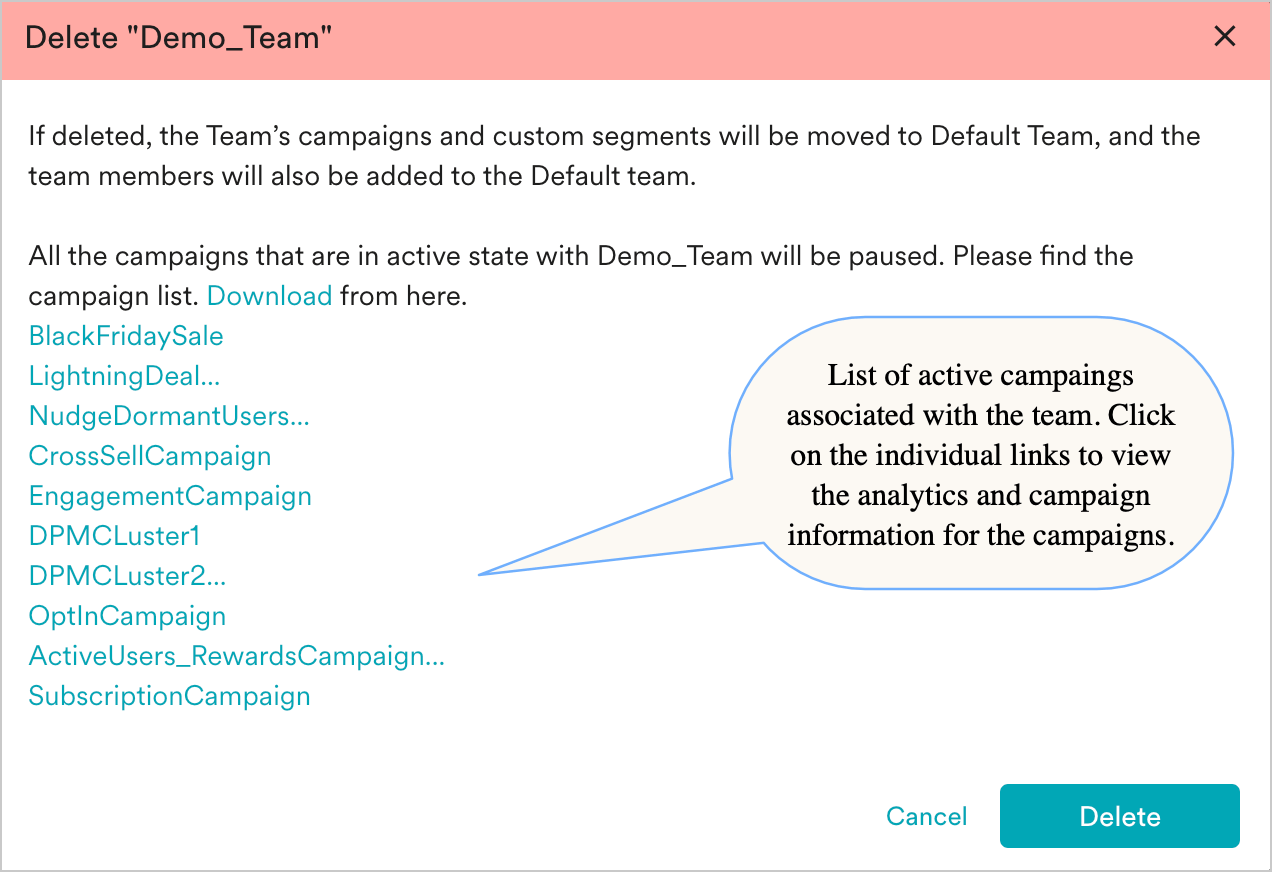 5. Click **Delete** to delete the team.
# Team Select and Filter with Segments
## Create Segments with a Team-Based Filter
After [creating Teams](https://moengage-user-guide.mintlify.app/user-guide/settings/account/team-management/teams-in-moengage#create-a-new-team), follow the below steps to create segments based on the teams you created.
1. Log in to the MoEngage dashboard.
2. Navigate to **Segments** > **Create Segments**.
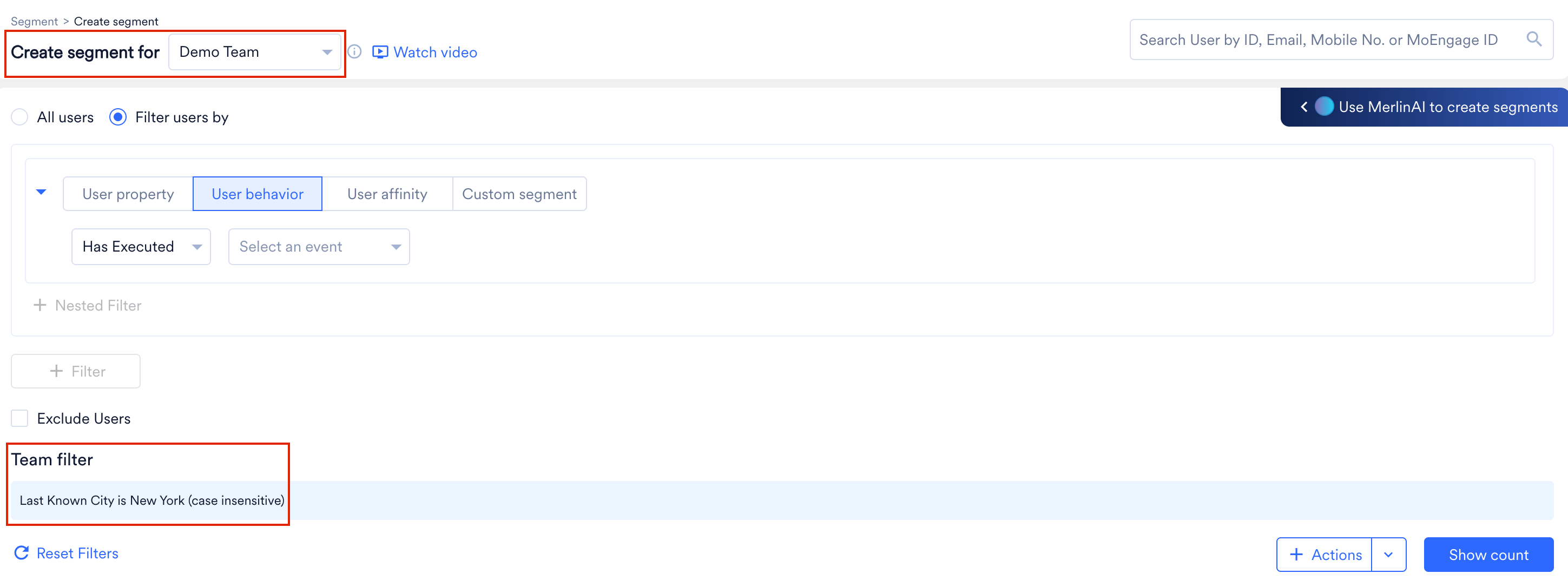
3. You can select the teams you are a member of from the **Create segment for** drop-down list at the top. When selected, the team-based filter is applied to the segment you are creating. The team name can be any.\
For example, in the image below, the Team *Test brand* is selected, and the targeting criteria for the *Test-brand* team are automatically applied to the segment. This creates a segment targeted to *Test-brand,* which also fulfills the **Filter users by** condition.
4. If you select **All users**, the segment targets users in the selected Team.
5. Click **Delete** to delete the team.
# Team Select and Filter with Segments
## Create Segments with a Team-Based Filter
After [creating Teams](https://moengage-user-guide.mintlify.app/user-guide/settings/account/team-management/teams-in-moengage#create-a-new-team), follow the below steps to create segments based on the teams you created.
1. Log in to the MoEngage dashboard.
2. Navigate to **Segments** > **Create Segments**.
3. You can select the teams you are a member of from the **Create segment for** drop-down list at the top. When selected, the team-based filter is applied to the segment you are creating. The team name can be any.\
For example, in the image below, the Team *Test brand* is selected, and the targeting criteria for the *Test-brand* team are automatically applied to the segment. This creates a segment targeted to *Test-brand,* which also fulfills the **Filter users by** condition.
4. If you select **All users**, the segment targets users in the selected Team.
 5. Proceed to the next steps of creating the segment. For more information, refer to [Create Segments](/user-guide/segment/segment-operations/rule-based-filter-segments).
## View Segments Based on Selected Team
MoEngage allows you to view the segments based on teams created. Follow the steps below to view segments based on the team selected.
1. Log in to the MoEngage dashboard.
2. Navigate to **Segments** > **All Segments**.
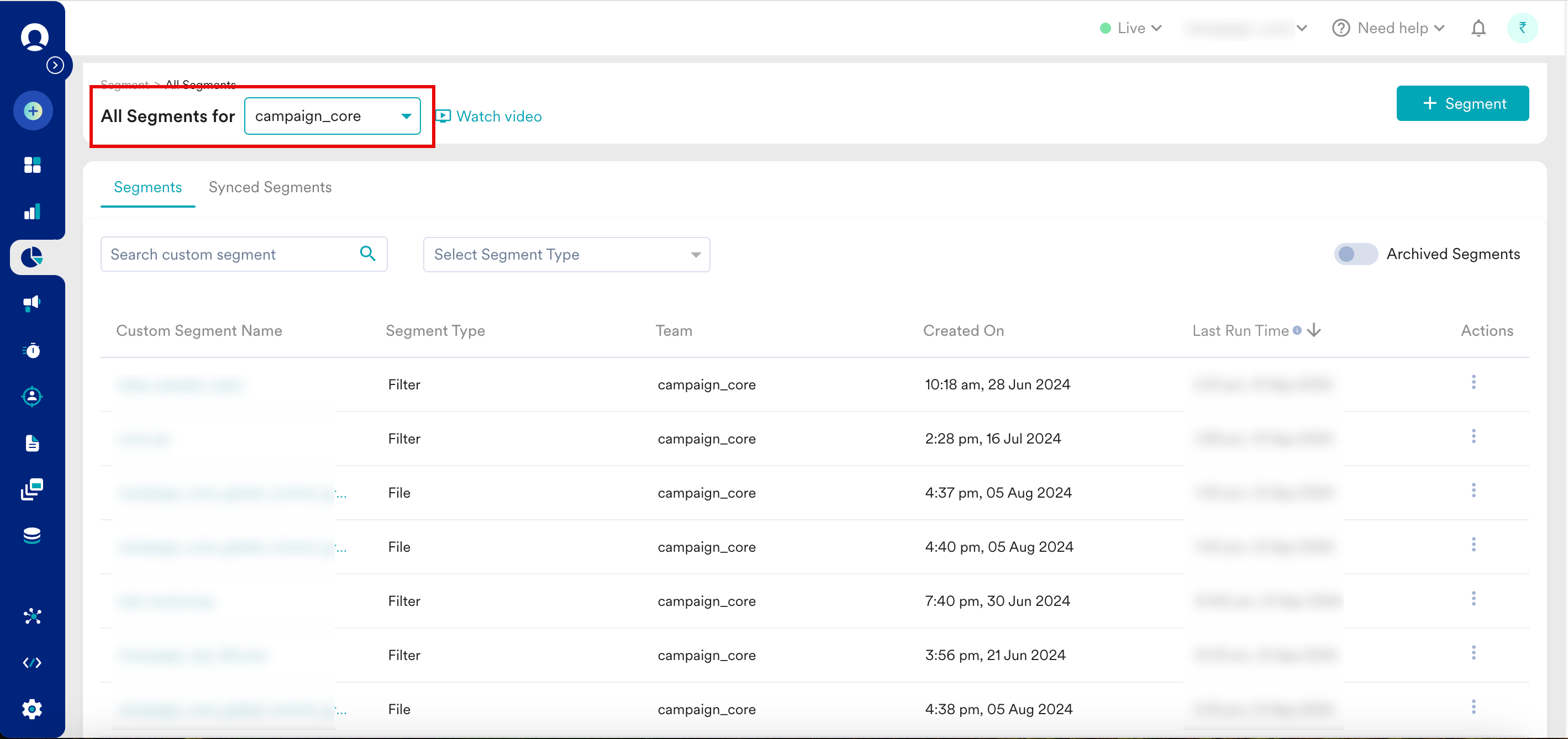
3. You can select Teams in which you are a member from the **All Segments for** drop-down at the top. All the segments valid for that Team are listed.
5. Proceed to the next steps of creating the segment. For more information, refer to [Create Segments](/user-guide/segment/segment-operations/rule-based-filter-segments).
## View Segments Based on Selected Team
MoEngage allows you to view the segments based on teams created. Follow the steps below to view segments based on the team selected.
1. Log in to the MoEngage dashboard.
2. Navigate to **Segments** > **All Segments**.
3. You can select Teams in which you are a member from the **All Segments for** drop-down at the top. All the segments valid for that Team are listed.
 # Team Select and Filter with Analytics
## Create Analysis with a Team-Based Filter
After [creating Teams](/user-guide/settings/account/team-management/teams-in-moengage), follow these steps to create and view analyses based on the teams you are part of.
1. Navigate to **Analyze** and select any Analytics category (for example, **Behavior**, **Funnels**, or **Retention**).
2. At the top of the page, select a team from the list. Only teams you are a member of are visible.
# Team Select and Filter with Analytics
## Create Analysis with a Team-Based Filter
After [creating Teams](/user-guide/settings/account/team-management/teams-in-moengage), follow these steps to create and view analyses based on the teams you are part of.
1. Navigate to **Analyze** and select any Analytics category (for example, **Behavior**, **Funnels**, or **Retention**).
2. At the top of the page, select a team from the list. Only teams you are a member of are visible.
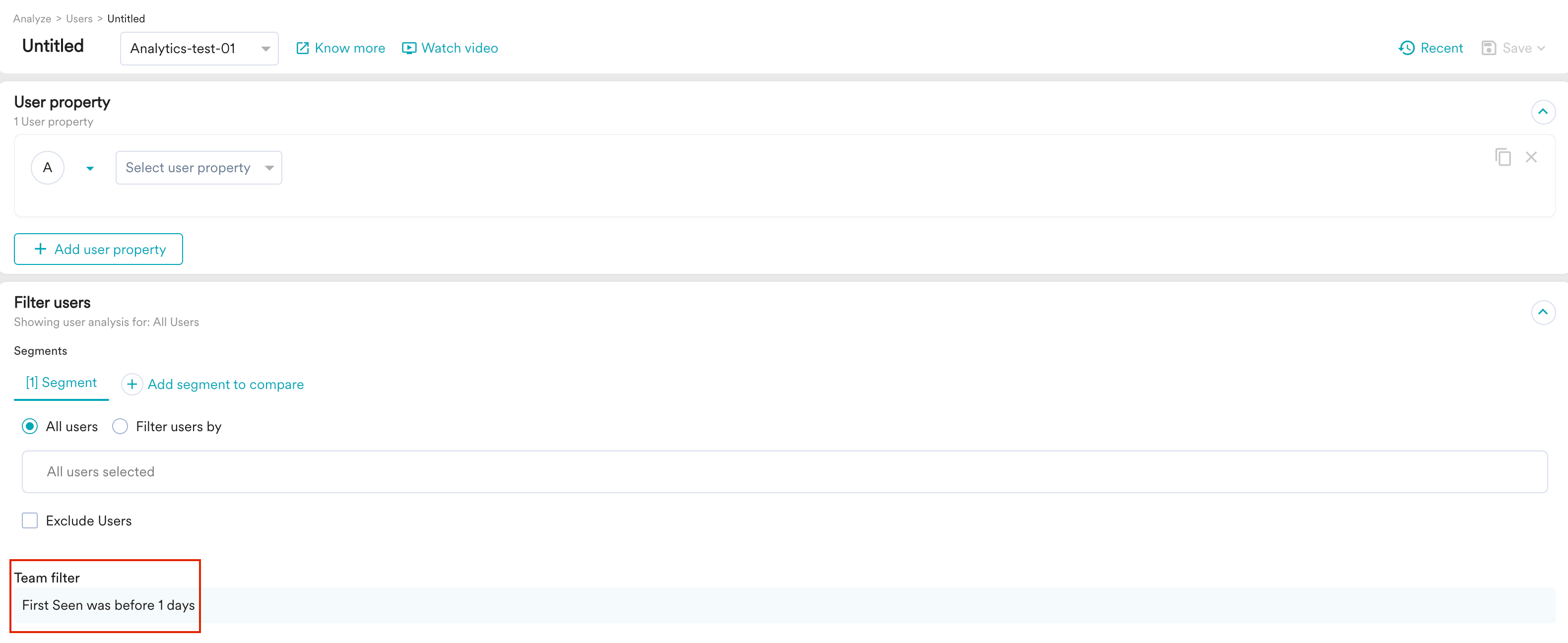
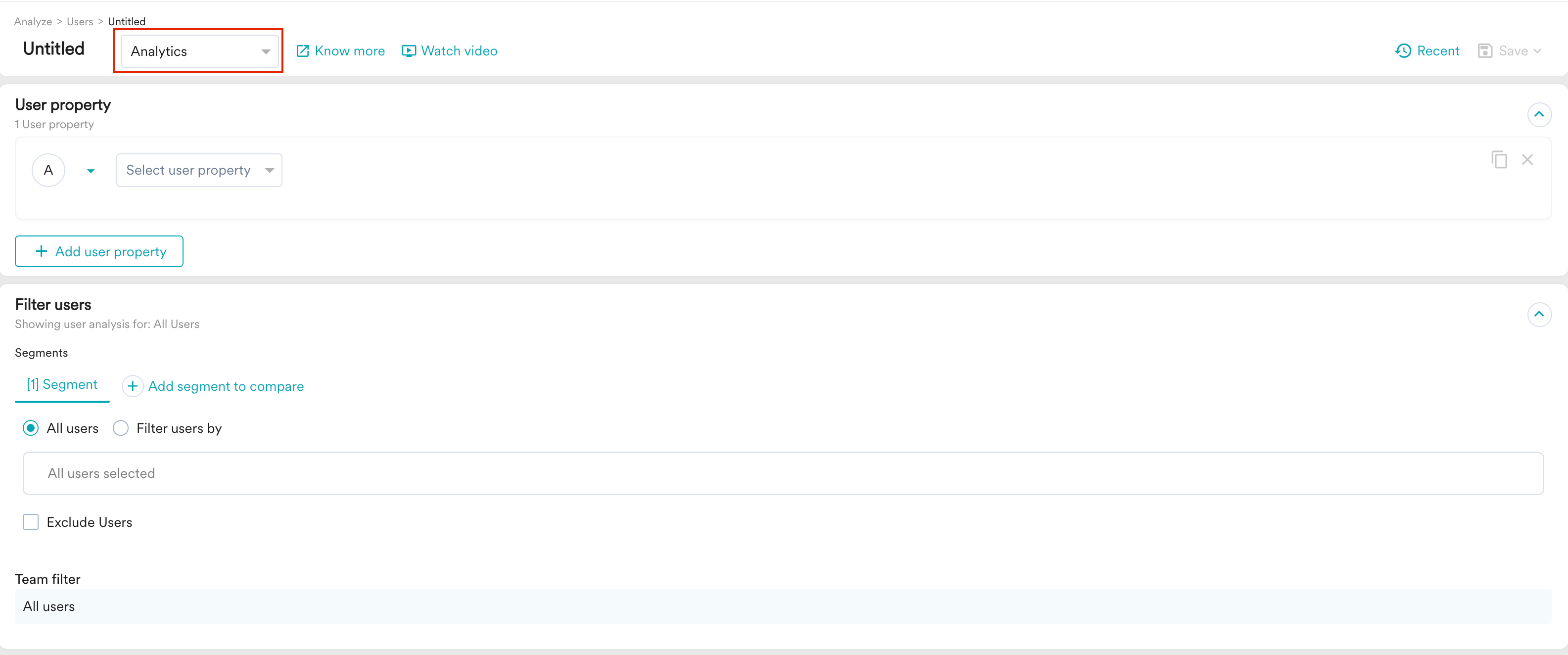 After you select a team, its targeting criteria are applied as a filter to your analysis. Any analysis you create considers only users who match the selected team's definition.
 ## Impact on Custom Dashboards
You can filter custom dashboards by the selected team.
* **Viewing dashboards**: When you select a team, you see the Workspace, Private, and Shared dashboards associated with that team. You cannot view a dashboard created for a team you are not a part of.
* **Workspace dashboards**: These dashboards have the team's criteria automatically applied. You can be view, edit, and share them among members of the same team.
* **Private dashboards**: These dashboards also have the team criteria automatically applied. You can share a private dashboard only with members of the same team.
* **Dashboard filters**: Applying a dashboard-level filter works with the team filter. The dashboard filter overrides any existing analysis-level filters, but the team's core targeting criteria are always applied.
## Impact on Dashboard Subscriptions
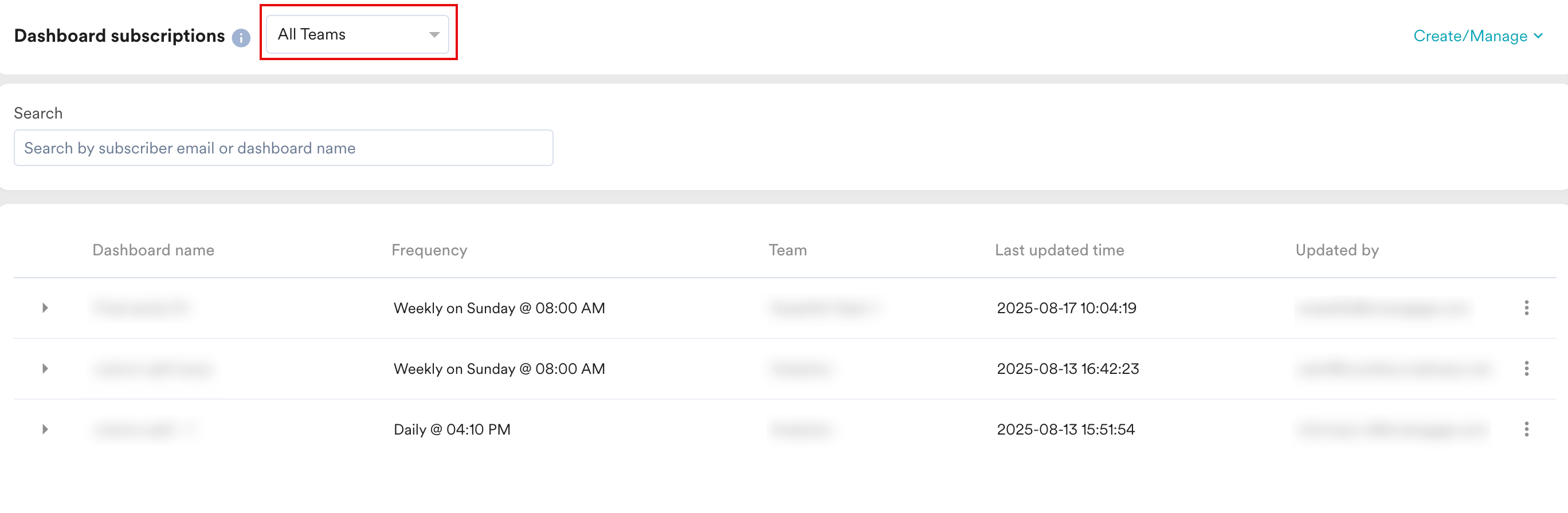
The Dashboard subscriptions page also has a Teams selector. Here, you can view the list of subscriptions for workspace and private dashboards filtered by teams.
## Impact on Custom Dashboards
You can filter custom dashboards by the selected team.
* **Viewing dashboards**: When you select a team, you see the Workspace, Private, and Shared dashboards associated with that team. You cannot view a dashboard created for a team you are not a part of.
* **Workspace dashboards**: These dashboards have the team's criteria automatically applied. You can be view, edit, and share them among members of the same team.
* **Private dashboards**: These dashboards also have the team criteria automatically applied. You can share a private dashboard only with members of the same team.
* **Dashboard filters**: Applying a dashboard-level filter works with the team filter. The dashboard filter overrides any existing analysis-level filters, but the team's core targeting criteria are always applied.
## Impact on Dashboard Subscriptions
The Dashboard subscriptions page also has a Teams selector. Here, you can view the list of subscriptions for workspace and private dashboards filtered by teams.
 ## Impact on My Studio
You can view the analyses filtered by teams in the My Studio page.
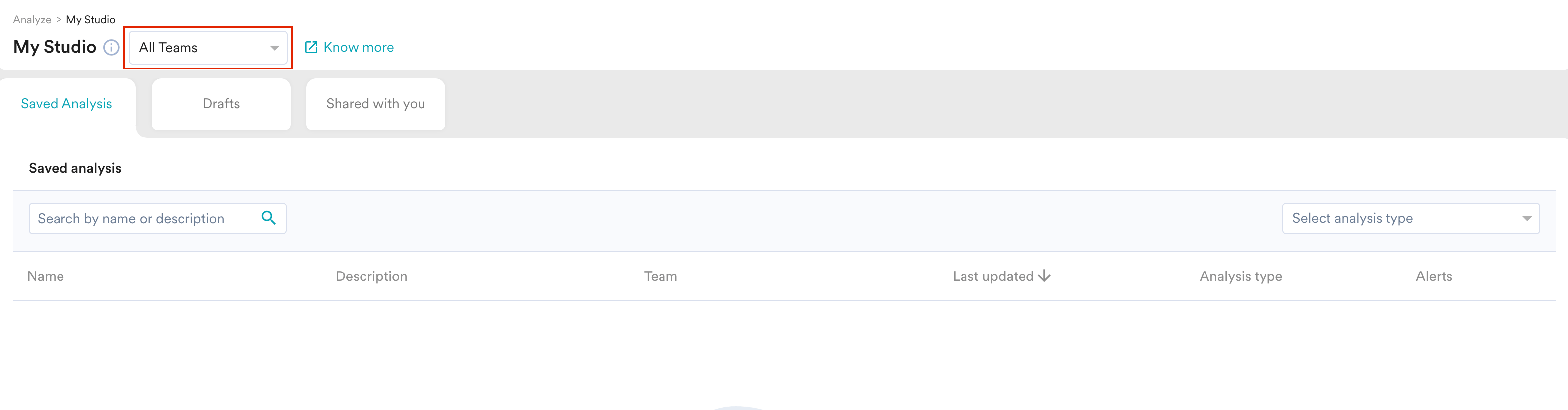
* A team drop-down is available at the top of the **My Studio** page. The view in the **Saved Analysis**, **Drafts**, and **Shared with you** tabs is updated based on the selected team.
## Impact on My Studio
You can view the analyses filtered by teams in the My Studio page.
* A team drop-down is available at the top of the **My Studio** page. The view in the **Saved Analysis**, **Drafts**, and **Shared with you** tabs is updated based on the selected team.
 * When you save an analysis, it is associated with the currently selected team.
* You can share saved analysis or add collaborators only from within the same team.
When the Teams feature is enabled, all existing saved analyses, shared analyses, and custom dashboards are automatically assigned to the **Default team** configured in the **Team management** section of the **Settings** page.
# Team Select and Filter with Campaigns
## Create Campaigns with Team-Based Filter
After [creating Teams](/user-guide/settings/account/team-management/teams-in-moengage), follow the below steps to create campaigns based on the Teams you created.
1. Log in to MoEngage **Create New** > **Campaign**.
2. Select any campaign you want to create. For the channels with team support, refer to [Channels with Teams Support](/user-guide/settings/account/team-management/teams-20-in-moengage#impact-on-my-studio).
3. In the Step 1-**Target Users** page, select a team from the **Teams** drop-down list.\
* When you save an analysis, it is associated with the currently selected team.
* You can share saved analysis or add collaborators only from within the same team.
When the Teams feature is enabled, all existing saved analyses, shared analyses, and custom dashboards are automatically assigned to the **Default team** configured in the **Team management** section of the **Settings** page.
# Team Select and Filter with Campaigns
## Create Campaigns with Team-Based Filter
After [creating Teams](/user-guide/settings/account/team-management/teams-in-moengage), follow the below steps to create campaigns based on the Teams you created.
1. Log in to MoEngage **Create New** > **Campaign**.
2. Select any campaign you want to create. For the channels with team support, refer to [Channels with Teams Support](/user-guide/settings/account/team-management/teams-20-in-moengage#impact-on-my-studio).
3. In the Step 1-**Target Users** page, select a team from the **Teams** drop-down list.\
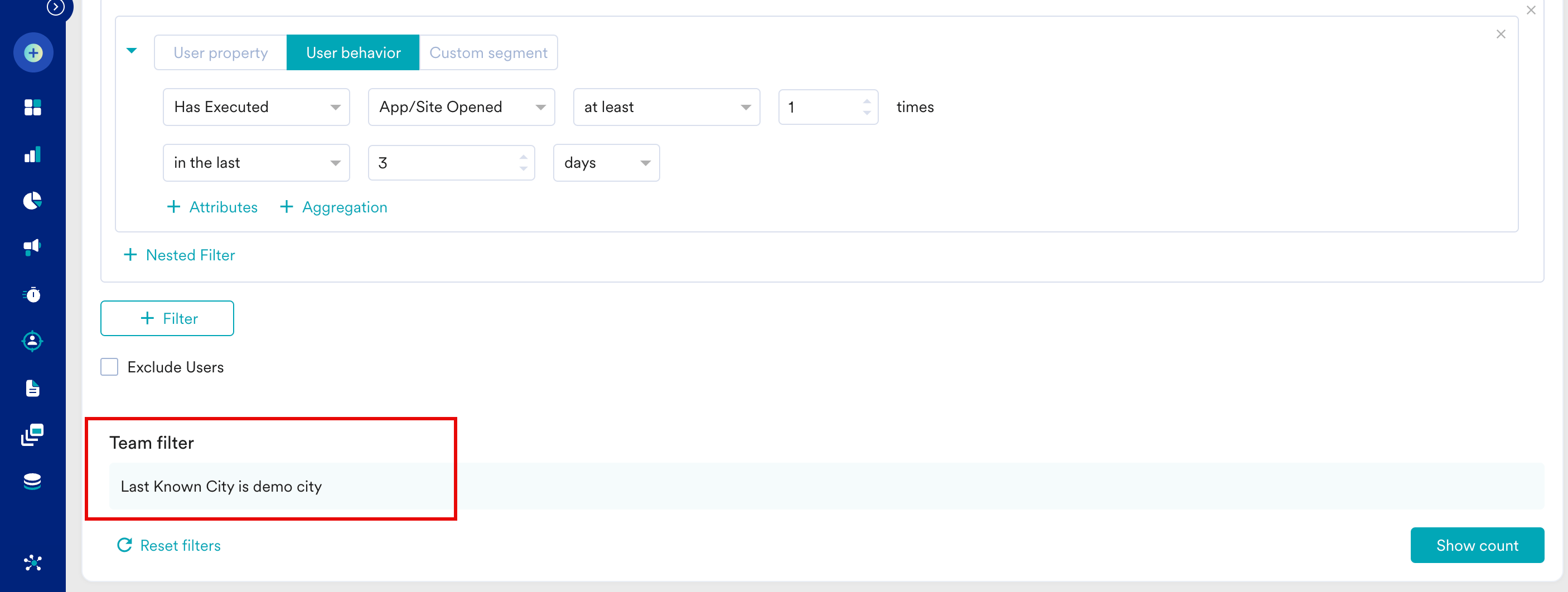
 After the team is selected, the team-based filter is applied to the campaign you are creating. For example, in the image below, the Team *Test brand* is selected, and the targeting criteria for the *Test brand* team are automatically applied to the campaign. This creates a campaign that is targeted to *core-users* which fulfills the **Filter users by** condition under the **Select users** section.
4. If you select **All users**, the campaign targets users on the selected team.
After the team is selected, the team-based filter is applied to the campaign you are creating. For example, in the image below, the Team *Test brand* is selected, and the targeting criteria for the *Test brand* team are automatically applied to the campaign. This creates a campaign that is targeted to *core-users* which fulfills the **Filter users by** condition under the **Select users** section.
4. If you select **All users**, the campaign targets users on the selected team.
 5. Proceed to the next steps of creating campaigns based on the campaign type.
## View Campaigns Based on the Selected Team
MoEngage allows you to view the campaigns based on teams created. Follow the steps below to view campaigns based on the team selected.
1. Log in to the MoEngage dashboard.
2. Navigate to **Engage** > **Campaigns**.
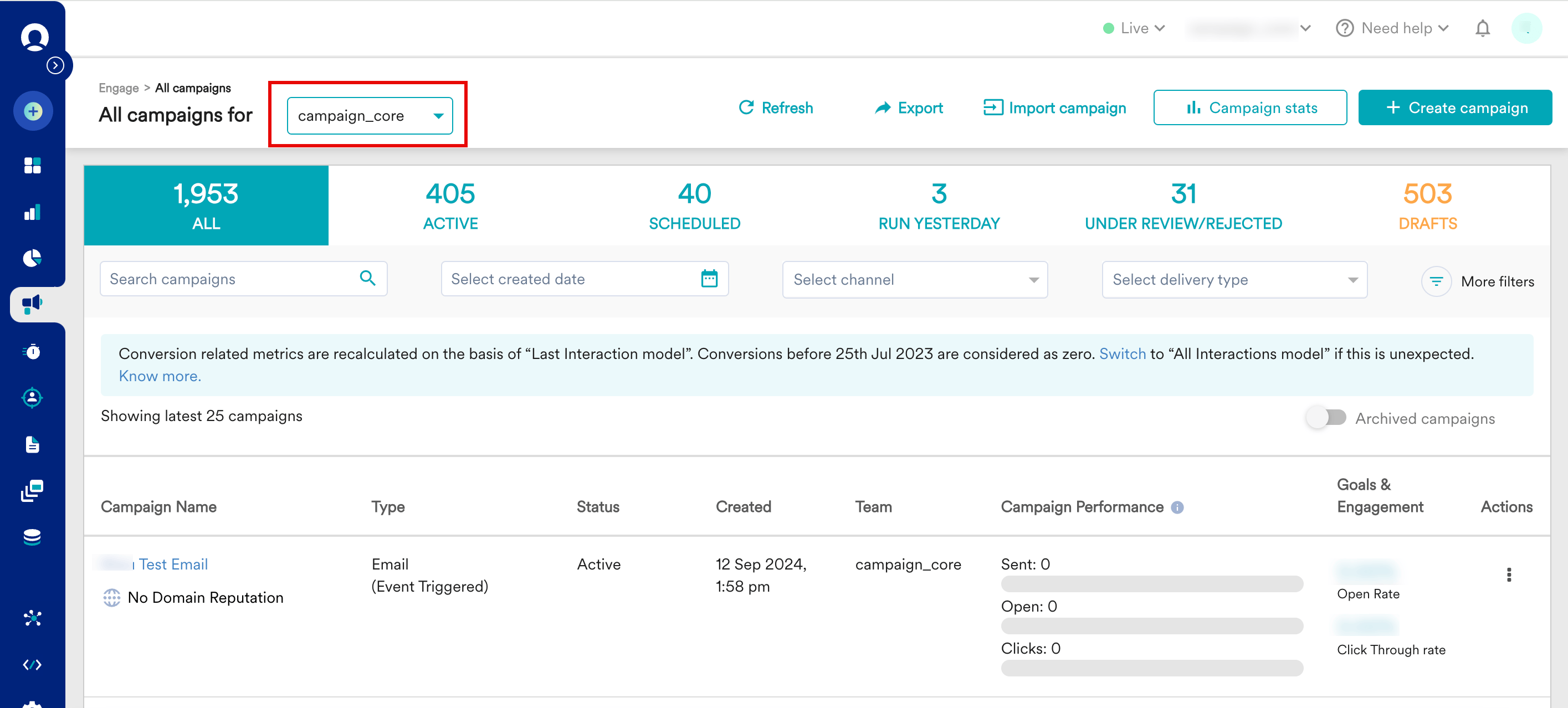
3. On the **All campaigns** page, select teams in which you are a member from the **All campaigns for** drop-down list at the top. All the campaigns valid for that team are listed.
5. Proceed to the next steps of creating campaigns based on the campaign type.
## View Campaigns Based on the Selected Team
MoEngage allows you to view the campaigns based on teams created. Follow the steps below to view campaigns based on the team selected.
1. Log in to the MoEngage dashboard.
2. Navigate to **Engage** > **Campaigns**.
3. On the **All campaigns** page, select teams in which you are a member from the **All campaigns for** drop-down list at the top. All the campaigns valid for that team are listed.
 # Features with Teams Support
The table below lists the support for Teams 2.0 across different features.
| Feature/Channel | Support for Teams 2.0 |
| --------------------------------------------------------------------------- | --------------------- |
| Analytics (Behavior, Funnels, Retention, Session & Source, User Paths, RFM) | Yes |
| Custom Dashboards | Yes |
| My Studio | Yes |
| Push | Yes |
| SMS & RCS | Yes |
| Email | Yes |
| WhatsApp | Yes |
| In-app | Yes |
| OSM | Yes |
| Flows | Yes |
| Default Dashboards (Key Metrics, Campaign Stats, etc.) | No |
| Analytics (Uninstall, Acquisition) | No |
| Cards | No |
| Facebook | No |
| Google Ads | No |
| Connectors | No |
# Features with Teams Support
The table below lists the support for Teams 2.0 across different features.
| Feature/Channel | Support for Teams 2.0 |
| --------------------------------------------------------------------------- | --------------------- |
| Analytics (Behavior, Funnels, Retention, Session & Source, User Paths, RFM) | Yes |
| Custom Dashboards | Yes |
| My Studio | Yes |
| Push | Yes |
| SMS & RCS | Yes |
| Email | Yes |
| WhatsApp | Yes |
| In-app | Yes |
| OSM | Yes |
| Flows | Yes |
| Default Dashboards (Key Metrics, Campaign Stats, etc.) | No |
| Analytics (Uninstall, Acquisition) | No |
| Cards | No |
| Facebook | No |
| Google Ads | No |
| Connectors | No |